
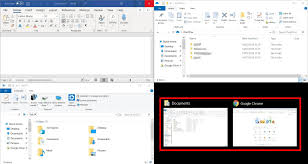
How to Duplicate a Monitor on Pc: A Step-by-step Guide
Are you tired of having multiple monitors cluttering up your workspace? Do you want to be able to use one monitor while keeping another free for other tasks or projects? If so, then duplicating a monitor on your PC is the perfect solution. In this article, we will guide you through the process of duplicating a monitor on your PC, whether you’re using Windows 10 or macOS.
What You’ll Need
Before we begin, let’s take a look at what you’ll need to get started:
- A secondary monitor (or TV)
- A cable to connect the two monitors (HDMI, DisplayPort, or VGA)
- A computer with a working operating system (Windows 10 or macOS)
Connecting Your Monitors
The first step in duplicating a monitor on your PC is to connect the secondary monitor to your computer. You’ll need to use a cable that matches the type of connection on both devices. Here are some common types of cables:
- HDMI: This is one of the most common types of cables, and it’s perfect for connecting monitors with high-definition resolutions.
- DisplayPort: This type of cable is great for connecting multiple monitors at once, and it’s often used in gaming computers.
- VGA: This type of cable is a bit older, but it’s still widely used. It’s perfect for connecting older monitors or projectors.
Setting Up Your Monitors
Once you’ve connected your secondary monitor to your computer, it’s time to set up the display settings on both devices. Here’s how:
- Windows 10:
- Click on the Start menu and select “Settings”
- Scroll down to “System” and click on it
- Select “Display” from the left-hand menu
- Choose the resolution you want for your primary monitor
- Click on “Apply” to save your changes
- MacOS:
- Click on the Apple logo in the top-left corner of your screen and select “System Preferences”
- Click on “Displays” from the left-hand menu
- Select the resolution you want for your primary monitor
- Click on “OK” to save your changes
Duplicating Your Monitor
Now that you’ve set up your display settings, it’s time to duplicate your monitor. Here’s how:
- Windows 10:
- Press the Windows key + P on your keyboard to open the projection menu
- Select “Duplicate” from the options menu
- Choose which monitor you want to duplicate (your primary or secondary monitor)
- MacOS:
- Click on the Apple logo in the top-left corner of your screen and select “System Preferences”
- Click on “Displays” from the left-hand menu
- Select the option to duplicate your primary monitor
Tips And Tricks
Here are a few tips and tricks to keep in mind when duplicating a monitor on your PC:
- Make sure you’re using the correct cable for both monitors.
- Ensure that both monitors are turned off before connecting them to your computer.
- If you’re having trouble setting up your display settings, try restarting your computer.
Wireless Display Options
If you don’t want to use cables to connect your secondary monitor, there are a few wireless display options available. Here are some popular ones:
- Google Chromecast: This is a great option for streaming content from your PC to your TV.
- Apple AirPlay: This is a wireless display option that’s built into many Macs and iOS devices.
Conclusion
Duplicating a monitor on your PC can be a bit tricky, but it’s worth the effort. With these steps and tips, you should be able to set up multiple monitors in no time. Whether you’re using Windows 10 or macOS, duplicating a monitor is a great way to increase productivity and multitask like a pro.
Faqs
Here are some frequently asked questions about duplicating a monitor on your PC:
- What Type of Cable do I Need to Connect my Secondary Monitor?
You’ll need an HDMI, DisplayPort, or VGA cable to connect your secondary monitor. - How do I Set up my Display Settings For Multiple Monitors?
To set up your display settings, go to Settings (Windows 10) or System Preferences (macOS), and select “Display” from the left-hand menu. - Can I Use a Wireless Display Option Instead of Cables?
Yes, you can use Google Chromecast, Apple AirPlay, or other wireless display options to stream content from your PC to your TV. - How do I Duplicate my Monitor in Windows 10?
Press the Windows key + P on your keyboard to open the projection menu, and select “Duplicate” from the options menu. - Can I Use Multiple Monitors With a Mac?
Yes, you can use multiple monitors with a Mac by following these steps: Connect your secondary monitor to your computer using an HDMI or DisplayPort cable. Set up your display settings for both monitors in System Preferences.
Recommended Products
Here are some recommended products that can help you set up and duplicate your monitor:
- Google Chromecast: This is a great wireless display option that’s perfect for streaming content from your PC to your TV.
- Apple Airplay: This is a built-in wireless display option on many Macs and iOS devices, making it easy to share content with multiple screens.
- Displayport Cables: These are perfect for connecting multiple monitors at once, and they’re often used in gaming computers.
Final Thoughts
Duplicating a monitor on your PC can be a bit tricky, but it’s worth the effort. With these steps and tips, you should be able to set up multiple monitors in no time. Whether you’re using Windows 10 or macOS, duplicating a monitor is a great way to increase productivity and multitask like a pro.
Recommended Reading
- “How to Set Up Multiple Monitors on Your Pc”: This article from Lifewire provides step-by-step instructions for setting up multiple monitors on your PC.
- “The Best Wireless Display Options For Your Pc”: This article from Tom’s Hardware reviews the best wireless display options for your PC, including Google Chromecast and Apple AirPlay.
- “How to Duplicate a Monitor in Macos”: This article from CNET provides instructions for duplicating a monitor on a Mac.


