
How to Change Your Name on Fall Guys
Are you tired of having a name that’s not exactly what you want it to be on Fall Guys? Look no further! In this tutorial, we’ll guide you through the steps to change your name on Fall Guys across different platforms, including PC, Nintendo Switch, PS4/PS5, and Xbox.
Understanding Fall Guys’ Name System
Before we dive into the nitty-gritty of changing your name, it’s essential to understand how Fall Guys handles names. On PC, your nickname is tied to your Epic Games account, which means that you’ll need to modify your account settings before making any changes to your in-game name.
Changing Your Name on Fall Guys (PC)
- Accessing The Epic Games Website: Open a web browser and navigate to the official Epic Games website.
- Logging In: Click on the “Log In” button at the top right corner of the screen and enter your credentials to access your account.
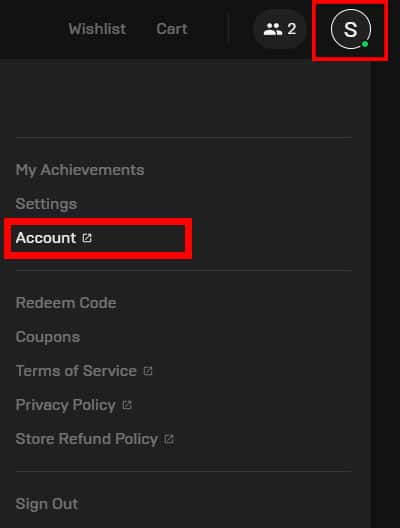
- Account Settings: Once logged in, click on the profile picture icon at the top right corner of the screen and select “Account.”
- Name Settings: From the Account page, scroll down to the “Settings” section and click on the pencil icon next to the “Name” field.
- Editing Your Name: Type in your new name in the provided box, ensuring it meets Epic Games’ guidelines (more on that later). Make sure to review your changes carefully before proceeding.
Important Note:
When changing your name on Fall Guys, keep in mind that you can only change it once every 2 weeks from the date of the modification. Ensure that you’ve entered your new nickname correctly before confirming the changes.
Changing Your Name on Fall Guys (Nintendo Switch)
If you’re playing Fall Guys on Nintendo Switch, things are a bit different. Since your nickname is tied to your Epic Games account, you’ll still need to access the Epic Games website and modify your account settings as per the previous instructions.
Changing Your Name on Fall Guys (PS4/PS5)
On PS4 or PS5, Fall Guys uses your PlayStation Network (PSN) ID to display your nickname. To change it:
- Accessing The Psn Website: Visit the official PSN website and log in with your account credentials.
- Account Management: From the main menu, navigate to “Account” > “Profile.”
- Name Modification: In the Profile section, click on the “Modify” button next to your ID online (this is your nickname).
- Editing Your Name: Type in your new name and save the changes.
Changing Your Name on Fall Guys (Xbox)
If you’re playing Fall Guys on Xbox, you’ll need to modify your Gamertag, which is tied to your Microsoft account:
- Accessing The Xbox Website: Visit the official Xbox website and log in with your account credentials.
- Account Management: From the main menu, navigate to “Account” > “Profile.”
- Name Modification: In the Profile section, click on the “Modify” button next to your Gamertag (this is your nickname).
- Editing Your Name: Type in your new name and save the changes.
Tips And Reminders:
- When modifying your name on Fall Guys, ensure that it meets Epic Games’ guidelines.
- Be aware of any additional fees associated with changing your name on certain platforms (PS4/PS5 and Xbox).
- Take your time to review your changes carefully before confirming them.
By following these step-by-step guides, you’ll be able to change your name on Fall Guys across different platforms. Remember to keep an eye out for any updates or changes to the game’s policies regarding nicknames!


