
How to Search a Photo on Google From Your Mobile Device
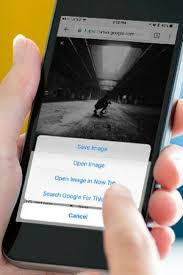
Are you tired of searching for images on Google using only keywords? Do you want to find photos that are similar to the one you have in mind? Look no further! In this article, we will show you how to search a photo on Google from your mobile device.
Searching Images With Keywords
The first way to search for images on Google is by using keywords. This method is straightforward and works well if you know what you’re looking for. Here’s how it works:
- Open the Google Image search page on your mobile browser.
- Type in the keyword or phrase related to the image you want to find.
- Tap on the magnifying glass icon to start the search.
- Google will display a list of images that match your search query.
Reverse Image Search
But what if you don’t have a specific keyword in mind? What if you’re looking for an image that’s similar to one you’ve seen before? That’s where reverse image search comes in.
Using Google Images’ Reverse Image Search Feature
Google Images has a built-in feature that allows you to upload an image and find similar ones. Here’s how it works:
- Open the Google Image search page on your mobile browser.
- Tap on the camera icon to upload an image from your gallery or take a new photo.
- Select the image you want to use for reverse image search.
- Tap on the “Search” button to start the process.
- Google will display a list of images that are similar to the one you uploaded.
Alternative Ways to Search Images
If you’re not using Google Images, there are other ways to search for images online. Here are a few alternatives:
- Reverse Image Search (Online): This service allows you to upload an image and find similar ones without needing to use Google Images.
- Search by Image (Android): This app uses the same reverse image search feature as Google Images but is designed specifically for Android devices.
- Reversee (iOS): This app uses the same reverse image search feature as Search by Image but is designed specifically for iOS devices.
How to Use These Alternative Services
Using these alternative services is relatively straightforward. Here’s a brief overview of how they work:
- Reverse Image Search (Online): Upload an image to their website, and they’ll display similar images.
- Search by Image (Android): Download the app from the Google Play Store, upload an image, and search for similar ones.
- Reversee (iOS): Download the app from the App Store, upload an image, and search for similar ones.
Tips And Tricks
Here are a few tips to keep in mind when searching for images online:
- Make sure you’re using high-quality images that are clear and well-lit.
- Use specific keywords related to the image you’re looking for.
- Experiment with different reverse image search services to see which one works best for you.
Conclusion
Searching for images on Google from your mobile device is easier than ever. Whether you use the built-in reverse image search feature or an alternative service, finding similar images is just a few taps away. Remember to experiment and try out different methods until you find what you’re looking for!
Frequently Asked Questions (FAQs)
Q: How do I upload an image to Google Images?
A: You can upload an image from your gallery or take a new photo directly on the website.
Q: Can I use reverse image search on other engines besides Google?
A: Yes, some alternative services like Reverse Image Search (Online) and Search by Image (Android) allow you to use their feature on other engines.
Q: How do I save an image from my mobile device for later use?
A: You can save an image directly from the gallery or by using a screenshot app.
Q: Can I use these alternative services on my tablet or desktop computer?
A: Yes, most of these services have web-based versions that you can access on your tablet or desktop computer.
Further Reading
If you’re interested in learning more about reverse image search and other related topics, here are some further reading suggestions:
- “How to Use Reverse Image Search on Google Images”
- “Alternative Ways to Search for Images Online”
- “Tips and Tricks for Using Reverse Image Search”
Disclaimer
Please note that some of these services may have specific requirements or limitations when using them on mobile devices. Be sure to check their terms of service before using any of these alternatives.


