
How to Disable Automatic Updates on Windows 10: A Step-by-step Guide
Are you tired of dealing with pesky automatic updates on your Windows 10 computer? Do you want to take control of when and how your operating system is updated? Look no further! In this article, we’ll show you how to disable automatic updates on Windows 10, as well as some alternative methods to customize your update experience.
Why Disable Automatic Updates?
Before we dive into the steps, let’s quickly discuss why you might want to disable automatic updates. While Microsoft encourages users to keep their operating system up-to-date for security and stability reasons, there are situations where automatic updates can cause problems. For example:
- You may be using a computer that’s not connected to the internet or has limited bandwidth.
- Automatic updates can sometimes cause conflicts with other software or hardware on your system.
- If you’re a power user who wants more control over when and how updates are applied, disabling automatic updates might be a good option for you.
Method 1: Disable Windows Update Via Settings
The easiest way to disable automatic updates is by using the built-in settings app. Here’s how:
- Click on the Start button and select Settings.
- In the Settings window, click on Update & Security.
- On the next page, click on Windows Update.
- Scroll down to the Pause Updates For a While section and toggle the switch to On.
- You can also select No for the Notify For Download And Install Updates option to prevent Windows from automatically downloading and installing updates.
Method 2: Disable Windows Update Via Group Policy Editor (only Available in Pro/education Editions)
If you’re running a Pro or Education edition of Windows 10, you can use the Group Policy Editor to disable automatic updates. Here’s how:
- Press the Win+r keys to open the Run dialog box.
- Type
gpedit.Mscand press Enter to open the Local Group Policy Editor. - Navigate to Computer Configuration > Administrative Templates > Windows Components > Windows Update.
- Double-click on Configure Automatic Updates, then select Disabled in the dropdown menu.
Method 3: Disable Windows Update Via Registry Editor (only Available in Pro/education Editions)
If you’re not comfortable with using the Group Policy Editor, you can use the Registry Editor instead. Here’s how:
- Press the Win+r keys to open the Run dialog box.
- Type
regeditand press Enter to open the Registry Editor. - Navigate to
HKEY_LOCAL_MACHINE\Software\Policies\Microsoft\Windows\WindowsUpdate. - If the folder doesn’t exist, create a new key by right-clicking on Windows and selecting New > Key. Name it Windowsupdate.
- Create a new DWORD (32-bit) value under Windowsupdate called
NoAutoUpdate. Set its value to 1.
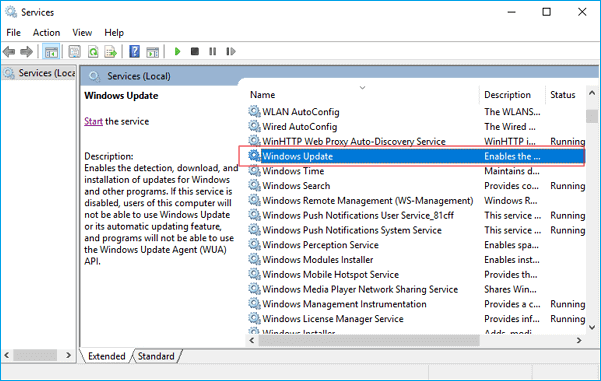
Method 4: Disable Windows Update Via Services
If you want to completely disable the Windows Update service, here’s how:
- Press the Win+r keys to open the Run dialog box.
- Type
services.Mscand press Enter to open the Services window. - Find the Windows Update service in the list.
- Right-click on it and select Stop to disable the service.
Method 5: Disable Windows Update Via Registry Editor (only Available in Pro/education Editions)
If you want to use the Registry Editor instead, here’s how:
- Press the Win+r keys to open the Run dialog box.
- Type
regeditand press Enter to open the Registry Editor. - Navigate to
HKEY_LOCAL_MACHINE\Software\Policies\Microsoft\Windows\WindowsUpdate. - Create a new DWORD (32-bit) value called
NoAutoUpdate. Set its value to 1.
Method 6: Disable Windows Update Via Group Policy Editor (only Available in Pro/education Editions)
If you want to use the Group Policy Editor instead, here’s how:
- Press the Win+r keys to open the Run dialog box.
- Type
gpedit.Mscand press Enter to open the Local Group Policy Editor. - Navigate to Computer Configuration > Administrative Templates > Windows Components > Windows Update.
- Double-click on Configure Automatic Updates, then select Disabled in the dropdown menu.
Conclusion
Disabling automatic updates on Windows 10 is a relatively straightforward process, but it’s essential to be aware of the potential consequences. While disabling updates can save you from unwanted restarts and software conflicts, it may also leave your system vulnerable to security threats. We recommend that you consider the benefits and risks before making a decision.
Frequently Asked Questions (FAQs)
- Q: Why Should I Disable Automatic Updates?
A: You might want to disable automatic updates if you’re using a computer that’s not connected to the internet or has limited bandwidth, or if you’re experiencing software conflicts. - Q: How do I Enable Automatic Updates Again?
A: To re-enable automatic updates, follow the same steps as disabling them and toggle the switch back to On. - Q: Can I Schedule Windows Update to Run at a Specific Time?
A: Yes, you can use the Group Policy Editor or Registry Editor to schedule Windows Update to run at a specific time. - Q: Will Disabling Automatic Updates Affect my Ability to Receive Security Patches?
A: While disabling automatic updates may leave your system vulnerable to security threats, you can still manually update your operating system to ensure that it receives the necessary security patches.
References
- Microsoft Support Website
- Windows Central Website
- TechNet Website


