
How to Format a PC Blocked by Password: A Step-by-step Guide
Are you tired of being locked out of your computer due to a forgotten password? Don’t worry, we’ve got you covered! In this article, we’ll guide you through the process of formatting a PC blocked by password, so you can start fresh and enjoy a hassle-free computing experience.
Why Format Your Computer?
Before we dive into the nitty-gritty of formatting your computer, let’s quickly discuss why it might be necessary. If you’re unable to access your computer due to a lost or forgotten password, formatting it is often the best solution. This will wipe out all data on the primary partition, including any files, programs, and settings.
Types of Passwords
Before we proceed, it’s essential to understand that there are two types of passwords that can block your PC: Windows password and BIOS password.
- Windows Password: This is the most common type of password that can lock you out of your computer. It’s usually required when booting up your PC.
- Bios Password: This type of password is set within the BIOS (Basic Input/Output System) settings, which controls the basic functions of your computer.
Formatting a Windows PC
If you’re unable to access your Windows PC due to a forgotten password, follow these steps:
Step 1: Access The Recovery Environment
- Restart your PC and immediately start pressing the F8 key repeatedly until the Advanced Boot Options menu appears.
- Select the option that says “Safe Mode with Command Prompt” or “Recovery Console.”
- Log in using your administrator account.
Step 2: Run The System Restore Tool
- Open the Command Prompt and type
rstrui.Exeto run the System Restore tool. - Follow the prompts to restore your system to a previous state before the password issue occurred.
Step 3: Format Your Computer
- If System Restore didn’t work, you can try formatting your computer using the built-in Windows utility. To do this:
- Open the Command Prompt and type
shutdown /rto restart your PC. - Press the F8 key repeatedly while booting up to access the Advanced Boot Options menu again.
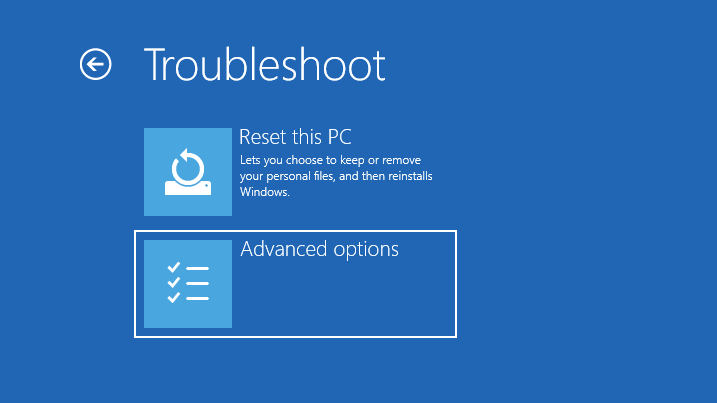
- Select “Repair Your Computer” or “Troubleshoot.”
- Follow the prompts to format your computer.
- Open the Command Prompt and type
Formatting a PC With Usb Recovery Drive
If you have a USB recovery drive created for your Windows installation, follow these steps:
Step 1: Create a Usb Recovery Drive
- Download and install the Media Creation Tool from Microsoft’s official website.
- Use this tool to create a bootable USB drive that contains the necessary files for formatting your PC.
Step 2: Boot Up With The Usb Drive
- Connect the USB recovery drive to your computer.
- Restart your PC and immediately start pressing the F8 key repeatedly until the Advanced Boot Options menu appears.
- Select “Boot from USB device” or “Boot from external device.”
Step 3: Format Your Computer
- Follow the prompts to format your computer using the files on the USB recovery drive.
Formatting a PC With External Hard Drive
If you have an external hard drive that contains a backup of your data, follow these steps:
Step 1: Connect The External Hard Drive
- Connect the external hard drive to your computer.
- Make sure it’s recognized by Windows and has enough space to store all your files.
Step 2: Format Your Computer
- Open the File Explorer and navigate to the “This PC” section.
- Right-click on the external hard drive icon and select “Format.”
- Follow the prompts to format your computer using the external hard drive as a storage device.
Conclusions
Formatting a PC blocked by password can be a straightforward process if you follow the correct steps. Remember to always create backups of your important data before formatting your computer. If you’re unsure about any part of this process, consult our FAQ section below for more information.
Frequently Asked Questions (FAQs)
Q: What is the difference between a Windows password and BIOS password?
A: A Windows password is required when booting up your PC, while a BIOS password is set within the BIOS settings.
Q: Can I format my PC without losing any data?
A: No, formatting your computer will erase all data on the primary partition.
Q: How do I create a USB recovery drive for my Windows installation?
A: Download and install the Media Creation Tool from Microsoft’s official website to create a bootable USB drive that contains the necessary files for formatting your PC.
Q: Can I use an external hard drive to format my PC?
A: Yes, if you have an external hard drive with enough space to store all your files, you can use it as a storage device to format your computer.
Q: Will formatting my PC erase any viruses or malware?
A: No, formatting your computer will only wipe out the data on the primary partition; any viruses or malware may still be present.
Q: How do I access the BIOS settings on my Windows PC?
A: Restart your PC and immediately start pressing the F8 key repeatedly until the Advanced Boot Options menu appears. Select “Boot from USB device” or “Boot from external device.”
Q: Can I recover data from a formatted hard drive?
A: Yes, you can try using data recovery software to retrieve some of your lost files.
Q: How do I prevent my PC from being blocked by password in the future?
A: Make sure to create strong passwords and store them securely. Consider enabling two-factor authentication for added security.
Bonus Tips
- Always create backups of your important data before formatting your computer.
- Use a password manager to generate and store complex passwords.
- Enable two-factor authentication on all accounts for added security.
- Regularly update your Windows installation with the latest patches and security updates.


