
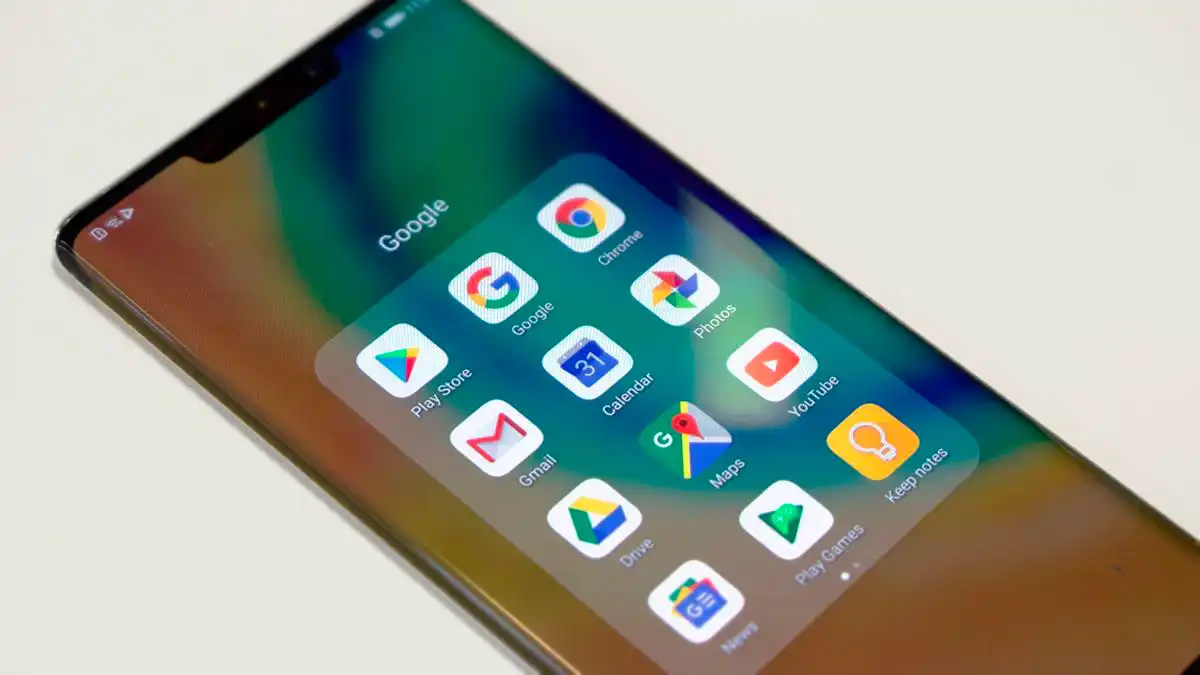
How to Restore Google Bar on Huawei Phone: A Step-by-step Guide
Are you facing issues with the Google bar on your Huawei phone? Don’t worry, we’ve got you covered! In this article, we’ll guide you through a step-by-step process to restore the Google bar on your Huawei device.
Why is The Google Bar Not Working?
Before we dive into the solution, let’s try to understand why the Google bar might not be working. There could be several reasons for this issue, including:
- A software bug or glitch
- Outdated app version
- Cache issues
Don’t worry; we’ll cover all these potential causes and provide a solution for each.
How to Add The Google Bar Widget to Home Screen
To add the Google bar widget to your home screen, follow these steps:
- Long Press on The Home Screen: Hold down your finger on the home screen until you see the customization options.
- Select “Widgets”: Tap on the “Widgets” option at the bottom of the screen.
- Scroll Through Available Widgets: Swipe left or right to find the Google widget.
- Tap on The Google Widget: Select the Google widget and hold down your finger on it until you see a menu.
- Drag The Widget to The Home Screen: Drag the widget to the desired location on your home screen.
How to Personalize The Google Bar
To personalize the Google bar, follow these steps:
- Tap on The Google App Icon: Open the Google app on your phone.
- Select “Personalize Widget”: Tap on the “Personalize widget” option at the top right corner of the screen.
- Customize The Widget: You can now customize the widget by changing its color, shape, and transparency.
How to Fix Common Issues With Google Bar
If you’re experiencing issues with the Google bar, such as errors or glitches, try these solutions:
- Disable The App: Disable the Google app and then enable it again.
- Clear Cache: Clear the cache of the Google app to resolve any performance issues.
- Update The App: Update the Google app to the latest version.
How to Restore Google Bar Operation
To restore the Google bar operation, follow these steps:
- Disable The App: Disable the Google app and then enable it again.
- Clear Cache: Clear the cache of the Google app.
- Update The App: Update the Google app to the latest version.
Common Issues With Huawei Phones
If you’re experiencing common issues with your Huawei phone, such as:
- The Google bar not working
- The phone freezing or crashing
- The battery draining quickly
Try these solutions:
- Restart Your Phone: Restart your phone to resolve any software glitches.
- Clear Cache And Data: Clear the cache and data of the app causing the issue.
- Update Your Phone Software: Update your phone software to the latest version.
Frequently Asked Questions (FAQs)
Q: How do I add the Google bar widget to my home screen?
A: To add the Google bar widget, long press on the home screen and select “Widgets.”
Q: Why is the Google bar not working on my Huawei phone?
A: There could be several reasons for this issue, including software bugs or glitches.
Q: How do I personalize the Google bar?
A: To personalize the Google bar, tap on the Google app icon and select “Personalize widget.”
Q: How do I fix common issues with the Google bar?
A: Try disabling the app, clearing cache, or updating the app to resolve any performance issues.
Conclusion
We hope this article has helped you restore the Google bar on your Huawei phone. If you’re still experiencing issues, feel free to contact us for further assistance.


