
How to Install Skype on Your Devices: A Step-by-step Guide
Are you looking for a way to stay in touch with friends and family who live abroad? Do you want to make video calls, send instant messages, or share files with others? Look no further than Skype! In this article, we will guide you through the process of installing Skype on your devices, including Windows PC, Mac, Linux, Android smartphone, iPhone, and even Alexa.
Why Choose Skype?
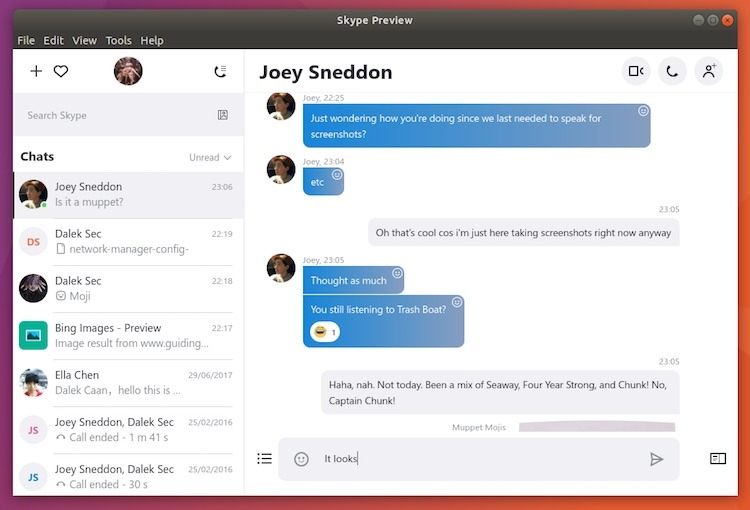
Skype is a free video conferencing software that allows you to make voice and video calls, send instant messages, and share files with others. It’s easy to use, and the app is available on multiple platforms, including Windows PC, Mac, Linux, Android smartphone, iPhone, and even Alexa.
Installing Skype on Windows PC
If you want to install Skype on your Windows PC, follow these steps:
- Open The Microsoft Store: Click on the Start button and search for “Microsoft Store”. Open the app.
- Search For Skype: In the search bar, type “Skype” and press Enter.
- Click on The Skype Icon: Select the Skype icon from the search results.
- Click on The Get Button: Click on the Get button to download and install Skype.
- Launch Skype: Once installed, launch Skype by clicking on the Open button.
Installing Skype on Mac
If you want to install Skype on your Mac, follow these steps:
- Go to The Skype Website: Visit the Skype website and click on the Download Skype for Mac button.
- Select The Correct Version: Select the correct version of Skype for your Mac operating system.
- Download And Install Skype: Click on the download link and follow the installation instructions.
- Launch Skype: Once installed, launch Skype by clicking on the Open button.
Installing Skype on Linux
If you want to install Skype on your Linux device, follow these steps:
- Go to The Skype Website: Visit the Skype website and click on the Download Skype for Linux button.
- Select The Correct Version: Select the correct version of Skype for your Linux distribution (e.G., Ubuntu, Debian).
- Download And Install Skype: Click on the download link and follow the installation instructions.
- Launch Skype: Once installed, launch Skype by clicking on the Open button.
Installing Skype on Android Smartphone
If you want to install Skype on your Android smartphone, follow these steps:
- Open The Google Play Store: Open the Google Play Store app on your device.
- Search For Skype: In the search bar, type “Skype” and press Enter.
- Click on The Skype Icon: Select the Skype icon from the search results.
- Click on The Install Button: Click on the Install button to download and install Skype.
- Launch Skype: Once installed, launch Skype by clicking on the Open button.
Installing Skype on Iphone
If you want to install Skype on your iPhone or iPad, follow these steps:
- Open The App Store: Open the App Store app on your device.
- Search For Skype: In the search bar, type “Skype” and press Enter.
- Click on The Skype Icon: Select the Skype icon from the search results.
- Click on The Get Button: Click on the Get button to download and install Skype.
- Launch Skype: Once installed, launch Skype by clicking on the Open button.
Installing Skype on Alexa
If you want to install Skype on your Alexa device, follow these steps:
- Link Your Skype Account to Alexa: Link your Skype account to the Alexa app on your device.
- Authorize Alexa to Access Your Skype Account: Authorize Alexa to access your Skype account and make voice and video calls.
System Requirements
To use Skype on your devices, you will need:
- Windows 7 or later (for Windows PC)
- MacOS High Sierra or later (for Mac)
- Linux distribution with Skype support (e.G., Ubuntu, Debian)
- Android 6.0 Or later (for Android smartphone)
- IOS 12.2 Or later (for iPhone and iPad)
Conclusion
Installing Skype on your devices is a straightforward process that can be completed in a few simple steps. Whether you want to stay in touch with friends and family who live abroad, make video calls, send instant messages, or share files with others, Skype has got you covered.
Frequently Asked Questions (FAQs)
- What Are The System Requirements For Skype?
- Windows 7 or later (for Windows PC)
- MacOS High Sierra or later (for Mac)
- Linux distribution with Skype support (e.G., Ubuntu, Debian)
- Android 6.0 Or later (for Android smartphone)
- IOS 12.2 Or later (for iPhone and iPad)
- How do I Install Skype on my Windows Pc?
- Open the Microsoft Store app
- Search for “Skype”
- Click on the Skype icon
- Click on the Get button to download and install Skype
- How do I Install Skype on my Mac?
- Go to the Skype website and click on the Download Skype for Mac button
- Select the correct version of Skype for your Mac operating system
- Follow the installation instructions
- How do I Install Skype on my Android Smartphone?
- Open the Google Play Store app
- Search for “Skype”
- Click on the Skype icon
- Click on the Install button to download and install Skype


