
How to Change Your Paypal Password: A Step-by-step Guide
Are you tired of using the same old password for your PayPal account? Do you want to make sure that your account is as secure as possible? Look no further! In this article, we will guide you through the process of changing your PayPal password on both computer and mobile devices.
Why Change Your Paypal Password?
Before we dive into the nitty-gritty of changing your password, let’s quickly discuss why it’s so important. Using the same old password for too long can make it vulnerable to hackers and cyber threats. By changing your password regularly, you can ensure that your account remains secure and protected from unauthorized access.
Changing Your Paypal Password on Computer
If you’re using a computer to access your PayPal account, follow these steps:
- Open Your Browser: Open the browser of your choice (e.G., Google Chrome, Mozilla Firefox, etc.) And navigate to the PayPal website.
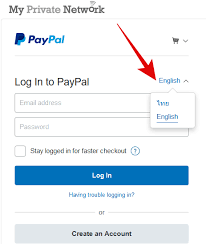
- Sign In: Sign in to your PayPal account by entering your email address and password in the required fields.
- Click on Settings: Click on the settings icon (represented by a gear or cogwheel) located at the top right corner of the page.
- Select Security: Select “Security” from the drop-down menu.
- Update Password: Click on the “Update” button next to your password.
- Enter New Password: Enter your new password in the required field and confirm it by re-entering it in the next field.
- Save Changes: Save your changes by clicking on the “Save” button.
Requirements For Paypal Password
When creating a new password, make sure it meets the following requirements:
- Minimum 8 characters
- Maximum 20 characters
- At least one letter (a-z)
- At least one number (0-9)
- At least one special character (!, @, #, $, etc.)
Changing Your Paypal Password on Mobile
If you’re using a mobile device to access your PayPal account, follow these steps:
- Open The Paypal App: Open the PayPal app on your smartphone or tablet.
- Sign In: Sign in to your PayPal account by entering your email address and password in the required fields.
- Tap on Options: Tap on the options icon (represented by three horizontal lines) located at the top left corner of the screen.
- Select Safety: Select “Safety” from the drop-down menu.
- Update Password: Tap on the “Update” button next to your password.
- Enter New Password: Enter your new password in the required field and confirm it by re-entering it in the next field.
- Save Changes: Save your changes by tapping on the “Save” button.
Troubleshooting
If you encounter any issues while changing your PayPal password, try the following:
- Check Your Internet Connection: Ensure that your internet connection is stable and working properly.
- Clear Browser Cache: Clear the cache of your browser to ensure that it’s functioning correctly.
- Contact Paypal Support: If none of the above steps resolve the issue, contact PayPal support for further assistance.
Conclusion
Changing your PayPal password regularly can help keep your account secure and protected from unauthorized access. By following the step-by-step guide outlined in this article, you can ensure that your password meets the required standards and is easily accessible from both computer and mobile devices. Remember to always keep your password confidential and never share it with anyone.
Frequently Asked Questions
- Q: How Often Should I Change my Paypal Password?
A: It’s recommended to change your PayPal password every 3-6 months. - Q: What Happens if I Forget my Paypal Password?
A: If you forget your PayPal password, you can click on the “Forgot Password” link and follow the instructions provided to reset it. - Q: Can I Use a Password Manager to Store my Paypal Password?
A: Yes, you can use a password manager to store your PayPal password, but make sure to only share it with trusted individuals.
Other Resources
For more information on how to change your PayPal password or troubleshoot common issues, visit the PayPal website or contact their support team directly.


