
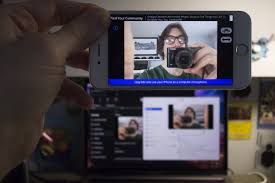
How to Use Your Smartphone’s Camera as a Webcam: A Step-by-step Guide
Are you looking for a way to use your smartphone’s camera as a webcam on your computer? You’re in luck! With the right apps and software, you can turn your phone into a high-quality webcam that works seamlessly with your favorite video conferencing platforms.
In this article, we’ll show you how to use three of the best apps available for Android and iOS devices: DroidCam, iVCam, and EpocCam. We’ll also cover some other solutions and provide a detailed comparison of the features and prices of each app.
The Benefits of Using Your Smartphone’s Camera as a Webcam
Using your smartphone’s camera as a webcam has several benefits. For one, it allows you to use your phone’s high-quality camera to capture crisp and clear video footage. This is especially useful for video conferencing, where a good video quality can make all the difference.
Another benefit of using your phone’s camera as a webcam is that it gives you more flexibility when it comes to choosing a location for your video calls. With a traditional webcam, you’re stuck in one place, but with a smartphone app, you can take your video calls anywhere!
Solution 1: Droidcam
DroidCam is an excellent solution for Android and iOS devices that allows you to use your phone’s camera as a webcam on your computer. The app works seamlessly with popular video conferencing platforms like Skype, Google Meet, and more.
Here’s how to set up DroidCam:
- Download the DroidCam app from the Play Store or App Store.
- Install the DroidCam client software on your computer (Windows or Linux).
- Connect your phone to your computer using a USB cable or wirelessly via Wi-Fi.
- Launch the DroidCam app on your phone and follow the instructions to connect it to your computer.
- Start using your smartphone’s camera as a webcam with your favorite video conferencing platforms!
Solution 2: Ivcam
IVCam is another great solution for Android and iOS devices that allows you to use your phone’s camera as a webcam on your computer. The app works with various services like Skype, Google Meet, and more.
Here’s how to set up iVCam:
- Download the iVCam app from the Play Store or App Store.
- Install the iVCam client software on your computer (Windows).
- Connect your phone to your computer using a USB cable or wirelessly via Wi-Fi.
- Launch the iVCam app on your phone and follow the instructions to connect it to your computer.
- Start using your smartphone’s camera as a webcam with your favorite video conferencing platforms!
Solution 3: Epoccam
EpocCam is an excellent solution for iOS devices that allows you to use your iPhone’s camera as a webcam on your Mac or PC. The app works seamlessly with popular video conferencing platforms like Skype, Google Meet, and more.
Here’s how to set up EpocCam:
- Download the EpocCam app from the App Store.
- Install the EpocCam client software on your computer (Mac or Windows).
- Connect your iPhone to your computer using a USB cable or wirelessly via Wi-Fi.
- Launch the EpocCam app on your iPhone and follow the instructions to connect it to your computer.
- Start using your smartphone’s camera as a webcam with your favorite video conferencing platforms!
Other Solutions
If you’re not satisfied with DroidCam, iVCam, or EpocCam, there are other solutions available. Some of these include:
- Iriun Webcam: A free app that works on Android and iOS devices.
- Camo: An app that allows you to use either the rear or front camera as a webcam.
- IP Webcam: A solution that works on Android devices.
Comparison of Features And Prices
Here’s a comparison of the features and prices of each app:
| App | Price | Video Quality | Audio Quality |
|---|---|---|---|
| DroidCam | Free, with ads; $4.99 For Pro version | 1080p | Good |
| IVCam | Free, with ads; $6.99 For Pro version | 1080p | Good |
| EpocCam | $7.99 (One-time purchase) | 1080p | Excellent |
Conclusion
Using your smartphone’s camera as a webcam is a great way to improve the quality of your video calls and give you more flexibility when it comes to choosing a location for your video calls. With DroidCam, iVCam, and EpocCam, you can easily turn your phone into a high-quality webcam that works seamlessly with your favorite video conferencing platforms.
Faqs
Q: What is the best app for using my smartphone’s camera as a webcam?
A: The best app depends on your device and operating system. DroidCam is excellent for Android and iOS devices, while EpocCam is specifically designed for iOS devices.
Q: How do I connect my phone to my computer to use it as a webcam?
A: You can connect your phone to your computer using a USB cable or wirelessly via Wi-Fi. The instructions will vary depending on the app you’re using.
Q: Can I use my smartphone’s camera as a webcam with popular video conferencing platforms like Skype and Google Meet?
A: Yes, all three apps (DroidCam, iVCam, and EpocCam) work seamlessly with popular video conferencing platforms.
I hope this article has been helpful in showing you how to use your smartphone’s camera as a webcam. If you have any further questions or need more help, don’t hesitate to ask!


