
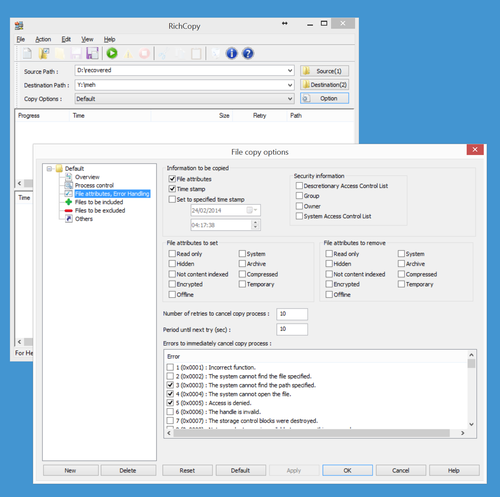
Efficiently Managing Files And Folders: A Guide to Effective Copying And Moving
In today’s digital age, managing files and folders efficiently is crucial for productivity and organization. Whether you’re a student, professional, or simply someone who likes to keep their computer tidy, learning how to copy and move files quickly and easily can make a significant difference in your workflow.
The Challenges of Manual Copying
Traditionally, copying and moving files involved manually selecting each item, which could be time-consuming and prone to errors. This process not only took up valuable time but also risked data loss due to accidental deletions or overwrites. Moreover, when dealing with large quantities of files, the task became even more daunting.
The Solution: Advanced File Management Tools
Fortunately, there are sophisticated tools designed to simplify and streamline file management tasks. These applications not only save time but also provide features that enhance productivity, such as automating repetitive actions, managing versions, and safeguarding against data loss.
Introduction to Fastcopy
FastCopy is a powerful tool specifically developed for Windows users. Its core functionality revolves around copying or moving files quickly and efficiently, making it an indispensable asset in any file management arsenal. With its intuitive interface and robust features, FastCopy stands out as one of the best tools available for this purpose.
Key Features of Fastcopy
- High-speed Copying: FastCopy is engineered to copy large quantities of files at speeds comparable to or even exceeding those of manual copying.
- Pause And Resume Functionality: This feature allows users to pause the process temporarily, enabling them to manage any unexpected issues that might arise during file transfer.
- File Version Management: FastCopy facilitates version control by creating a log of all operations performed. This not only helps track changes but also serves as a safeguard against data loss.
How to Use Fastcopy
- Download And Installation: To utilize FastCopy, start by downloading the installation file from its official website.
-
Installation Steps:
- Launch the downloaded file, select “Installer,” and follow through with the prompts.
- Accept the licensing agreement, then proceed to select the destination folder for FastCopy.
-
Configuration: Once installed, launch FastCopy and navigate to its source directory. Select the files or folders you wish to copy or move by clicking on them.
- Destination Folder Selection: Choose your desired destination folder and configure any additional settings as needed.
- Initiating The Copy or Move Operation: Click “Execute” to initiate the process.
Other File Management Tools
-
Hazel (macOS): Hazel is a powerful tool specifically designed for macOS users, allowing them to automate various operations based on user-defined rules.
-
Key Features:
- Rules-Based Automation: Hazel enables users to create customized rules that automatically manage files and folders based on specified conditions.
- Version Control: It facilitates version control by tracking all operations performed.
-
How to Use Hazel:
- Download and Install Hazel from its official website.
- Configure the desired rule parameters, including source and destination folders.
- Launch Hazel and navigate to its rules menu.
- Apply the configured rule to automatically manage files and folders.
-
-
Declutter (Windows/macOS): DeClutter is a user-friendly tool designed for both Windows and macOS users. Its primary function revolves around decluttering and organizing computer files by implementing customizable rules.
-
Key Features:
- Simple Interface: DeClutter boasts an intuitive interface that simplifies the process of configuring rules.
- Version Control: It facilitates version control, enabling users to track changes made.
-
How to Use Declutter:
- Download and Install DeClutter from its official website.
- Configure the desired rule parameters, including source and destination folders.
- Launch DeClutter and navigate to its rules menu.
- Apply the configured rule to automatically manage files and folders.
-
-
Copywhiz (Windows): CopyWhiz is a versatile tool designed specifically for Windows users, providing an efficient way to copy or move multiple files across different directories within seconds.
-
Key Features:
- Advanced File Management Capabilities: CopyWhiz offers features such as file filtering and versioning.
- Simple and Intuitive Interface.
-
How to Use Copywhiz:
- Download and Install CopyWhiz from its official website.
- Extract the contents of the downloaded file onto your computer.
- Launch CopyWhizShell-Install.Exe and follow through with the installation prompts.
- Insert files or folders into the virtual bucket, copy them to a destination folder.
-
Conclusion
Effective management of files and folders is crucial for productivity in today’s digital age. Tools like FastCopy, Hazel, DeClutter, and CopyWhiz offer advanced features that simplify this process, making it faster and more efficient. By understanding how these tools work and utilizing their capabilities, users can significantly improve their file management experience.
Faqs
- What is The Purpose of Using a Tool Like Fastcopy?
- FastCopy is designed to efficiently copy or move large quantities of files across different directories.
- How Does Hazel Differ From Other File Management Tools?
- Hazel stands out for its ability to automate various operations based on user-defined rules, making it particularly useful for managing complex file structures.
- What Are The Key Features of Declutter?
- DeClutter is characterized by a simple interface and version control capabilities, enabling users to easily manage files and track changes made.
- How Does Copywhiz Facilitate The Copying or Moving Process?
- CopyWhiz offers an intuitive interface that allows users to insert multiple files into a virtual bucket before copying them across different directories with ease.
- Are These Tools Compatible With my Operating System?
- The tools mentioned are designed for Windows (FastCopy, DeClutter) and macOS (Hazel). CopyWhiz is specifically tailored for Windows users.
Conclusion
The efficient management of files and folders has become an essential task in today’s fast-paced digital environment. Leveraging the capabilities of advanced file management tools like FastCopy, Hazel, DeClutter, and CopyWhiz can significantly enhance productivity by automating tasks, safeguarding data, and streamlining operations.


