
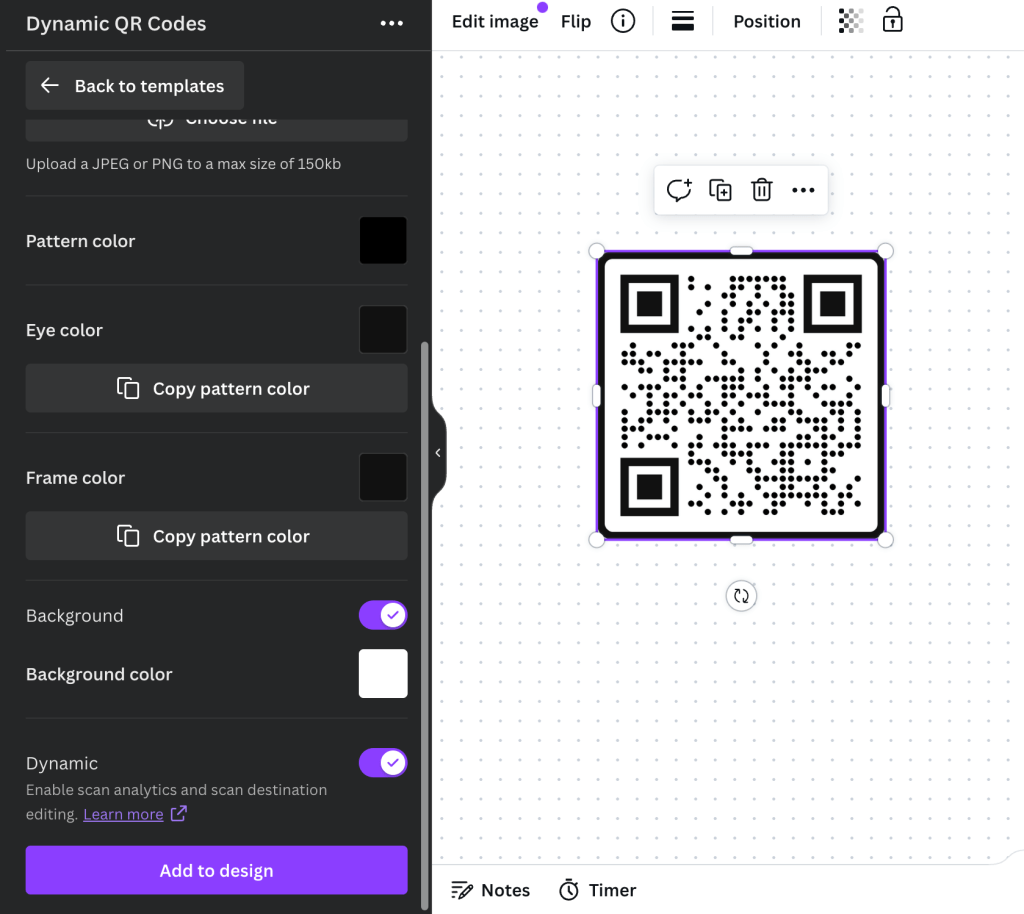
The Power of QR Codes: Unlocking Dynamic Possibilities
In today’s digital age, Quick Response (QR) codes have become an essential tool for businesses and individuals alike. These two-dimensional barcodes can store a vast amount of information, from simple text to complex data, and can be easily scanned using a smartphone or tablet.
Understanding QR Code Categories
Like any other technology, QR codes come in different forms, each with its unique features and applications. There are essentially two categories of QR codes: Static and dynamic.
- Static QR Codes: These contain fixed information that cannot be modified once the code is created. They are ideal for sharing contact information, menus, social media pages, and other static data.
- Dynamic QR Codes: These can store varying amounts of information and can be updated or modified at any time without altering the original code. They are perfect for sharing dynamic content, such as event schedules, news updates, or promotions.
Modifying a Dynamic QR Code
While static QR codes have their uses, dynamic QR codes offer more flexibility and potential in terms of customization and updating. To modify a dynamic QR code, you can use various tools and services available online.
One popular option is the QR Tails Generator, which allows you to create and edit dynamic QR codes directly from your web browser. This service provides an intuitive interface for generating and managing QR codes, including features like statistical tracking and code sharing options.
Accessing The QR Tails Generator
To access the QR Tails Generator, follow these steps:
- Open Google Chrome on your computer or mobile device.
- Visit the Chrome Web Store and search for “QR Tails Generator.”
- Click on the application to install it in your browser.
- Once installed, click on the QR Tails icon in your browser’s drawer to access the generator.
Using The QR Tails Generator
To create a new dynamic QR code using the QR Tails Generator:
- Log in to the service using your Google account or create a new one.
- Click on the “New Code” button to start creating a new QR code.
- Choose the type of QR code you want to generate (URL, free text, contact information, app links, phone numbers, or SMS messages).
- Fill in the required information for your chosen QR code type.
- Assign a name to your new QR code.
- Click on the “⋮” icon to adjust the dimensions and margins of your QR code.
The Green Pass: A Special Case
The Green Pass is an essential document related to COVID-19 vaccination, recovery, or antigen/molecular test results. If you need to modify or update your Green Pass, follow these steps:
- Obtain the authentication code (AUTHCODE) for your updated certification.
- Use the code and your sanitary card to download the new Green Pass from the DGC website.
Conclusion
QR codes offer a versatile platform for sharing information, promoting events, and tracking engagement metrics. With the QR Tails Generator and other tools available online, you can easily create, manage, and update dynamic QR codes tailored to your specific needs.


