
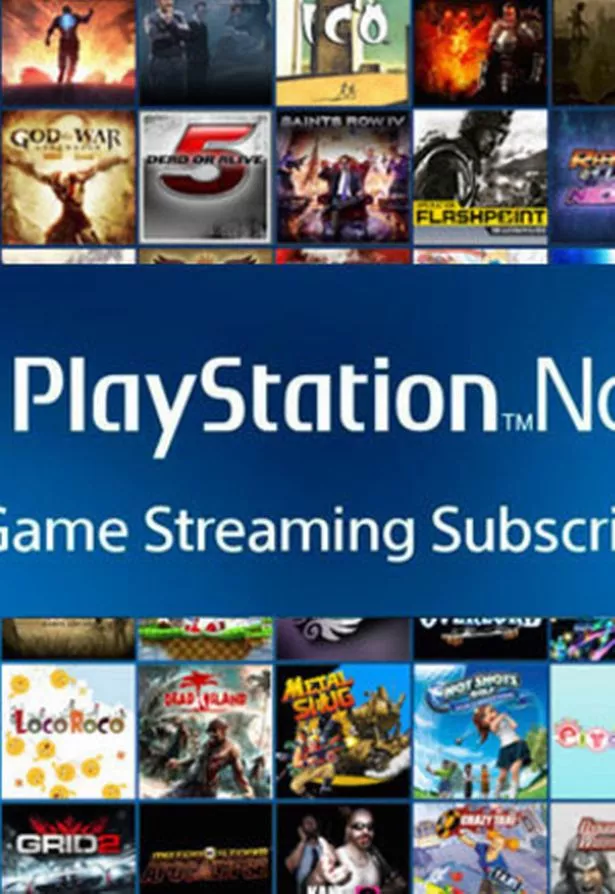
How to Download Exciting Games on Your Ps4
Are you tired of playing the same old games on your PlayStation 4? Do you want to explore new and exciting gaming experiences without leaving your comfort zone? Look no further! In this article, we will guide you through the process of downloading games on your PS4, including free-to-play titles, games available for purchase from the PlayStation Store, and even remote downloads.
Getting Started
Before we dive into the world of gaming, it’s essential to have a good internet connection. You’ll need a stable and fast connection to download games, which can be quite large in size. We recommend performing a speed test to ensure your connection meets the requirements. Once you’ve got a good connection, you’re ready to begin.
Creating a Psn Account
If you haven’t already created a PlayStation Network (PSN) account, now is the time to do so. This will give you access to the PlayStation Store and enable you to download games directly to your console. Follow our step-by-step guide on how to create a PSN account for a hassle-free experience.
Adding Payment Methods
To purchase games from the PlayStation Store, you’ll need to add a payment method to your account. This can be done via credit cards, prepaid cards, or even PayPal. If you’re unsure about the payment process, check out our article on how to pay on the PlayStation Store for a comprehensive guide.
Downloading Free-to-play Games
Free-to-play games are an excellent way to experience new gaming experiences without spending a dime. To download these titles, follow these steps:
- Connect your PS4 to the internet.
- Open the PlayStation Store by pressing the PlayStation button on your controller and selecting the icon with the blue box and white “P” logo.
- Navigate to the Free-to-Play section in the store.
- Browse through the available titles, including demos and free games.
- Select the game you’d like to download and confirm the voice “Add to collection.”
- Wait for the download to complete.
Downloading Games With PS Plus
If you’re a PlayStation Plus subscriber, you can access exclusive free games every month. To do this:
- Go to the PlayStation Store on your console.
- Select the PS Plus section and choose the available game for the current month.
- Confirm the voice “Add to collection” to download the game.
Purchasing Games From The Playstation Store
To buy games directly from the PlayStation Store, follow these steps:
- Connect your PS4 to the internet.
- Open the PlayStation Store by pressing the PlayStation button on your controller and selecting the icon with the blue box and white “P” logo.
- Browse through the available titles in the store.
- Select the game you’d like to purchase and confirm the voice “Add to trolley.”
- Proceed to payment, following the on-screen instructions.
Remote Downloads
Want to download games without being physically present in front of your console? You can do this with remote downloads! To initiate a remote download:
- Put your PS4 in rest mode.
- Open the PlayStation Store on your computer or mobile device.
- Select the game you’d like to download and confirm the voice “Download” on your console.
- Wait for the download to complete.
Troubleshooting
Encountering issues with downloads? Don’t worry! Our guide has got you covered. Consult the Sony Support Center, which provides detailed answers to common questions about downloading games on PS4.
Conclusion
Downloading games on your PS4 is an exciting experience that can be enjoyed from the comfort of your own home. Whether you’re a fan of free-to-play titles or prefer to purchase games directly from the PlayStation Store, our guide has provided you with the necessary steps to get started. Remember to always have a stable internet connection and follow the on-screen instructions for a seamless experience.
Frequently Asked Questions
- Q: Do I Need a Psn Account to Download Games?
A: Yes, creating a PSN account is essential to access the PlayStation Store and download games directly to your console. - Q: Can I Download Free-to-play Games Without a Subscription?
A: Yes, you can download free-to-play games without a subscription, but some titles may require a subscription to access exclusive content. - Q: How do I Add Payment Methods to my Psn Account?
A: You can add payment methods via credit cards, prepaid cards, or even PayPal through the PlayStation Store on your console. - Q: Can I Download Games Remotely Without Being Physically Present in Front of my Console?
A: Yes, you can initiate remote downloads by putting your PS4 in rest mode and using the PlayStation Store on your computer or mobile device. - Q: What if I Encounter Issues With Downloads?
A: Consult the Sony Support Center for detailed answers to common questions about downloading games on PS4. - Q: Do I Need a Subscription to Access Exclusive Free Games Every Month?
A: Yes, you’ll need a PlayStation Plus subscription to access exclusive free games every month. - Q: Can I Purchase Games Directly From The Playstation Store Without a Subscription?
A: Yes, you can purchase games directly from the PlayStation Store without a subscription, but some titles may require a subscription to access exclusive content. - Q: How do I Troubleshoot Issues With Downloads?
A: Consult the Sony Support Center for detailed answers to common questions about downloading games on PS4.


