
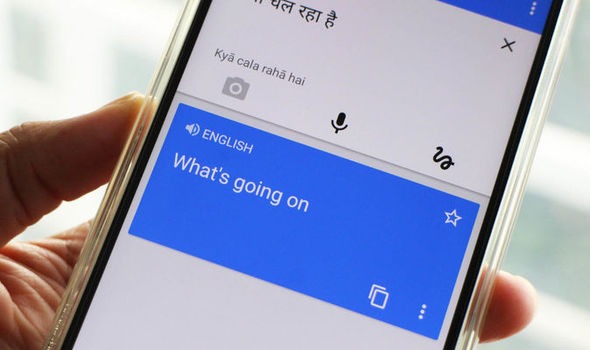
The Ultimate Guide to Google Translator: How to Use it on Your Smartphone, Tablet, And Computer
Are you tired of using outdated translation methods that leave you struggling to communicate with others? Look no further than Google Translator, a powerful tool that can help you break language barriers and connect with people from all over the world. In this article, we’ll show you how to use Google Translator on your smartphone, tablet, and computer, as well as explore its various features and functionalities.
What is Google Translator?
Google Translator is a free online service provided by Google that allows users to translate text, words, and phrases from one language to another. With the help of this tool, you can communicate with people who speak different languages, access websites and content in multiple languages, and even have conversations with virtual assistants like Siri or Alexa.
How to Use Google Translator on Your Smartphone
Using Google Translator on your smartphone is a straightforward process that requires minimal effort. Here’s how to do it:
- Download The App: First, you need to download the Google Translator app from the Google Play Store (for Android devices) or the App Store (for iOS devices).
- Open The App: Once installed, open the app and select your preferred languages.
- Type or Speak: You can either type a word or phrase in the text field or say it out loud to the virtual assistant.
- Get The Translation: The app will then provide you with the translated text in the target language.
How to Use Google Translator on Your Tablet
Using Google Translator on your tablet is similar to using it on your smartphone, but with a few additional features:
- Tap The Icon: Tap the Google Translator icon on your home screen or search for it in the app drawer.
- Select Languages: Select the language you want to translate from and the language you want to translate to.
- Type or Speak: Type a word or phrase into the text field or say it out loud to the virtual assistant.
- Get The Translation: The app will then provide you with the translated text in the target language.
How to Use Google Translator on Your Computer
Using Google Translator on your computer is also easy and straightforward:
- Go to The Website: Visit the Google Translate website (www.Translate.Google.Com) and select the languages you want to translate from and to.
- Type or Copy-paste: Type a word or phrase into the text field or copy-paste it from another source.
- Get The Translation: The app will then provide you with the translated text in the target language.
Other Features of Google Translator
In addition to its core functionality, Google Translator also offers several other features that can enhance your experience:
- Offline Mode: You can download languages for offline use, allowing you to translate without an internet connection.
- Conversation Mode: This feature allows you to have real-time conversations with people who speak different languages.
- Image Translation: Using the camera on your device, you can take a photo of text and get it translated in seconds.
How to Use Google Translator on Whatsapp
If you’re an avid user of WhatsApp, you’ll be happy to know that Google Translator is integrated into the app:
- Open Whatsapp: Open the WhatsApp app on your Android or iOS device.
- Tap The Three Dots: Tap the three dots in the top-right corner and select “Settings.”
- Tap ‘Play to Translate’: Enable the option to play to translate and tap the icon next to it.
- Tap The Message: Tap the message you want to translate and select “Copy” from the menu.
How to Use Google Translator on Facebook
Google Translator is also available on Facebook, allowing you to translate posts, comments, and messages:
- Open Facebook: Open the Facebook app or website.
- Tap The Three Dots: Tap the three dots in the top-right corner and select “Settings.”
- Tap ‘Play to Translate’: Enable the option to play to translate and tap the icon next to it.
- Tap The Post: Tap the post you want to translate.
Conclusion
Google Translator is an incredibly powerful tool that can help you bridge language gaps and connect with people from all over the world. Whether you’re a smartphone, tablet, or computer user, using Google Translator is easy and straightforward. With its offline mode, conversation mode, image translation, and integration into popular apps like WhatsApp and Facebook, this tool has something to offer everyone.
Frequently Asked Questions
- Q: What Are The Languages Supported by Google Translator?
A: Google Translator supports over 100 languages. - Q: How do I Download Languages For Offline Use?
A: Go to the Google Translate website and select the languages you want to download. - Q: Can I Use Google Translator on Multiple Devices?
A: Yes, you can use Google Translator on your smartphone, tablet, computer, or any other device with an internet connection. - Q: Is Google Translator Available in my Language?
A: Yes, Google Translator is available in over 100 languages, including many local languages. - Q: How do I Report Errors or Suggestions For Improvement?
A: You can report errors or suggestions by clicking on the feedback link at the bottom of the Google Translate page. - Q: Can I Use Google Translator to Translate Text From an Image?
A: Yes, you can use Google Translator’s image translation feature to translate text from an image. - Q: How do I Save Translations For Later Reference?
A: You can save translations by clicking on the star icon next to each translated sentence. - Q: Can I Use Google Translator With Virtual Assistants Like Siri or Alexa?
A: Yes, you can use Google Translator with virtual assistants like Siri or Alexa to communicate in multiple languages.


