
How to Connect Your PC to a Monitor: A Step-by-step Guide
Are you a beginner when it comes to setting up your computer? Do you want to use two monitors at once, but don’t know where to start? Look no further! In this article, we’ll guide you through the process of connecting your PC to a monitor, whether it’s a traditional desktop or a portable laptop.
Choosing The Right Cable
Before we dive into the step-by-step instructions, let’s talk about choosing the right cable. There are several types of cables available, and each has its own strengths and weaknesses.
- Hdmi: HDMI is the most commonly used cable for connecting computers to monitors. It can transmit high-definition video and audio signals with ease.
- Usb Type-c: USB Type-C cables are becoming increasingly popular, especially among portable laptops. They offer faster data transfer rates and can also be used for power delivery.
- Dvi: DVI cables are another option for connecting computers to monitors. They’re commonly used in older systems, but can still provide good video quality.
Connecting Your PC to a Monitor With an Hdmi Cable
To connect your PC to a monitor using an HDMI cable:
- First, identify the type of HDMI port on your computer and monitor. Make sure they match (e.G., HDMI 2.0 On the computer and HDMI 2.0 On the monitor).
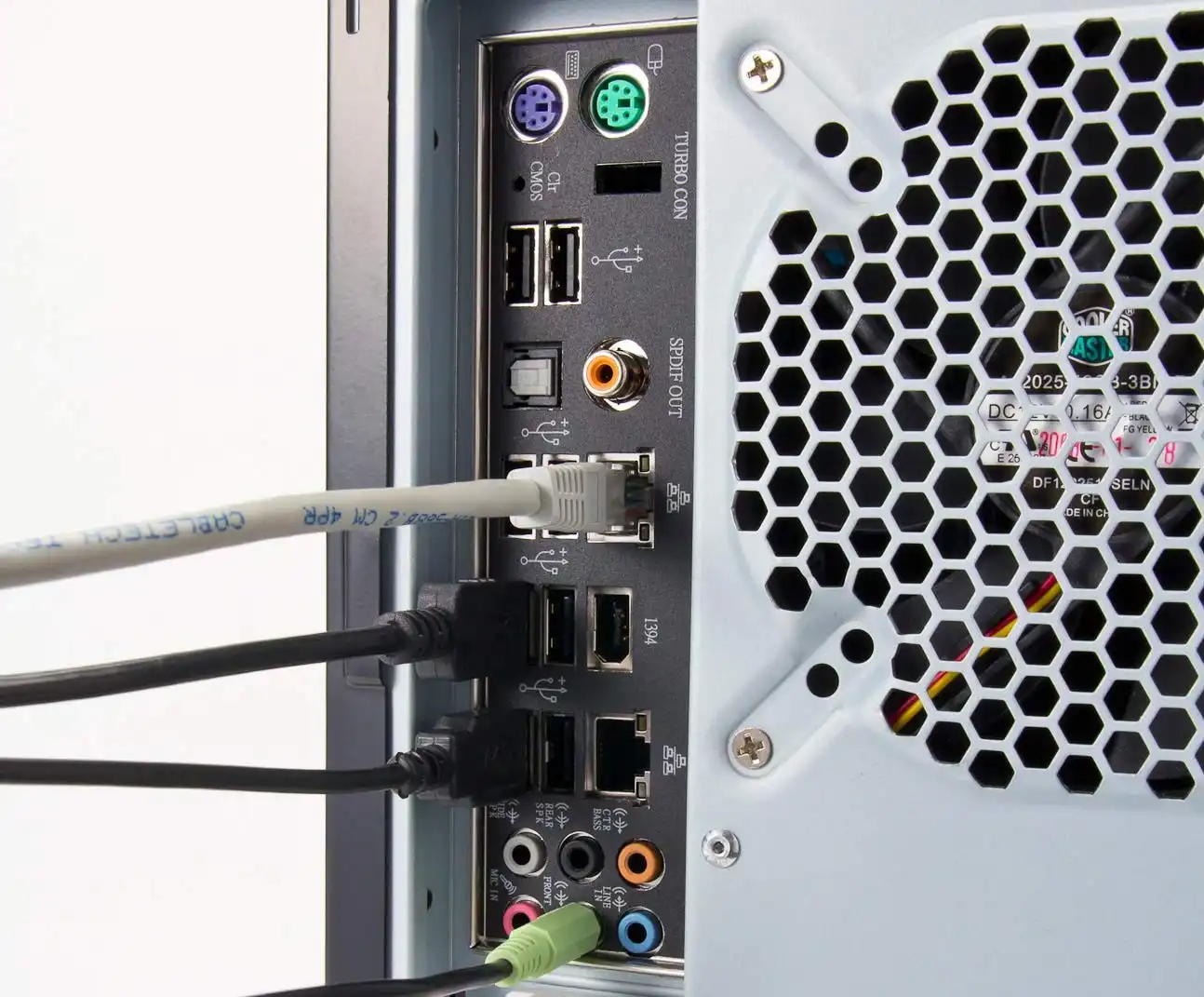
- Locate the HDMI ports on both devices. On most computers, you’ll find them on the back or sides.
- Insert one end of the HDMI cable into the corresponding port on your computer.
- Take the other end of the HDMI cable and insert it into the corresponding port on the monitor.
- Turn on both devices and ensure that they’re set to use the correct input (e.G., HDMI 1).
- If necessary, adjust the display settings on your computer to match the resolution and orientation of the monitor.
Connecting Your PC to a Monitor With a Usb Type-c Cable
To connect your PC to a monitor using a USB Type-C cable:
- Ensure that both devices support USB Type-C and have compatible ports.
- Connect one end of the USB Type-C cable to the corresponding port on your computer (usually found on the back or sides).
- Take the other end of the USB Type-C cable and insert it into the corresponding port on the monitor.
- Turn on both devices and ensure that they’re set to use the correct input (e.G., USB Type-C).
- If necessary, adjust the display settings on your computer to match the resolution and orientation of the monitor.
Connecting Your PC to a Monitor With a Dvi Cable
To connect your PC to a monitor using a DVI cable:
- Ensure that both devices support DVI and have compatible ports.
- Connect one end of the DVI cable to the corresponding port on your computer (usually found on the back or sides).
- Take the other end of the DVI cable and insert it into the corresponding port on the monitor.
- Turn on both devices and ensure that they’re set to use the correct input (e.G., DVI 1).
- If necessary, adjust the display settings on your computer to match the resolution and orientation of the monitor.
Connecting Your PC to a Monitor Wirelessly
To connect your PC to a monitor wirelessly:
- Ensure that both devices support wireless connectivity (e.G., Miracast).
- Connect one end of the wireless adapter to the corresponding port on the monitor.
- Turn on both devices and ensure that they’re set to use the correct input (e.G., Wireless).
- If necessary, adjust the display settings on your computer to match the resolution and orientation of the monitor.
Connecting a Portable PC to an External Monitor
To connect a portable PC to an external monitor:
- Ensure that both devices support USB Type-C or HDMI.
- Connect one end of the cable (e.G., USB Type-C) to the corresponding port on the portable PC.
- Take the other end of the cable and insert it into the corresponding port on the external monitor.
- Turn on both devices and ensure that they’re set to use the correct input (e.G., USB Type-C or HDMI).
- If necessary, adjust the display settings on your computer to match the resolution and orientation of the monitor.
Conclusion
Connecting your PC to a monitor is a straightforward process that requires minimal technical expertise. By following these step-by-step instructions, you’ll be able to set up your devices in no time. Remember to choose the right cable for your needs, and don’t hesitate to reach out if you have any further questions or concerns.
Frequently Asked Questions (FAQs)
- What is The Difference Between Hdmi 2.0 And Hdmi 1.4?
HDMI 2.0 Offers higher video resolutions and faster data transfer rates compared to HDMI 1.4. - Can I Connect Multiple Monitors to my PC Using Usb Type-c?
Yes, many modern PCs support multi-monitor setups using USB Type-C cables. - How do I Adjust The Display Settings on my Computer?
To adjust the display settings, follow these steps:- Right-click on an empty area of your desktop and select Display Settings.
- Choose the correct input (e.G., HDMI 1) and resolution for each monitor.
- Can I Use a Wireless Adapter to Connect my PC to a Monitor?
Yes, many wireless adapters support Miracast or other wireless connectivity protocols. - What is The Maximum Distance I Can Place my External Monitor From my Portable Pc?
The maximum distance varies depending on the cable type and quality, but generally ranges from 10 to 20 meters.
References


