
Identifying Your Graphics Card: A Comprehensive Guide
Are you tired of struggling to identify your graphics card on your Windows or macOS computer? Look no further! In this article, we will guide you through the process of discovering the details of your graphics card using various tools and software.
Understanding The Importance of Knowing Your Graphics Card
Knowing the specifics of your graphics card is essential for several reasons:
- Optimizing Performance: By identifying your graphics card, you can optimize its performance to run demanding applications smoothly.
- Troubleshooting Issues: If you encounter issues with your computer’s graphics capabilities, knowing the details of your graphics card can help you troubleshoot and resolve problems efficiently.
Using Built-in Tools on Windows
Windows provides several built-in tools that can help you identify your graphics card. Here are a few methods:
1. Direct X Diagnostic Tool
- Accessing The Tool: To access the Direct X diagnostic tool, type
dxdiagin the search bar and press Enter. - Running The Tool: Once opened, click on the “System” tab to view information about your graphics card.
2. Device Manager
- Accessing The Device Manager: Press the Windows key + X and select Device Manager from the menu.
- Locating Graphics Card Information: In the Device Manager window, expand the “Display Adapters” section. Right-click on your graphics card and select Properties to view details.
3. Display Settings
- Accessing Display Settings: Click on the Start button and select Settings. Then, click on System and from there, select Display.
- Viewing Graphics Card Information: Scroll down to the “Advanced display settings” section. Here, you’ll find information about your graphics card.
Third-party Software: Speccy And Gpu-z
If you’re looking for more detailed information about your graphics card, consider using third-party software like Speccy or GPU-Z:
1. Speccy
- Downloading Speccy: Visit the Piriform website to download Speccy.
- Running Speccy: Once installed, launch Speccy and click on the “Graphic” tab to view information about your graphics card.
2. Gpu-z
- Downloading Gpu-z: Visit the GPU-Z website to download this software.
- Running Gpu-z: After installation, launch GPU-Z and click on the “Sensors” tab to view detailed information about your graphics card’s performance.
Identifying Your Graphics Card on a Mac
If you’re using a macOS computer, follow these steps to identify your graphics card:
1. System Information
- Accessing System Information: Click on the Apple logo and select “About This Mac.”
- Viewing Graphics Card Information: From there, click on the “System Report” button. In the resulting window, click on the “Graphics/Displays” section to view information about your graphics card.
2. Activity Monitor
- Accessing Activity Monitor: Click on the Apple logo and select “Activity Monitor.”
- Viewing Graphics Card Information: In the Activity Monitor window, look for the “Graphic Card” entry in the list of processes. This will give you information about your graphics card’s performance.
Conclusion
Identifying your graphics card is a straightforward process that can be accomplished using built-in tools on Windows or macOS. By following the steps outlined in this article, you’ll be able to access detailed information about your graphics card, which can help you optimize its performance and troubleshoot issues efficiently.
Frequently Asked Questions (FAQs)
-
What is my Graphics Card?
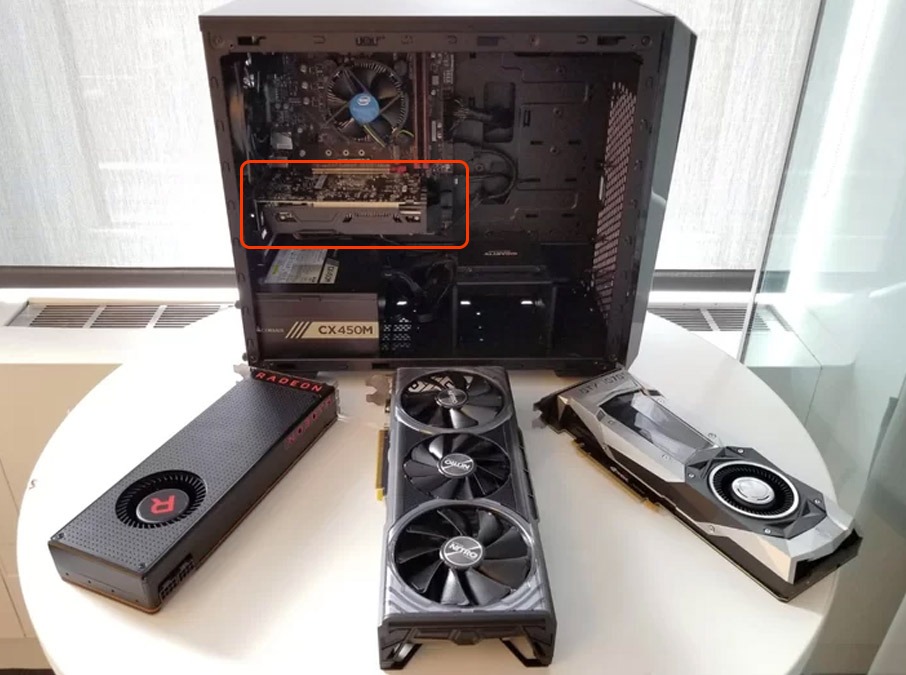
Your graphics card is a crucial component that handles graphical tasks on your computer. It’s responsible for rendering images, videos, and other visual content.
2. How do I Identify my Graphics Card?You can identify your graphics card using built-in tools on Windows or macOS, such as the Direct X diagnostic tool, Device Manager, or Display Settings on Windows, and System Information or Activity Monitor on a Mac. Additionally, you can use third-party software like Speccy or GPU-Z for more detailed information.
3. What is The Difference Between Integrated Graphics And Dedicated Graphics?Integrated graphics are built into your computer’s processor, while dedicated graphics are separate cards that provide better performance for graphics-intensive tasks.
4. Can I Upgrade my Graphics Card?Upgrading your graphics card can be a complex process, requiring technical expertise and compatibility checks to ensure smooth integration with your existing system.
Additional Resources
For more information on identifying and optimizing your graphics card, consider the following resources:
By following the steps outlined in this article and consulting these resources, you’ll be well-equipped to identify your graphics card and optimize its performance for a smoother computing experience.


