
How to Format a Usb Drive on Mac: A Step-by-step Guide
Are you tired of dealing with the hassle of formatting a USB drive on your Mac? Look no further! In this article, we will guide you through the simple process of formatting a USB drive on your Mac, making it compatible with both macOS and Windows operating systems.
Why Format a Usb Drive?
Before we dive into the nitty-gritty of formatting a USB drive, let’s talk about why you might need to do so. Formatting a USB drive erases all data on the device, allowing you to start fresh and use it for storing files, transferring data between devices, or even using it as a portable hard drive.
Choosing The Right File System
Before we proceed with formatting your USB drive, you’ll need to choose the right file system. The most popular options are:
- Apfs: This is the default file system used by macOS High Sierra and later versions.
- Hfs+: This is another option for macOS users, but it’s not compatible with Windows.
- Fat32: This is a widely supported file system that works on both Macs and PCs, but it has limitations in terms of file size and data fragmentation.
- Ntfs: This is the default file system used by Windows, but it’s not supported natively on macOS.
Formatting a Usb Drive on Mac
Now that we’ve covered the basics, let’s get started with formatting your USB drive. Here are the steps:
- Connect Your Usb Drive: Plug in your USB drive to your Mac.
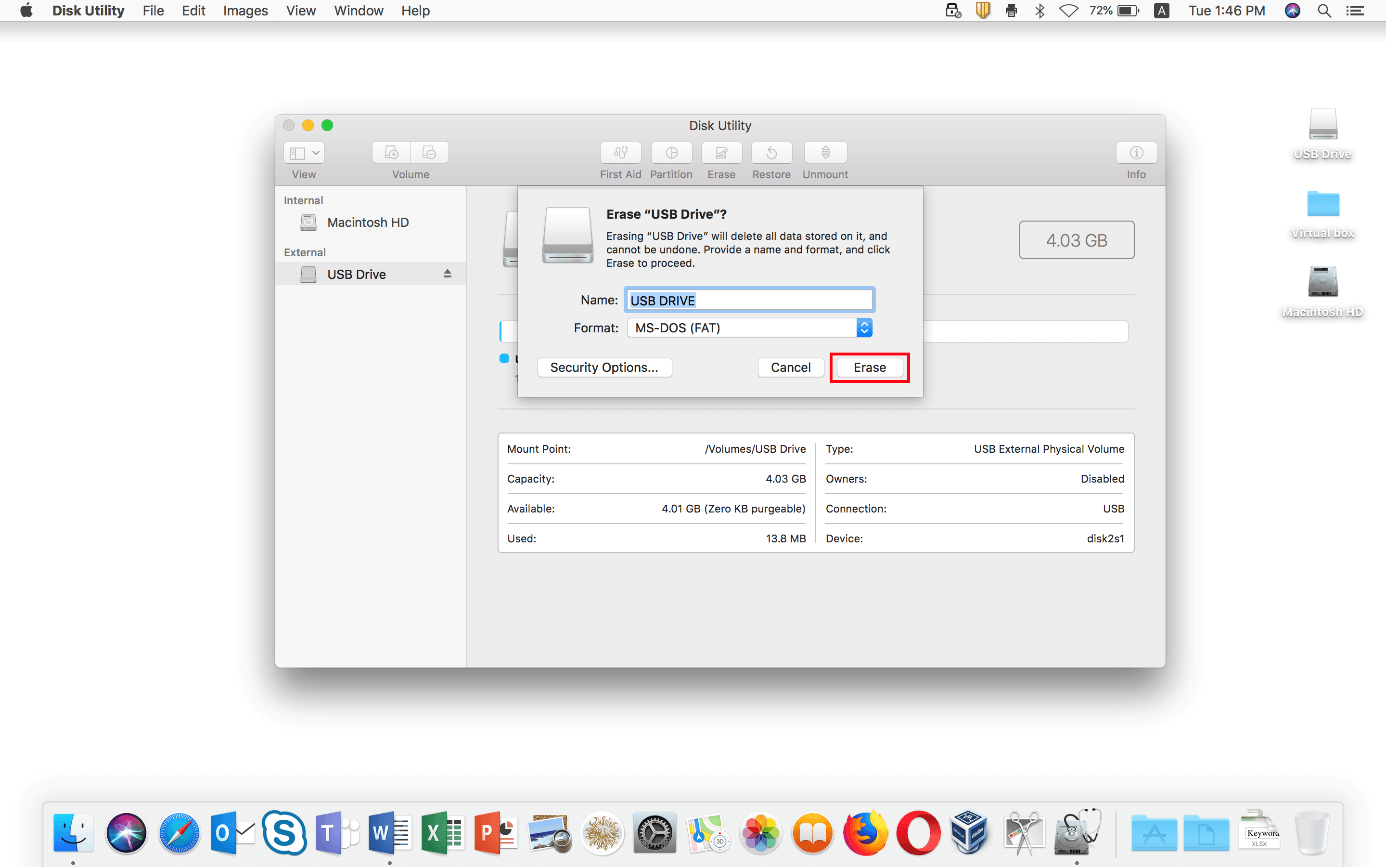
- Open Disk Utility: Go to Applications > Utilities > Disk Utility.
- Select Your Usb Drive: In the Disk Utility window, select your USB drive from the left-hand menu.
- Click The “Erase” Button: Click the Erase button at the top of the Disk Utility window.
- Choose a File System: Select the file system you want to use (APFS, HFS+, FAT32, or NTFS).
- Enter a Name: Enter a name for your USB drive.
- Click “Erase” Again: Click the Erase button again to confirm your choice.
Formatting a Usb Drive on Mac For Windows
If you need to format a USB drive on your Mac for use with Windows, follow these additional steps:
- Choose Ntfs as Your File System: Select NTFS as your file system in the Disk Utility window.
- Select Mbr (Master Boot Record): Choose MBR as the partition scheme.
Tips And Variations
Here are some additional tips to keep in mind when formatting a USB drive on Mac:
- Backup Your Data: Always backup any data on your USB drive before formatting it.
- Choose The Right File System For Windows Use: If you need to use your USB drive with Windows, choose NTFS as your file system.
- Use The Terminal Command “diskutil”: You can also format a USB drive using the Terminal command “diskutil”.
Conclusion
Formatting a USB drive on Mac is a simple process that allows you to start fresh and use it for storing files or transferring data between devices. By choosing the right file system, following these steps, and taking additional precautions, you’ll be able to use your USB drive with both macOS and Windows operating systems.
Frequently Asked Questions (FAQs)
- Q: Why do I Need to Format a Usb Drive?
A: You may need to format a USB drive if it’s not recognized by your Mac or if you want to start fresh. - Q: Which File System Should I Use For Windows Compatibility?
A: Choose NTFS as your file system if you need to use your USB drive with Windows. - Q: Can I Format a Usb Drive Using The Terminal Command “diskutil”?
A: Yes, you can also format a USB drive using the Terminal command “diskutil”. - Q: How do I Choose The Right File System For my Usb Drive?
A: Choose APFS if you’re using macOS High Sierra or later versions. For Windows compatibility, choose NTFS. - Q: Will Formatting a Usb Drive Erase All Data on It?
A: Yes, formatting a USB drive will erase all data on it.
Bonus Tip
If you need to format a USB drive on Mac for use with Windows, consider using the Paragon NTFS for Mac software, which allows you to use NTFS-formatted drives on macOS.


