
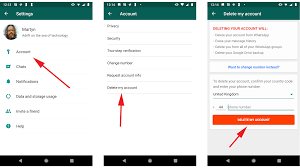
How to Uninstall Whatsapp: A Step-by-step Guide
Are you considering uninstalling WhatsApp but want to ensure that your conversations are safely backed up? Look no further! This article will guide you through the process of uninstalling WhatsApp on various devices, including Android, iPhone, Desktop, PC, Mac, and Web.
Why Uninstall Whatsapp?
Before we proceed with the steps, let’s explore why you might want to uninstall WhatsApp. Perhaps you’re switching to a different messaging app or simply want to declutter your device. Whatever the reason, we’ve got you covered.
Uninstalling Whatsapp on Android
To uninstall WhatsApp on an Android device:
- Backup Your Chat: Go to Settings > Chats and select the option to include videos in the backup. This will ensure that your conversations are safely stored on Google Drive.
- Long-press: Long-press on the WhatsApp icon until it starts shaking.
- Uninstall App: Tap on the “Uninstall” button, followed by “OK” to confirm.
Uninstalling Whatsapp on Iphone
If you’re using an iPhone:
- Backup Your Chat: Go to Settings > Chats and select the option to include videos in the backup. This will ensure that your conversations are safely stored on iCloud.
- Long-press: Long-press on the WhatsApp icon until it starts shaking.
- Delete App: Tap on the “Delete App” button, followed by “Delete” to confirm.
Uninstalling Whatsapp Desktop
To uninstall WhatsApp Desktop on Windows or macOS:
- Go to Start: On Windows, click on the Start button and select the Settings app.
- Apps & Features: Select “Apps & Features” from the left menu.
- Find Whatsapp: Look for WhatsApp in the list of installed apps and click on it.
- Uninstall: Click on the “Uninstall” button to remove WhatsApp.
Uninstalling Whatsapp on PC
If you’ve downloaded WhatsApp on your PC:
- Go to Start: On Windows, click on the Start button and select the Settings app.
- Apps & Features: Select “Apps & Features” from the left menu.
- Find Whatsapp: Look for WhatsApp in the list of installed apps and click on it.
- Uninstall: Click on the “Uninstall” button to remove WhatsApp.
Uninstalling Whatsapp on Mac
To uninstall WhatsApp on a Mac:
- Open Launchpad: On your Mac, open the Launchpad app by clicking on the icon in the Dock.
- Long-press: Long-press on the WhatsApp icon until it starts shaking.
- Delete App: Tap on the “X” button next to WhatsApp and confirm.
Uninstalling Whatsapp Web
If you’re using WhatsApp Web:
- Log Out: Log out of your WhatsApp account by clicking on the three dots in the top right corner.
- Disconnect: Click on the “Disconnect” button to end the session.
Conclusion
Uninstalling WhatsApp is a straightforward process that can be completed on various devices. By following these steps, you’ll be able to delete WhatsApp without losing your conversations. Remember to backup your chat before uninstalling WhatsApp to ensure that your messages are safely stored.
Frequently Asked Questions (FAQs)
- Q: What Happens if I Uninstall Whatsapp?
A: Your conversations will be backed up and saved on Google Drive or iCloud, depending on the device you used. - Q: Can I Reinstall Whatsapp Later?
A: Yes, you can download and install WhatsApp again from the App Store or Play Store. - Q: Will my Conversations be Deleted if I Uninstall Whatsapp?
A: No, your conversations will be backed up and saved on Google Drive or iCloud, so they’ll still be accessible later. -
Q: Can I Delete Whatsapp Without Deleting my Account?
A: Yes, you can choose to keep your account active while deleting the app from your device. -
Q: How do I Recover my Backed-up Conversations if I Reinstall Whatsapp?
A: Simply log in to your WhatsApp account and follow the prompts to restore your conversations from Google Drive or iCloud. -
Q: Can I Delete Whatsapp on Multiple Devices at Once?
A: Yes, you can delete WhatsApp on multiple devices by following the same steps as above. -
Q: Will Deleting Whatsapp Affect my Phone’s Performance?
A: No, deleting WhatsApp will not impact your phone’s performance or battery life. -
Q: Can I Contact Support if I Have Issues Uninstalling Whatsapp?
A: Yes, you can reach out to WhatsApp support for assistance with the uninstallation process.


