
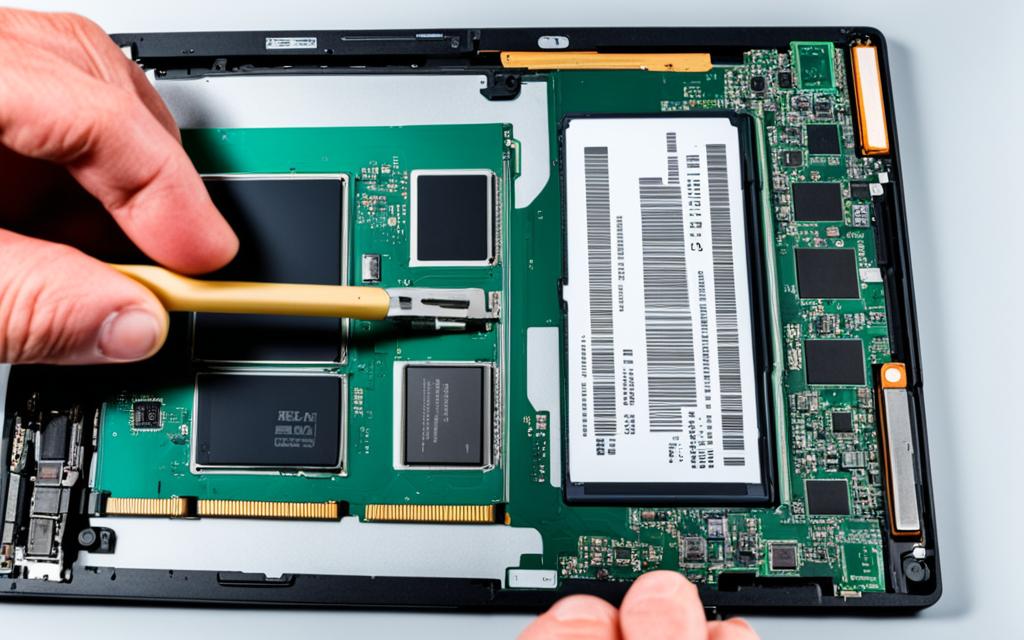
How to Expand Your Pc’s Ram
Are you tired of your computer slowing down when running multiple programs at once? Do you want to breathe new life into an old PC? Expanding your RAM (Random Access Memory) is a relatively inexpensive and easy way to do just that.
Why Upgrade Your Ram?
Upgrading your RAM can significantly improve your computer’s performance. By increasing the amount of memory available to run applications, you’ll notice improved multitasking capabilities, faster loading times, and enhanced overall system responsiveness.
Choosing The Right Type of Ram
Before upgrading your RAM, it’s essential to choose the correct type for your PC. There are different types of RAM (DDR3, DDR4, DDR5), and selecting the wrong one can lead to compatibility issues. Ensure you select a compatible type that matches your existing RAM.
Compatibility With Your Motherboard
Another crucial factor is the compatibility of your new RAM with your motherboard. You can check this by using online tools like Crucial’s Advisor tool or searching on Google for specific motherboard models. This ensures seamless integration and optimal performance.
Scanning Your System With Crucial’s Tool
To determine the best RAM upgrade for your PC, use Crucial’s free scanning tool. By running this program, you’ll receive a report detailing compatible RAM options for your system configuration.
How to Check Your Existing Ram
If you’re unsure about your existing RAM type or frequency, use CPU-Z, a free and easy-to-use program that provides detailed information about your PC’s components.
Upgrading Your Mac’s Ram
Mac users can upgrade their RAM using similar steps. However, it’s essential to note that many modern Macs have soldered-in RAM, making upgrades more complicated. Check your Mac model for specific instructions on upgrading the RAM.
How to Upgrade Your Smartphone’s Ram (virtually)
Some smartphones, like Samsung and Xiaomi devices, offer a virtual RAM expansion feature. This enables additional memory to be allocated from the device’s internal storage, freeing up space for apps and improving performance.
Method 1: Upgrading Your Pc’s Ram
To upgrade your PC’s RAM physically:
- Turn Off Your Computer, disconnect all cables, and ground yourself by touching a grounded metal object or wearing an anti-static wrist strap.
- Locate The Ram Slots: Find the RAM slots on your motherboard. They are usually labeled as “DIMM” (Dual In-Line Memory Module) slots.
- Remove The Old Ram: Carefully pull out the existing RAM sticks from their slots.
- Insert The New Ram: Place the new RAM sticks into the empty slots, ensuring they are securely seated and aligned with the notches on the motherboard.
- Secure The New Ram: Gently push the new RAM sticks into place until you hear a click or feel them snap into position.
Method 2: Upgrading Your Pc’s Ram Using Virtual Memory
If your PC has no available slots for physical RAM upgrades, consider expanding its virtual memory:
- Access The System Properties: Click on Start > Settings (Windows 10) and navigate to System > Advanced system settings.
- Adjust The Virtual Memory: Locate the “Virtual memory” section and adjust the minimum and maximum values as needed.
Upgrading Your Mac’s Ram
If you’re using a Mac with an Intel chip:
- Shut Down Your Mac, disconnect all cables, and ground yourself by touching a grounded metal object or wearing an anti-static wrist strap.
- Locate The Ram: Find the RAM slot on your Mac’s logic board. This is usually located near the CPU socket.
- Remove The Old Ram: Carefully pull out the existing RAM stick from its slot.
- Insert The New Ram: Place the new RAM stick into the empty slot, ensuring it’s securely seated and aligned with the notches on the logic board.
Conclusion
Expanding your PC’s RAM is a relatively simple process that can significantly improve performance. By choosing the correct type of RAM and following the necessary steps, you can breathe new life into an old computer or enhance the capabilities of a newer one. Whether upgrading physical RAM or utilizing virtual memory, this guide has provided the necessary information to help you achieve optimal system performance.
Faqs
- What is Ram, And Why do I Need It?
- RAM (Random Access Memory) is a type of computer memory that temporarily stores data for quick access by the CPU.
- How Much Ram Should I Have?
- The ideal amount of RAM depends on your usage and system requirements. As a general rule, aim to have at least 8GB of RAM for basic tasks and up to 16GB or more for heavy multitasking.
- Can I Upgrade my Mac’s Ram?
- Yes, but it may be more complicated due to soldered-in RAM on many modern Mac models. Check your Mac model for specific instructions on upgrading the RAM.
- How do I Check if my PC Supports Expanding Its Ram?
- Use Crucial’s Advisor tool or search online for information about your motherboard and RAM compatibility.
Sources


