
How to Open Heic Files on Your Pc, Mac, Android, And Ios Device
Are you struggling to open HEIC files on your device? Do you want to know the secret to accessing these beautiful photos taken with your iPhone or iPad? Look no further! In this article, we will guide you through the process of opening HEIC files on various devices, including PC, Mac, Android, and iOS.
What Are Heic Files?
Before we dive into the nitty-gritty, let’s quickly understand what HEIC files are. HEIC stands for High Efficiency Image File Format, which is a modern image file format developed by Apple. It’s designed to save images of superior quality while occupying half the storage space compared to traditional JPEG files.
Why Can’t I Open Heic Files on My PC or Mac?
If you’ve tried opening HEIC files on your PC or Mac and failed, it’s probably because your device doesn’t have the necessary software to read these files. Don’t worry; we’ll show you how to install the required software to open HEIC files.
Opening Heic Files on PC (Windows 11, Windows 10, Windows 7)
If you’re using a Windows PC, follow these steps:
On Windows 11
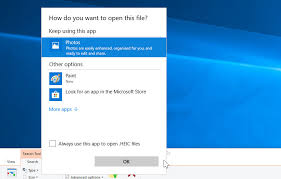
- Open the Photo app, which comes pre-installed with Windows.
- Double-click on the HEIC file to open it.
That’s it! If the file doesn’t open automatically, click right on the file and select “Open with” > Photo from the context menu.
On Windows 10
- Update your Windows 10 to April 2018 or later.
- Open the Photos app (you can find it in the Start menu).
- Double-click on the HEIC file to open it.
If you encounter issues, download and install the HEVC extension from Microsoft’s official website.
On Windows 7
- Download and install CopyTrans HEIC, a free plugin that supports opening HEIC files.
- Follow the instructions to install the plugin.
- Once installed, right-click on the HEIC file and select “Open with” > Photo Viewer (or any other image viewer you prefer).
Opening Heic Files on Mac
If you’re using a Mac, follow these steps:
- Update your macOS to High Sierra (10.13) Or later.
- Double-click on the HEIC file to open it.
That’s it! If you need to convert the HEIC file to JPEG for compatibility with other devices, use the built-in Photos app to export the image.
Opening Heic Files on Android
If you’re using an Android device, follow these steps:
- Ensure your device is updated to Android 9 (Pie) or later.
- Download and install Dropbox from the Google Play Store.
- Open Dropbox and select the folder where your HEIC file is stored.
- Tap on the “Open” button next to the HEIC file.
Alternatively, download the Heic to JPG Converter Free app from the Google Play Store and follow the instructions to convert the HEIC file.
Opening Heic Files on Ios (iPhone, Ipad)
If you’re using an iPhone or iPad, follow these steps:
- Ensure your device is updated to iOS 11 or later.
- To share HEIC files with non-Apple devices, go to Settings > Camera and select the “Most compatible” option.
To convert HEIC files to JPEG for sharing with other devices, you can use a converter app like Heic to JPG Converter Free (available on the App Store).
Opening Heic Files Online
If you need to open HEIC files online without installing any software or apps, follow these steps:
- Visit the IMAGEtoSTL website and click on the “+ Charge a file” button.
- Select the HEIC file you want to open and upload it.
- Once processed, the image will be displayed on the screen.
Alternatively, visit ImageOnline and click on the “ADD *HEIC” button to upload your HEIC file.
Conclusion
Opening HEIC files is a breeze now! With these simple steps, you can access and share your beautiful photos taken with your iPhone or iPad. Remember to always check for updates and compatibility issues before attempting to open HEIC files on your device.
Frequently Asked Questions (FAQs)
- What Are The Advantages of Using Heic Files?
HEIC files offer superior image quality while occupying half the storage space compared to traditional JPEG files.
- Why Can’t I Open Heic Files on my PC or Mac?
Your device may not have the necessary software to read HEIC files. Download and install the required software, such as Photo Viewer (Windows) or Photos app (Mac).
- How do I Convert Heic Files to Jpeg For Sharing With Non-apple Devices?
Use a converter app like Heic to JPG Converter Free (Android) or export the image using the Photos app on your Mac.
- Can I Open Heic Files Online Without Installing Any Software?
Yes, visit IMAGEtoSTL or ImageOnline websites and follow their instructions to upload and view HEIC files online.
- What Are The System Requirements For Opening Heic Files on Android Devices?
Ensure your device is updated to Android 9 (Pie) or later.
- Can I Open Heic Files on Older Versions of Windows?
Yes, but you may need to download and install additional software, such as CopyTrans HEIC for Windows 7.
- How do I Update my Macos to High Sierra (10.13) Or Later?
Check your system preferences and follow the instructions to update your operating system.
- Can I Use a Converter App on Ios Devices?
Yes, download and install Heic to JPG Converter Free from the App Store.


