
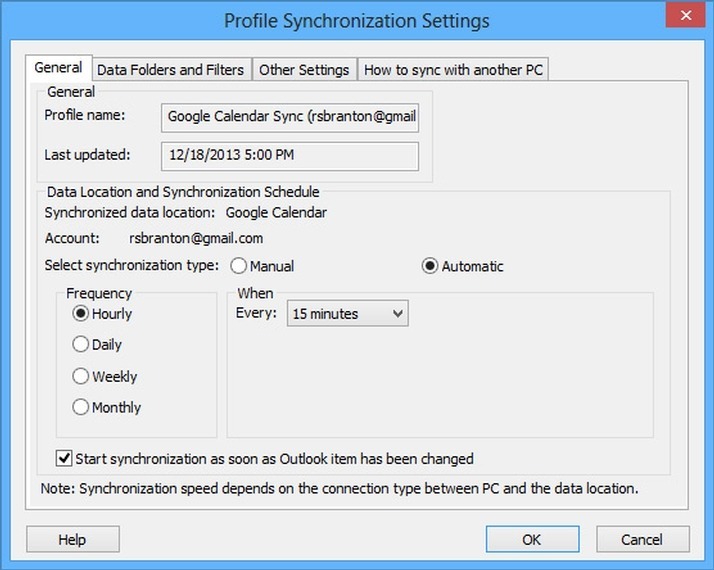
How to Sync Google Calendar With Outlook: A Step-by-step Guide
Are you tired of juggling multiple calendars? Do you want to see your Google Calendar events in Outlook without having to switch between apps? Look no further! In this article, we’ll guide you through the process of syncing your Google Calendar with Outlook.
What is Syncing a Calendar?
Syncing a calendar means linking two or more calendars together so that they can share information and stay up-to-date. This allows you to see all your events in one place, making it easier to manage your schedule.
Why Sync Google Calendar With Outlook?
Syncing Google Calendar with Outlook offers several benefits:
- Convenience: See all your events in one place without having to switch between apps.
- Organization: Easily manage multiple calendars and stay on top of your schedule.
- Accessibility: Access your calendar from any device, whether it’s a computer or mobile phone.
Method 1: Syncing Google Calendar With Outlook Using The Ical Address
To sync Google Calendar with Outlook, you’ll need to obtain the private address in iCal format for the list of events you want to share. Here’s how:
Step 1: Obtain The Ical Address
- Log Into Your Google Calendar: Open the Google Calendar website and sign in with your account.
- Access The Calendar Settings: Click on the gear icon in the top right corner and select “Settings.”
- Find The Ical Address: Scroll down to the “Integrate resident calendar” section and click on the “Copy” button next to the iCal address.
Step 2: Add The Ical Address to Outlook
- Open Outlook: Launch Outlook on your computer.
- Add a New Calendar: Click on the “Calendar” tab and select “New Calendar.”
- Enter The Ical Address: Paste the iCal address from Google Calendar into the “Address” field.
- Save The Changes: Click “OK” to add the calendar.
Method 2: Using Outlook Google Calendar Sync
For a more seamless experience, you can use the free and open-source tool, Outlook Google Calendar Sync. This application allows for bidirectional syncing between Google Calendar and Outlook.
Step 1: Download And Install Outlook Google Calendar Sync
- Visit The Official Website: Go to the Outlook Google Calendar Sync download page.
- Download The Zip File: Click on the “Portable ZIP” button to download the tool.
- Extract The Files: Unzip the downloaded file into a folder on your computer.
Step 2: Configure Outlook Google Calendar Sync
- Run The Setup Program: Double-click the executable file (OutlookGoogleCalendarSync.Exe) to start the installation process.
- Configure The Sync Options: Follow the prompts to set up the bidirectional syncing process between Google Calendar and Outlook.
Method 3: Using The Web Version of Outlook
If you prefer using the web version of Outlook, you can add your Google Calendar as a shared calendar in Outlook.Com.
- Log Into Your Outlook Account: Sign in to your Outlook.Com account.
- Access The Calendar Settings: Click on the “Calendar” tab and select “Settings.”
- Add a New Calendar: Select “Add a shared calendar” and enter the iCal address from Google Calendar.
Method 4: Syncing Google Calendar With Outlook Using a Smartphone or Tablet
To sync your Google Calendar with Outlook on a smartphone or tablet, you’ll need to install the Microsoft Outlook app and add your Google account.
- Download And Install Outlook: Get the Microsoft Outlook app from the App Store (for iOS devices) or Google Play Store (for Android devices).
- Add Your Google Account: Open the Outlook app, tap on “Add account,” and enter your Google account credentials.
- Sync Your Calendars: Tap on the calendar icon to access your Google Calendar events.
By following these steps, you’ll be able to sync your Google Calendar with Outlook, making it easier to manage your schedule across multiple devices.


