
Blocking a Website on Your Router: A Step-by-step Guide
Are you tired of unwanted websites cluttering your internet connection? Do you want to block access to certain categories of online services? Blocking a website on your router can be an effective way to maintain control over the content your family or employees are exposed to. In this article, we’ll explore how to do it using various methods, including blocking websites directly on your router and using filters.
Understanding Your Router’s Capabilities
Not all routers support blocking websites, so it’s essential to check if yours does. Cheap or borrowed routers might not have this feature, but most modern routers should. Check the manual or manufacturer’s website for information on how to block websites on your specific router model.
Blocking Websites Directly on Your Router
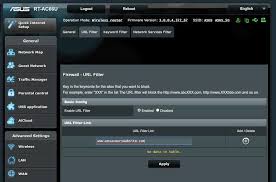
If you can block websites directly on your router, follow these steps:
- Access The Router’s Panel of Management: Type in the address 192.168.1.1 Or 192.168.0.1 (Depending on your router) into your browser.
- Log in With Your Admin Credentials: Enter the username and password you set up during the initial configuration.
- Search For a “Firewall” or “Parental Control” Section: This is where you’ll find the settings to block websites.
- Enter The Website’s Url or Keyword: Type in the address of the website you want to block or a specific word that will trigger blocking.
- Save Your Changes: Click on the confirm button to apply the filter.
Using Dns Filters
If you can’t block websites directly on your router, consider using DNS filters like OpenDNS. This service provides customizable filtering options and allows you to block specific websites or categories of content.
- Sign up For an Opendns Account: Create a free account on their official website.
- Configure The Filter Settings: Add your address IP and choose a filter level (High, Moderated, or Low).
- Block Specific Websites or Categories: Enter the website’s URL or keyword in the custom domain section to block it.
Inserting Dns Settings Into Your Router
Once you’ve configured OpenDNS, insert its DNS addresses into your router’s panel of management:
- Access The Router’s Configuration Menu: Look for the “DNS” or “WAN” section.
- Enter The Opendns IP Addresses: Type in 208.67.222.222 And 208.67.220.220.
Alternative Solutions
If you’re unable to block websites on your router, consider using third-party applications designed specifically for blocking unwanted content. These apps can be easily installed on devices connected to your network and provide a convenient way to manage access to online services.
Conclusion
Blocking unwanted websites on your router is a straightforward process that requires some basic knowledge of your device’s settings. By following these steps, you’ll be able to maintain control over the content your family or employees are exposed to. Remember to consider alternative solutions if your router doesn’t support blocking websites directly.
Frequently Asked Questions
- Q: Can I Block Websites on my Router?
A: It depends on your router model; check with the manufacturer for specific information. - Q: How do I Access my Router’s Panel of Management?
A: Type in 192.168.1.1 Or 192.168.0.1 Into your browser, and log in with your admin credentials. - Q: What Are Dns Filters, And How do They Work?
A: DNS filters, like OpenDNS, allow you to block specific websites or categories of content by modifying the address resolution process. - Q: Can I Use Third-party Applications to Block Unwanted Websites?
A: Yes, there are various apps available that can be installed on devices connected to your network to block specific websites or categories of online services. - Q: How do I Configure Opendns Settings in my Router?
A: Follow the steps outlined above to insert OpenDNS IP addresses into your router’s panel of management. - Q: What if I Have a Router That Doesn’t Support Blocking Websites Directly?
A: Consider using DNS filters like OpenDNS or third-party applications designed specifically for blocking unwanted content. - Q: Can I Block Specific Categories of Online Services Using Opendns?
A: Yes, you can configure the filter settings to block specific categories of content. - Q: How do I Insert The Opendns IP Addresses Into my Router’s Configuration Menu?
A: Follow the steps outlined above to enter the OpenDNS IP addresses in your router’s “DNS” or “WAN” section.


