
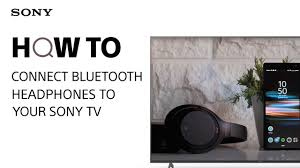
Connecting Bluetooth Headphones to Your Tv: A Step-by-step Guide
Are you tired of dealing with tangled cables and lost remotes while watching your favorite shows? Do you wish there was an easier way to connect your Bluetooth headphones to your TV? Look no further! In this article, we will guide you through the process of connecting Bluetooth headphones to your TV, covering various models from Samsung, LG, Sony, and Philips.
What You Need to Know
Before we dive into the step-by-step instructions, it’s essential to understand that not all TVs are compatible with Bluetooth technology. If your TV has built-in Bluetooth, this guide will walk you through the process of pairing your headphones with your TV. However, if your TV doesn’t have Bluetooth, don’t worry! We’ll also cover alternative methods for connecting your headphones.
Connecting Bluetooth Headphones to Your Tv: A Step-by-step Guide
Table 1: Compatible Tvs And Their Corresponding Steps
| TV Model | Steps to Connect |
|---|---|
| Samsung | Go to Home > Settings > Sound > External Devices > Bluetooth > Pair Device. Select your headphones from the list, and you’re good to go! |
| LG | Press the Fast Settings button on your remote, select All Settings > Audio > LG Sound Sync/Bluetooth > Selection Device. Find your headphones in the list and press OK to pair them. |
| Sony | Go to Home > Settings > Bluetooth > Pair Device. Select your headphones from the list, and you’re connected! |
Table 2: Connecting Bluetooth Headphones to Your TV Without Built-in Bluetooth
| Method | Steps |
|---|---|
| Using a Bluetooth Transmitter | Connect the transmitter to your TV’s audio output (RCA or optical). Pair your headphones with the transmitter using the provided instructions. Enjoy your wireless listening experience! |
| Using Wireless Headphones With RF Transmission | Connect the base of your wireless headphones to your TV’s auxiliary input. Plug in the power source, select the frequency on the base and headphones, and press the pairing button on your headphones. Voilà! |
Tips And Tricks
- Make sure your TV has built-in Bluetooth or a compatible audio output for the alternative method.
- Consult your TV manual or online documentation if you’re unsure about the steps.
- Use a Bluetooth transmitter or wireless headphones with RF transmission for a seamless listening experience.
- Experiment with different frequencies to ensure optimal connectivity.
Conclusion
Connecting Bluetooth headphones to your TV is easier than ever! With this guide, you should be able to pair your headphones with your Samsung, LG, Sony, or Philips TV in no time. Remember to follow the specific steps for your TV model and consult online resources if needed. Happy watching!
Frequently Asked Questions (FAQs)
- Q: Why Won’t my Bluetooth Headphones Connect to my Tv?
A: Ensure your TV has built-in Bluetooth or a compatible audio output. Consult your TV manual or online documentation for troubleshooting. - Q: Can I Use Wireless Headphones With RF Transmission if my TV Doesn’t Have Built-in Bluetooth?
A: Yes! This method allows you to enjoy wireless listening even without built-in Bluetooth on your TV. - Q: How do I Know Which Type of Transmitter to Buy For my Tv?
A: Research compatible transmitters for your specific TV model or consult online reviews. - Q: Can I Connect Multiple Devices at Once Using a Bluetooth Transmitter?
A: Yes! Most transmitters allow you to pair multiple devices, ensuring seamless connectivity. - Q: Are Wireless Headphones With RF Transmission More Expensive Than Other Options?
A: Prices vary depending on the brand and quality of the device. Research online for the best deals. - Q: Can I Use my Tv’s Built-in Speakers While Using Bluetooth Headphones?
A: Yes! Most TVs allow you to switch between internal speakers and external devices like Bluetooth headphones.
Stay connected, and happy watching!


