
How to Create a Google Account: A Step-by-step Guide
Are you new to the world of Android smartphones or tablets? Do you want to access the Play Store, sync your contacts online, and open a Gmail account, but don’t know where to start? Don’t worry! This article will guide you through the process of creating a Google account on both computers and mobile devices.
Why Create a Google Account?
Creating a Google account is not only essential for accessing Google services like Gmail, Google Drive, YouTube, and more, but it also provides numerous benefits. With a Google account, you can:
- Access your email and contacts online
- Use the Play Store to download apps and games
- Sync your data across devices
- Create a Google Drive account for cloud storage
- Burden video on YouTube and other services
How to Create a Google Account on a Computer
To create a Google account on a computer, follow these steps:
- Access The Google Homepage: Go to the Google homepage (www.Google.Com) and click on the “Create an account” button.
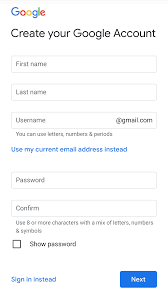
- Fill Out The Form: Fill out the form with your name, surname, username (which will be used for your Gmail address), and password. Make sure to create a strong password!
- Add Recovery Information: Add an email address or phone number that you can use to recover your account if you forget your password.
- Provide Birthdate And Gender: Provide your birthdate and gender as required by Google’s terms of service.
- Personalize Your Account Settings: Choose how you want to personalize your account settings, such as setting up two-factor authentication.
How to Access a Google Account on a Computer
To access your Google account on a computer:
- Open The Google Homepage: Go to the Google homepage (www.Google.Com) and sign in with your username and password.
- Click on The Profile Picture: Click on the profile picture in the top right corner of the page to access your account settings.
- Manage Your Account: Manage your account by clicking on the “My account” link.
How to Create a Google Account on a Smartphone or Tablet
To create a Google account on an Android smartphone or tablet:
- Open Settings: Open the Settings app and scroll down to the Users and accounts section.
- Add New Account: Tap on the “Add new account” button and select the Google logo.
- Create a New Account: Fill out the form with your name, surname, username (which will be used for your Gmail address), and password.
- Add Recovery Information: Add an email address or phone number that you can use to recover your account if you forget your password.
To create a Google account on an iPhone or iPad:
- Open Settings: Open the Settings app and scroll down to the Contacts section.
- Add New Account: Tap on the “Add new account” button and select the Google logo.
- Create a New Account: Fill out the form with your name, surname, username (which will be used for your Gmail address), and password.
How to Access a Google Account on a Smartphone or Tablet
To access your Google account on a smartphone or tablet:
- Open The Google App: Open the Google app and sign in with your username and password.
- Click on The Profile Picture: Click on the profile picture in the top right corner of the page to access your account settings.
Creating a Google Account For Educational Purposes
To create a Google account for educational purposes, such as using Google Classroom or Google Meet:
- Access The Google Homepage: Go to the Google homepage (www.Google.Com) and click on the “Create an account” button.
- Fill Out The Form: Fill out the form with your name, surname, username (which will be used for your Gmail address), and password.
- Provide School Information: Provide information about your school or educational institution.
Creating a Google Account For Google Analytics
To create a Google account for Google Analytics:
- Access The Google Homepage: Go to the Google homepage (www.Google.Com) and click on the “Create an account” button.
- Fill Out The Form: Fill out the form with your name, surname, username (which will be used for your Gmail address), and password.
Creating a Google Account For Google My Business
To create a Google account for Google My Business:
- Access The Google Homepage: Go to the Google homepage (www.Google.Com) and click on the “Create an account” button.
- Fill Out The Form: Fill out the form with your name, surname, username (which will be used for your Gmail address), and password.
Conclusion
Creating a Google account is a straightforward process that provides access to numerous services and benefits. Whether you’re using a computer or mobile device, follow these steps to create a Google account and start exploring the world of Google!
Frequently Asked Questions
- Q: Why do I Need to Create a Google Account?
A: Creating a Google account allows you to access various Google services like Gmail, Google Drive, YouTube, and more. - Q: How do I Create a Google Account on my Smartphone or Tablet?
A: To create a Google account on your smartphone or tablet, follow the steps outlined in this article. - Q: Can I Use Multiple Google Accounts on One Device?
A: Yes, you can add multiple Google accounts to your device, but make sure to choose which account to use when accessing services like Gmail or YouTube. - Q: How do I Access my Google Account Settings?
A: To access your Google account settings, click on the profile picture in the top right corner of the page and select “My account”. - Q: Can I Delete a Google Account?
A: Yes, you can delete a Google account by following the steps outlined in this article. - Q: How do I Recover my Google Account Password?
A: To recover your Google account password, follow the steps outlined in this article or contact Google support. - Q: Can I Use Google Services Without Creating an Account?
A: Yes, you can use some Google services like YouTube and Google Maps without creating a Google account, but many services require an account to access fully. - Q: How do I Create a Google Account For Educational Purposes?
A: To create a Google account for educational purposes, follow the steps outlined in this article or contact your school’s IT department.
I hope this article has helped you understand how to create a Google account and use various Google services!


