
How to Download a Backup of Google Drive: A Step-by-step Guide
Are you tired of worrying about losing your important data stored on Google Drive? Do you want to ensure that your files are safe in case something happens to your account or device? Look no further! In this article, we will guide you through the process of downloading a backup of your Google Drive data.
Why Download a Backup of Google Drive?
Before we dive into the steps, let’s talk about why downloading a backup of Google Drive is essential. Imagine losing access to your important files and photos due to a technical issue or account suspension. A backup of your Google Drive data can save you from this nightmare. With a backup, you can restore your files and continue working on them without any hassle.
Method 1: Downloading a Backup Using Google Takeout
The most straightforward way to download a backup of Google Drive is by using the Google Takeout service. Here’s how:
Step 1: Access Google Takeout
To access Google Takeout, follow these steps:
- Open your computer and navigate to the Google account sign-in page.
- Enter your email address and password to log in.
- Click on the avatar icon located at the top-right corner of the screen.
- Select “Manage your Google Account” from the dropdown menu.
Step 2: Select Your Data
Once you’ve accessed Google Takeout, select the type of data you want to include in your backup:
- Drive
- Gmail
- Photos
- Contacts
- Calendar
Step 3: Choose a Backup Format
Next, choose a backup format that suits your needs:
- .Zip (default)
- .Tgz
- .Csv (for specific data types)
Step 4: Set The Export Frequency
Decide how often you want to export your data:
- One-time export
- Weekly or monthly exports
Step 5: Receive Your Backup Link
Google Takeout will send a link to your email address. Use this link to download your backup.
Method 2: Downloading a Backup Using Google Drive For Desktop
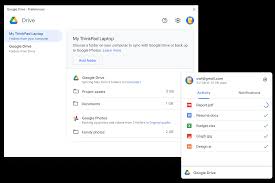
If you have Google Drive installed on your computer, you can use it to download a backup of your data:
Step 1: Access Google Drive For Desktop
Open the Google Drive for Desktop application and sign in with your account credentials.
Step 2: Select Your Data
Choose the type of data you want to include in your backup:
- My Drive
- Computer
Step 3: Choose a Backup Format
Select a backup format that suits your needs:
- .Zip (default)
- .Tgz
- .Csv (for specific data types)
Step 4: Set The Export Frequency
Decide how often you want to export your data:
- One-time export
- Weekly or monthly exports
Step 5: Receive Your Backup Link
Google Drive will send a link to your email address. Use this link to download your backup.
Method 3: Downloading a Backup Using Google Takeout on Android Devices
If you have an Android device, follow these steps:
Step 1: Open Settings
Access the settings app on your device and select “Google” from the list of options.
Step 2: Access Google Drive
Open the Google Drive app and sign in with your account credentials.
Step 3: Select Your Data
Choose the type of data you want to include in your backup:
- My Drive
- Photos
Step 4: Choose a Backup Format
Select a backup format that suits your needs:
- .Zip (default)
- .Tgz
- .Csv (for specific data types)
Step 5: Set The Export Frequency
Decide how often you want to export your data:
- One-time export
- Weekly or monthly exports
Step 6: Receive Your Backup Link
Google Takeout will send a link to your email address. Use this link to download your backup.
How to Download a Backup of Whatsapp Data From Google Drive
If you have a backup of your WhatsApp data stored on Google Drive, follow these steps:
Step 1: Access Google Drive
Open the Google Drive app and sign in with your account credentials.
Step 2: Select Your Whatsapp Data
Choose the “WhatsApp” folder from the list of options.
Step 3: Choose a Backup Format
Select a backup format that suits your needs:
- .Zip (default)
- .Tgz
- .Csv (for specific data types)
Step 4: Set The Export Frequency
Decide how often you want to export your data:
- One-time export
- Weekly or monthly exports
Step 5: Receive Your Backup Link
Google Takeout will send a link to your email address. Use this link to download your backup.
How to Download a Backup of Google Drive Settings on Android Devices
If you have an Android device, follow these steps:
Step 1: Open Settings
Access the settings app on your device and select “Google” from the list of options.
Step 2: Access Google Drive
Open the Google Drive app and sign in with your account credentials.
Step 3: Select Your Data
Choose the type of data you want to include in your backup:
- My Drive
- Photos
Step 4: Choose a Backup Format
Select a backup format that suits your needs:
- .Zip (default)
- .Tgz
- .Csv (for specific data types)
Step 5: Set The Export Frequency
Decide how often you want to export your data:
- One-time export
- Weekly or monthly exports
Step 6: Receive Your Backup Link
Google Takeout will send a link to your email address. Use this link to download your backup.
Conclusion
Downloading a backup of Google Drive is an essential step in ensuring the safety and security of your data. By following the steps outlined above, you can create a backup of your files and restore them whenever needed. Remember to always keep your account credentials secure and follow best practices for data management.
Frequently Asked Questions
Q: Why should I download a backup of Google Drive?
A: Downloading a backup of Google Drive ensures that your files are safe in case something happens to your account or device.
Q: How often should I update my backup?
A: Update your backup regularly, at least once a week, to ensure that all new data is included.
Q: Can I download a backup of WhatsApp data from Google Drive?
A: Yes, you can download a backup of WhatsApp data from Google Drive, but it requires additional steps.
Recommendations
- Set up automatic backups for your Google Drive data.
- Use a reputable cloud storage service to store your backups.
- Regularly review and update your backup settings.
Resources
- Google Takeout: Www.Google.Com/takeout
- Google Drive for Desktop: Drive.Google.Com
- Android Device Settings: Settings.Google.Com
Please let me know if you would like me to make any changes!


