
How to Create Private Friend Lists on Facebook: A Step-by-step Guide
Are you tired of sharing your personal posts and photos with your entire friend list on Facebook? Do you want to share specific content only with a select group of friends? Look no further! In this article, we will show you how to create private friend lists on Facebook, also known as “lists” or “friend lists”.
Why Create Private Friend Lists on Facebook?
Creating private friend lists on Facebook allows you to categorize your friends and share content only with the people in a specific list. This is particularly useful for sharing personal posts, photos, or updates that you don’t want everyone to see.
Smartphone And Tablet: How to Create Friends List
To create a friends list on your smartphone or tablet, follow these steps:
- Open the Facebook app on your mobile device.
- Tap on the menu icon (three horizontal lines) in the top right corner (on Android) or bottom right corner (on iOS/iPadOS).
- Tap on your name to access your profile.
- Scroll down until you see the “Friends” section.
- Tap on the “Lists” option.
- Select “Create a list”.
- Choose the type of list you want to create (e.G., “Close friends”, “Acquaintances”, etc.).
- Add friends to your list by tapping on their names.
Computer: How to Create Friends List
To create a friends list on your computer, follow these steps:
- Log in to Facebook using your account.
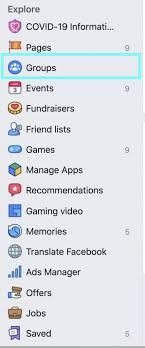
- Click on the “Friends” tab.
- Select “Lists”.
- Choose “Create a new list”.
- Name your list and add friends by searching for their names.
How to Add Friends to Your List
To add friends to your list, follow these steps:
- Go to your friend’s profile page.
- Click on the “Friends” tab.
- Select “Add to list”.
- Choose the list you want to add them to.
How to Remove Friends From a List
To remove friends from a list, follow these steps:
- Go to the list you want to modify.
- Click on the three dots next to the friend’s name.
- Select “Remove from list”.
Benefits of Creating Private Friend Lists on Facebook
Creating private friend lists on Facebook has several benefits:
- Personalization: You can share content with specific groups of friends, making your posts more personal and relevant.
- Control: You have control over who sees your content, reducing the risk of sharing sensitive information with the wrong people.
- Organization: You can categorize your friends into different lists, making it easier to manage your friendships.
Conclusion
Creating private friend lists on Facebook is a simple yet effective way to share personal content only with specific groups of friends. By following these steps, you can create lists and add friends to them, giving you more control over who sees your posts and updates.
Frequently Asked Questions (FAQs)
- What Are The Benefits of Creating Private Friend Lists on Facebook?
- Creating private friend lists allows you to share content only with specific groups of friends, reducing the risk of sharing sensitive information with the wrong people.
- How do I Create a Friends List on my Smartphone or Tablet?
- To create a friends list on your smartphone or tablet, open the Facebook app and follow the steps outlined above.
- Can I Add Multiple Lists to a Friend?
- Yes, you can add multiple lists to a friend by selecting the lists you want to add them to when adding friends to a list.
- How do I Remove a Friend From a List?
- To remove a friend from a list, click on the three dots next to their name and select “Remove from list”.
- Can I Make my Lists Public or Private?
- Yes, you can make your lists public or private by selecting the desired visibility setting when creating a new list.
- How do I Edit a List’s Settings?
- To edit a list’s settings, click on the three dots next to the list’s name and select “Edit”.
- Can I Share Content With Multiple Lists at Once?
- Yes, you can share content with multiple lists by selecting the desired lists when posting or sharing content.
- How do I Know Who is in my List?
- To see who is in your list, click on the list’s name and view the friends listed under it.


