
Unlocking The Full Potential of Windows 10: A Step-by-step Guide
Are you tired of your Windows 10 computer feeling sluggish and slow? Do you find yourself waiting for what feels like an eternity for programs to load or the operating system to respond? You’re not alone! Many users experience this issue, but fortunately, there are several ways to optimize your Windows 10 experience.
Understanding The Problem
Before we dive into the solutions, it’s essential to understand why your Windows 10 computer might be feeling slow. There are several reasons for this, including:
- A full hard drive with too many programs and files taking up space
- Unnecessary programs running in the background
- Outdated graphics drivers
- Insufficient RAM
Step 1: Clean Up Your Hard Drive
The first step to a faster Windows 10 experience is to clean up your hard drive. This involves removing unnecessary programs, files, and other items that are taking up space on your computer.
- Delete Unnecessary Programs: Go to the “Start” menu and click on “Apps and Features.” Here, you’ll see a list of installed programs. Look for any programs you no longer use or need, and uninstall them.
- Remove Temporary Files: Click on the “Start” button and type “Disk Cleanup” in the search bar. This will open a window where you can select which types of files to delete, such as temporary files, system logs, and other items that are not essential to your computer’s functioning.
Step 2: Disable Unnecessary Startup Programs
Next, let’s focus on disabling unnecessary startup programs. These programs can consume system resources and slow down your computer.
- Open Task Manager: Press the “Ctrl + Shift + Esc” keys simultaneously to open the Task Manager.
- Disable Unnecessary Programs: In the Task Manager, click on the “Startup” tab. Here, you’ll see a list of programs that start automatically when you turn on your computer. Look for any programs you no longer need or use, and disable them.
Step 3: Update Your Graphics Drivers
Outdated graphics drivers can cause performance issues with Windows 10.
- Update Your Graphics Drivers: Go to the “Start” menu and type “Graphics Drivers” in the search bar. This will open a window where you can update your graphics drivers.
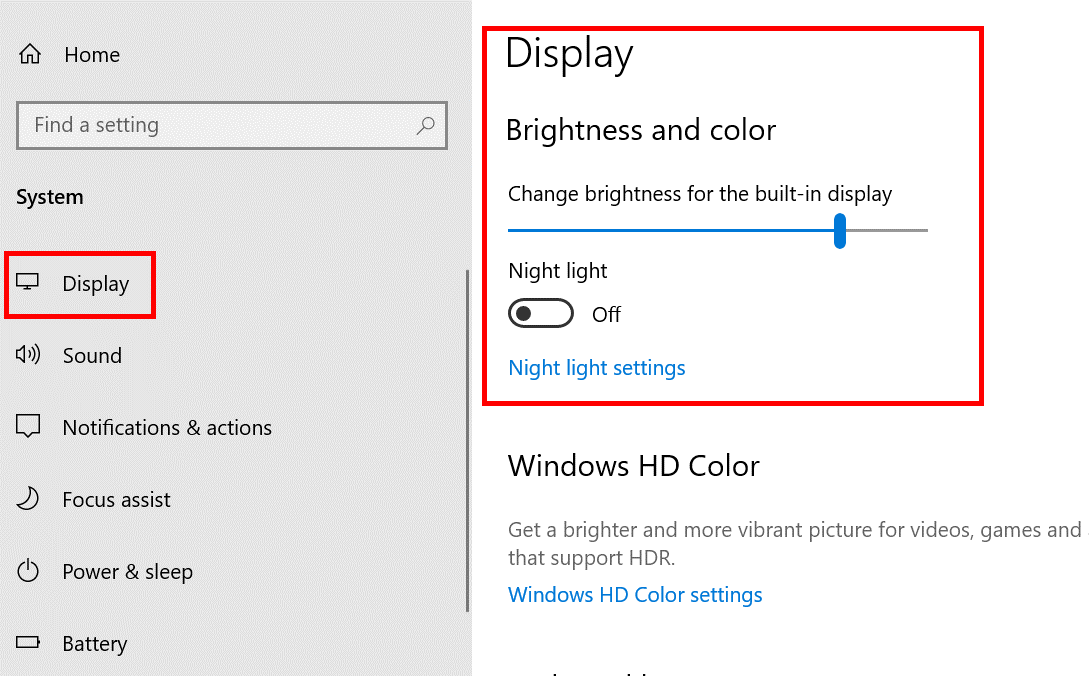
- Disable Graphics Effects: If updating your graphics drivers doesn’t improve performance, try disabling graphics effects. To do this, go to the “Settings” app and click on “System.” From there, click on “Display” and toggle off any unnecessary graphics effects.
Step 4: Optimize Your Hard Drive
If your hard drive is becoming too full, it can slow down your computer’s performance.
- Optimize or Defragment Your Hard Drive: Go to the “Start” menu and type “Disk Cleanup” in the search bar. This will open a window where you can select which types of files to delete, such as temporary files, system logs, and other items that are not essential to your computer’s functioning.
- Consider Upgrading to an Ssd: If your hard drive is becoming too full or slow, consider upgrading to a solid-state drive (SSD). An SSD can significantly improve your computer’s performance.
Step 5: Run Disk Cleanup And Check For Updates
Finally, let’s run disk cleanup and check for updates.
- Run Disk Cleanup: Go to the “Start” menu and type “Disk Cleanup” in the search bar. This will open a window where you can select which types of files to delete.
- Check For Updates: Click on the “Start” button and click on “Settings.” From there, click on “Update & Security” and check if any updates are available.
Conclusion
By following these steps, you should be able to optimize your Windows 10 experience and make it feel faster and more responsive. Remember to regularly clean up your hard drive, disable unnecessary startup programs, update your graphics drivers, optimize or defragment your hard drive, run disk cleanup, and check for updates to keep your computer running smoothly.
Frequently Asked Questions (FAQs)
- Q: Why is my Windows 10 Computer Feeling Slow?
A: There are several reasons why your Windows 10 computer might be feeling slow, including a full hard drive with too many programs and files taking up space, unnecessary programs running in the background, outdated graphics drivers, or insufficient RAM. - Q: How do I Clean up my Hard Drive?
A: To clean up your hard drive, delete unnecessary programs, remove temporary files, and consider upgrading to a solid-state drive (SSD). - Q: How do I Disable Unnecessary Startup Programs?
A: To disable unnecessary startup programs, open the Task Manager, click on the “Startup” tab, and look for any programs you no longer need or use. - Q: Why Are my Graphics Drivers Out of Date?
A: Your graphics drivers might be out of date because you haven’t updated them recently or because your computer’s hardware is outdated. - Q: How do I Update my Graphics Drivers?
A: To update your graphics drivers, go to the “Start” menu and type “Graphics Drivers” in the search bar. This will open a window where you can update your graphics drivers.
Additional Tips
- Regularly clean up your hard drive to free up space and improve performance.
- Disable unnecessary startup programs to reduce system resource consumption.
- Update your graphics drivers regularly to ensure optimal performance.
- Consider upgrading to an SSD for improved performance and faster loading times.
- Check for updates regularly to keep your computer running smoothly.


