
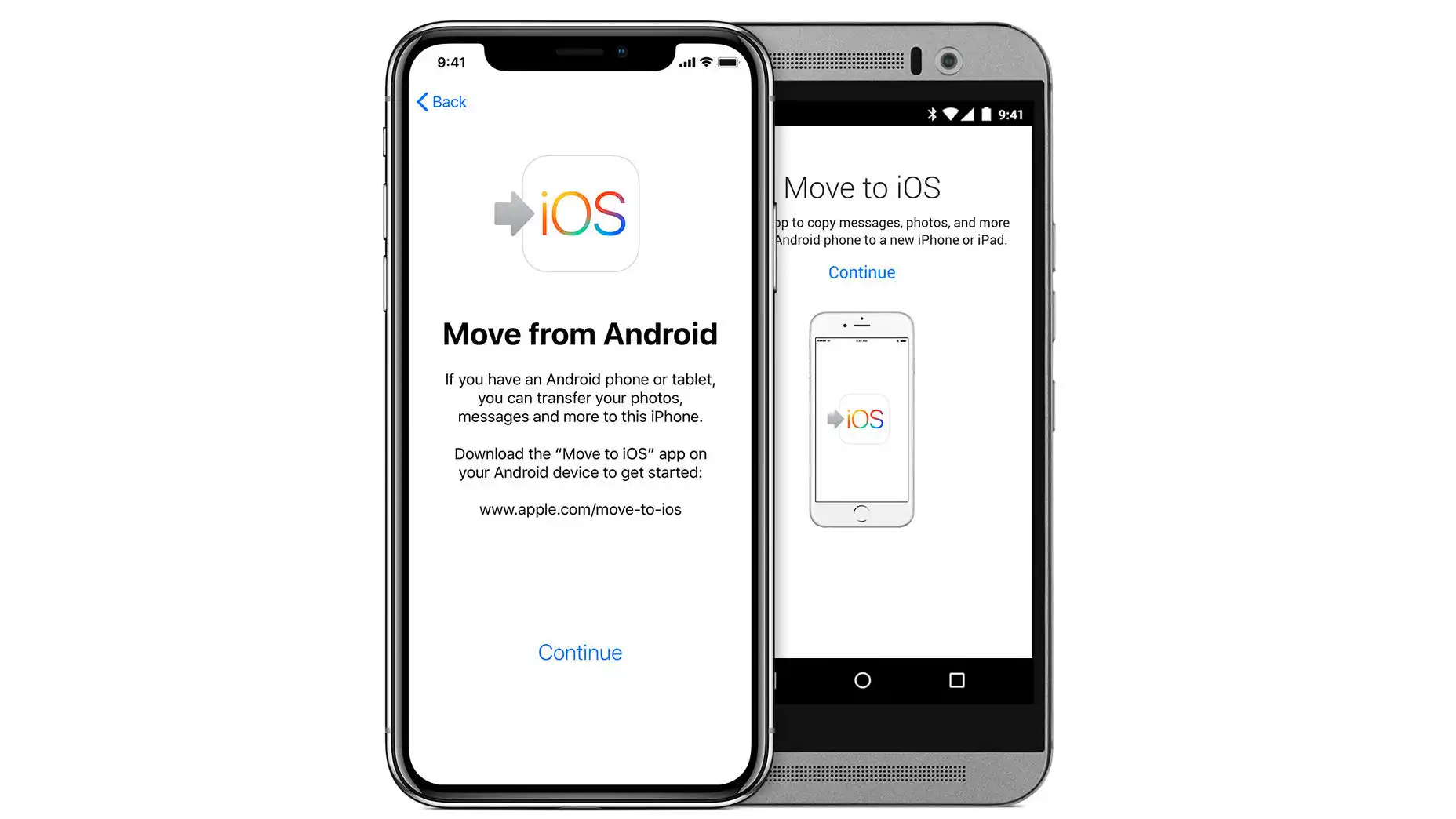
How to Transfer Contacts From Samsung to Iphone: A Step-by-step Guide
Are you tired of switching between two different phones and losing your contacts in the process? Look no further! In this article, we will guide you on how to transfer contacts from your Samsung phone to your new iPhone.
Why Transfer Contacts?
Transferring contacts is an essential step when switching phones. Not only do you want to have all your important contacts saved, but it’s also a great way to keep your contact list up-to-date and organized.
Method 1: Transferring Contacts Using Cloud Service
The first method of transferring contacts is by using a cloud service that supports both Samsung and iPhone devices. Google Contacts is one such service that allows you to sync your contacts across multiple devices.
Step-by-step Guide
- Enable Google Contacts on Your Samsung Phone
- Open the Settings app on your Samsung phone.
- Scroll down and tap on “Account” and then “Backup.”
- Tap on “Account” again and select your Google account.
- Make sure the switch next to “Contacts” is turned on.
- Sync Contacts With Google Cloud
- Open the Google Contacts app on your Samsung phone.
- Tap on the three vertical dots in the top-right corner.
- Select “Settings” and then “Sync.”
- Ensure that the switch next to “Sync contacts” is turned on.
- Transfer Contacts to Iphone
- Set up your iPhone by following the on-screen instructions.
- Open the Settings app on your iPhone.
- Tap on “Contacts” and then select “Account.”
- Choose Google as your account provider.
- Sign in with your Google account credentials.
- Wait for the contacts to sync.
Method 2: Transferring Contacts Manually
If you don’t want to use a cloud service, you can transfer contacts manually by exporting them from your Samsung phone and importing them into your iPhone.
Step-by-step Guide
- Export Contacts From Your Samsung Phone
- Open the Phone app on your Samsung phone.
- Tap on the three vertical dots in the top-right corner.
- Select “Settings” and then “Contacts.”
- Tap on “Manage contacts” and select “Export.”
- Choose a format (VCF or CSV) and save it to your device’s internal storage.
- Transfer Contacts to Iphone
- Set up your iPhone by following the on-screen instructions.
- Open the Contacts app on your iPhone.
- Tap on the “+” icon in the top-right corner.
- Select “Import contacts” and choose the VCF or CSV file you exported earlier.
Method 3: Transferring Contacts Using PC
If you prefer to use a computer, you can transfer contacts from your Samsung phone to your iPhone by using the Smart Switch app on your PC.
Step-by-step Guide
- Download And Install Smart Switch
- Visit the Samsung website and download the Smart Switch software for Windows or macOS.
- Follow the installation instructions.
- Connect Your Samsung Phone to Your PC
- Connect your Samsung phone to your computer using a USB cable.
- Open the Smart Switch app on your PC.
- Backup Contacts From Your Samsung Phone
- Select “Contacts” as the item you want to backup.
- Choose a format (CSV or VCF) and save it to your computer’s internal storage.
- Transfer Contacts to Iphone
- Set up your iPhone by following the on-screen instructions.
- Open the Settings app on your iPhone.
- Tap on “Contacts” and then select “Account.”
- Choose iCloud as your account provider.
- Sign in with your Apple ID credentials.
- Import Contacts Into Your Iphone
- Open the Contacts app on your iPhone.
- Tap on the “+” icon in the top-right corner.
- Select “Import contacts” and choose the VCF or CSV file you exported earlier.
Conclusion
Transferring contacts from Samsung to iPhone is a straightforward process that can be completed using various methods. Whether you prefer to use a cloud service, transfer contacts manually, or utilize a PC with Smart Switch, we have provided step-by-step guides for each method to ensure your contact list remains up-to-date and organized.
Faqs
- What Happens if I Lose my Contacts During The Transfer Process?
- Don’t worry! If you lose your contacts during the transfer process, you can recover them from your Samsung phone or PC.
- Can I Transfer Contacts Between Two Iphones?
- Yes, you can transfer contacts between two iPhones using iCloud or iTunes.
- How do I Import Contacts Into my Iphone if I Have a Csv File?
- You can import contacts into your iPhone by selecting “Import contacts” and choosing the CSV file you exported earlier.
- Can I Use a Third-party App to Transfer Contacts?
- Yes, there are various third-party apps available that can help you transfer contacts from Samsung to iPhone.
- How do I Ensure my Contacts Are Up-to-date After Transferring Them?
- You can sync your contacts with Google Cloud or iCloud to keep them updated across multiple devices.
I hope this guide has been helpful in assisting you with transferring contacts from Samsung to iPhone!


