
How to Change The Language on Instagram: A Step-by-step Guide
Are you tired of scrolling through Instagram in a language that’s not your own? Do you want to explore the world of Instagram in the comfort of your native tongue? Look no further! In this article, we’ll guide you through the process of changing the language on Instagram, whether you’re using an Android device, an iPhone, a PC, or even accessing it on the web.
Why Change The Language on Instagram?
Changing the language on Instagram can be a game-changer for many users. Whether you’re a foreign language learner looking to immerse yourself in the culture, a traveler who wants to navigate Instagram in their native tongue, or simply someone who prefers to use their preferred language, changing the language on Instagram is a simple and effective way to enhance your experience.
How to Change The Language on Instagram on Android
To change the language on Instagram on an Android device, follow these steps:
- Open Instagram: First, open the Instagram app on your Android device.
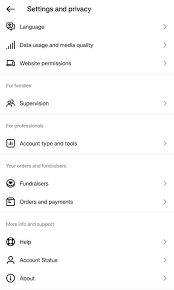
- Access Settings: Tap on the three horizontal lines (≡) in the top-right corner of the screen and select “Settings.”
- Language Option: Scroll down to the “Language” option and tap on it.
- Select Your Language: Select your preferred language from the list provided.
- Save Changes: Make sure to save your changes by tapping on the “Back” button.
How to Change The Language on Instagram on Iphone
To change the language on Instagram on an iPhone, follow these steps:
- Open Instagram: First, open the Instagram app on your iPhone.
- Access Settings: Tap on the three horizontal lines (≡) in the top-right corner of the screen and select “Settings.”
- Language Option: Scroll down to the “Language” option and tap on it.
- Select Your Language: Select your preferred language from the list provided.
- Save Changes: Make sure to save your changes by tapping on the “Back” button.
How to Change The Language on Instagram on PC
To change the language on Instagram on a PC, follow these steps:
- Open Settings: First, open the Windows Settings app (usually found in the Start menu).
- Language Option: Scroll down to the “Language and input” option.
- Select Your Language: Select your preferred language from the list provided.
- Save Changes: Make sure to save your changes by clicking on the “Apply” button.
How to Change The Language on Instagram on Web
To change the language on Instagram on the web, follow these steps:
- Open Google Chrome or Microsoft Edge: First, open either Google Chrome or Microsoft Edge.
- Access Settings: Click on the three vertical dots (≡) in the top-right corner of the browser window and select “Settings.”
- Language Option: Scroll down to the “Languages” option and click on it.
- Select Your Language: Select your preferred language from the list provided.
- Save Changes: Make sure to save your changes by clicking on the “Apply” button.
Conclusion
Changing the language on Instagram is a simple and effective way to enhance your experience. Whether you’re using an Android device, an iPhone, a PC, or accessing it on the web, we’ve got you covered. Just remember to follow these steps, and you’ll be browsing Instagram in your native tongue in no time.
Faqs
- Q: How do I Change The Language on Instagram if I Don’t See The “Language” Option?
A: If you don’t see the “Language” option, try checking the app’s settings or contacting their support team for assistance. - Q: Can I Change The Language on Instagram to a Language That’s Not Listed?
A: Unfortunately, no. The language options available are limited to those provided by the app developers. - Q: Will Changing The Language on Instagram Affect my Account’s Functionality?
A: No, changing the language on Instagram will not affect your account’s functionality in any way.


