
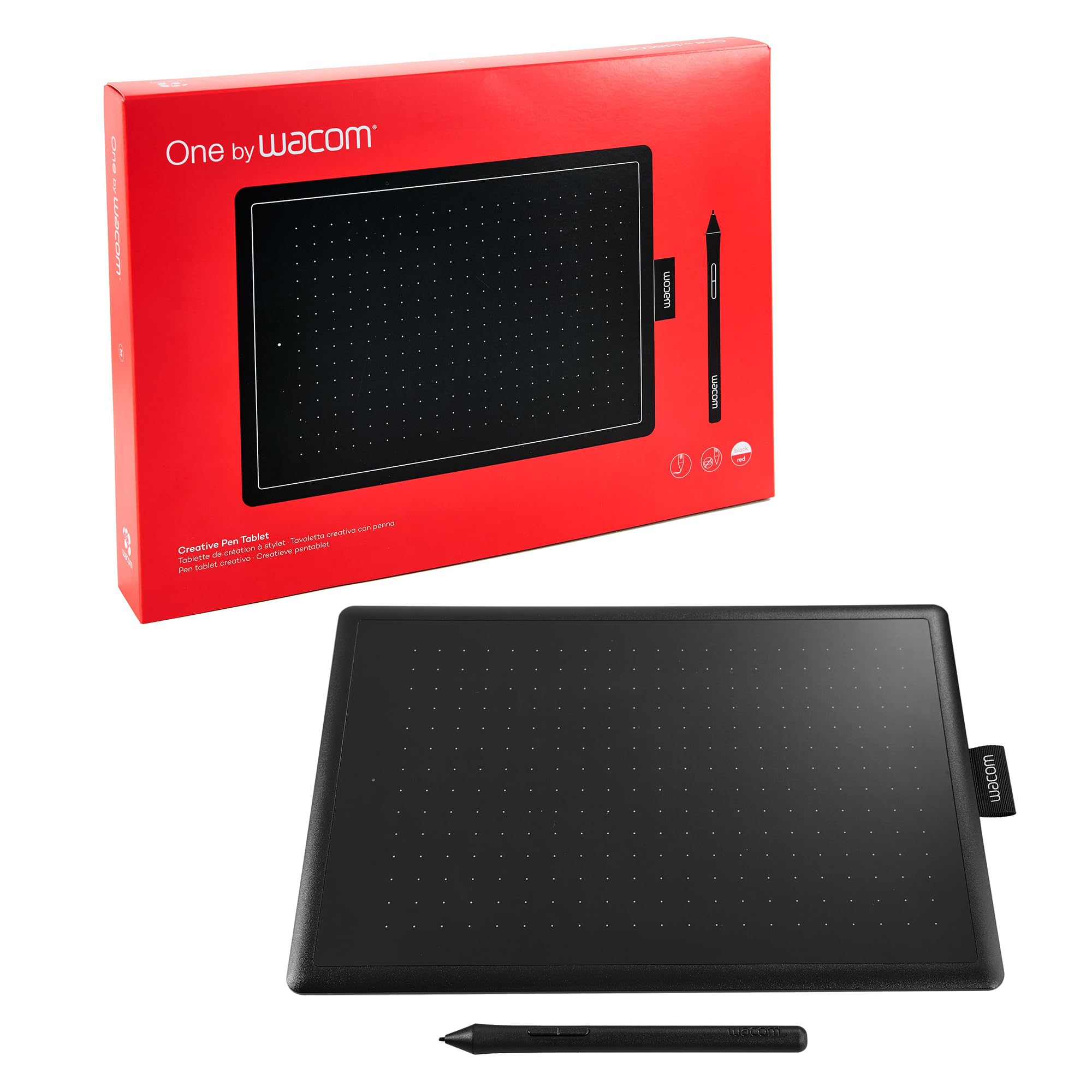
Reviewing One by Wacom: A Game-changing Technology For Education
As an advocate for accessible technology, I am thrilled to share my experience with the innovative One by Wacom, a pen tablet designed to enhance learning and productivity in educational settings. In this review, I will delve into the features, benefits, and applications of this remarkable device.
What is One by Wacom?
One by Wacom is an affordable, user-friendly pen tablet that allows users to interact with digital tools in a natural and precise manner. This device is perfect for students and educators who want to create engaging learning experiences, foster collaboration, and make education more enjoyable.
Characteristics of One by Wacom
Before exploring how One by Wacom functions, let’s examine its key characteristics:
- Availability: One by Wacom comes in two sizes: Small (210 x 146 x 8.7 Mm) and Medium (277 x 189 x 8.7 Mm).
- Resolution: The device boasts a resolution of 2.540 Lpi.
- Comfort: One by Wacom is designed for comfort, with a patented electromagnetic resonance system that ensures maximum precision and minimal hand fatigue.
- Portability: Weighing just 9 grams, this pen tablet is incredibly light and easy to use.
How Does One by Wacom Function?
Installing One by Wacom is a breeze! Simply connect the device to your computer via USB cable (no drivers required for Chromebooks), and you’re ready to go. For Windows and macOS users, a driver installation is necessary, but this process is also straightforward.
Recording Your Device With Wacom Desktop Center
Once installed, recording your device on the Wacom Desktop Center allows you to access additional software bundles. This includes the Training & Presentation bundle, which offers three months of free access to web applications for Chrome OS, Windows, macOS, and mobile devices.
Using One by Wacom
With One by Wacom connected to your computer and the relevant applications installed, you can utilize this pen tablet for a variety of tasks:
- Collaborative Work: Create interactive presentations, collaborate on projects, and engage with digital tools in real-time.
- Design And Art: Use One by Wacom as a creative tool for drawing, painting, or designing.
- Educational Settings: Perfect for virtual blackboards, lesson planning, and student engagement.
Configuring One by Wacom
To optimize your experience with One by Wacom, configure the device using the Wacom Desktop Center software. This allows you to customize settings, assign functions to the pen’s buttons, and adjust sensitivity levels.
Changing The Tips of The Pen
As a frequent user of pen tablets, I can attest that changing the tips is an essential step in maintaining performance. Thankfully, One by Wacom makes this process easy and intuitive.
Conclusion
In conclusion, my experience with One by Wacom has been nothing short of exceptional. This device has the potential to revolutionize education by making learning more engaging, interactive, and productive. I highly recommend One by Wacom for students and educators looking to enhance their digital toolkit.
Faqs
- What is The Compatibility Range of One by Wacom?
- One by Wacom is compatible with a wide range of devices, including Windows PCs, macOS machines, Chromebooks, and mobile devices.
- Can I Use One by Wacom For Creative Tasks?
- Absolutely! One by Wacom is perfect for drawing, painting, designing, and other creative pursuits.
- How do I Configure One by Wacom?
- Use the Wacom Desktop Center software to customize settings, assign functions to the pen’s buttons, and adjust sensitivity levels.
- Can I Change The Tips of The Pen?
- Yes! Changing the tips is an essential step in maintaining performance. Refer to the official video on YouTube for guidance.
- What is The Training & Presentation Bundle?
- This software bundle offers three months of free access to web applications for Chrome OS, Windows, macOS, and mobile devices.
- Can I Use One by Wacom in Educational Settings?
- Yes! One by Wacom is perfect for virtual blackboards, lesson planning, and student engagement.
- How do I Record my Device on The Wacom Desktop Center?
- Follow the prompts to register your device and access additional software bundles.
- What is The Best Way to Learn More About One by Wacom?
- Visit the official website of Wacom for in-depth information, tutorials, and resources.


