
How to Download Microsoft Word For Free
Are you looking for a way to download Microsoft Word without spending a dime? Look no further! In this article, we’ll guide you through the process of downloading Microsoft Word for free on your computer, mobile device, and even online.
What’s Available For Free?
Microsoft Word is not available for free on computers running Windows or macOS. However, you can download a trial version of the software that will last for 30 days. After this period, you’ll need to subscribe to Microsoft 365 to continue using the program.
Downloading Microsoft Word on Computer
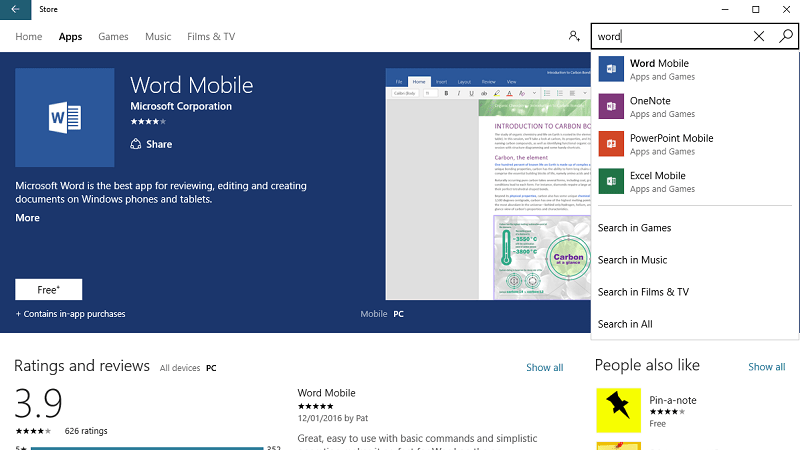
If you’re using a computer with Windows 10 or Windows 11, you can download Microsoft Word directly from the Microsoft Store. Here’s how:
- Open the Microsoft Store app.
- Search for “Microsoft Word” and select the result.
- Click on the “Get” button to start the download process.
- Follow the prompts to install the software.
- Once installed, click on the “Start” menu and find Microsoft Word in the list of installed apps.
Downloading Microsoft Word on Mac
If you’re using a Mac, you can download Microsoft Word directly from the Mac App Store. Here’s how:
- Open the Mac App Store app.
- Search for “Microsoft Word” and select the result.
- Click on the “Get” button to start the download process.
- Follow the prompts to install the software.
- Once installed, find Microsoft Word in the list of installed apps.
Downloading Microsoft Word on Mobile Device
If you’re using a mobile device with Android or iOS, you can download Microsoft Word directly from the Google Play Store or Apple App Store. Here’s how:
- Open the Google Play Store (Android) or Apple App Store (iOS).
- Search for “Microsoft Word” and select the result.
- Click on the “Install” button to start the download process.
- Follow the prompts to install the software.
- Once installed, find Microsoft Word in the list of installed apps.
Using Microsoft Word Online
If you don’t want to download the software on your device, you can use Microsoft Word online directly from your browser. Here’s how:
- Open a web browser and navigate to the Microsoft 365 website.
- Click on the “Sign In” button and enter your Microsoft account credentials.
- Once signed in, click on the “Word” icon to open the software.
- You can now use Microsoft Word online without downloading any software.
Frequently Asked Questions
Q: Can I download Microsoft Word for free?
A: Yes, you can download a trial version of Microsoft Word that will last for 30 days.
Q: How do I get Microsoft Word on my computer?
A: You can download Microsoft Word directly from the Microsoft Store (Windows) or Mac App Store (macOS).
Q: Can I use Microsoft Word online?
A: Yes, you can use Microsoft Word online directly from your browser without downloading any software.
Q: Do I need to subscribe to Microsoft 365 to continue using Microsoft Word?
A: Yes, after the 30-day trial period, you’ll need to subscribe to Microsoft 365 to continue using the software.
Q: Is Microsoft Word available for free on mobile devices?
A: Yes, you can download Microsoft Word directly from the Google Play Store (Android) or Apple App Store (iOS).
Q: Can I use Microsoft Word online without a subscription?
A: No, to use Microsoft Word online, you’ll need to have an active Microsoft 365 subscription.
Conclusion
Downloading Microsoft Word for free may seem like a daunting task, but with this guide, you should be able to get started in no time. Whether you’re using a computer or mobile device, we’ve covered the steps to download and install Microsoft Word on your device. Don’t forget that there’s also an online version available if you don’t want to download any software. Happy typing!
Faqs
-
Q: Can I Download Microsoft Word For Free?
A: Yes, you can download a trial version of Microsoft Word that will last for 30 days. -
Q: How do I Get Microsoft Word on my Computer?
A: You can download Microsoft Word directly from the Microsoft Store (Windows) or Mac App Store (macOS). -
Q: Can I Use Microsoft Word Online?
A: Yes, you can use Microsoft Word online directly from your browser without downloading any software. -
Q: Do I Need to Subscribe to Microsoft 365 to Continue Using Microsoft Word?
A: Yes, after the 30-day trial period, you’ll need to subscribe to Microsoft 365 to continue using the software. -
Q: Is Microsoft Word Available For Free on Mobile Devices?
A: Yes, you can download Microsoft Word directly from the Google Play Store (Android) or Apple App Store (iOS). -
Q: Can I Use Microsoft Word Online Without a Subscription?
A: No, to use Microsoft Word online, you’ll need to have an active Microsoft 365 subscription. -
Q: What’s The Difference Between Microsoft Word And Microsoft 365?
A: Microsoft Word is a word processing software, while Microsoft 365 is a suite of productivity apps that includes Word, Excel, PowerPoint, and more. -
Q: Can I Download Microsoft Word on my Tablet or Mobile Device?
A: Yes, you can download Microsoft Word directly from the Google Play Store (Android) or Apple App Store (iOS).


