
How to Create a Link on Your Desktop: A Step-by-step Guide
Are you tired of searching for programs, folders, or websites on your computer? Do you wish there was an easier way to access them quickly? Look no further! In this article, we will guide you through the process of creating links on your desktop, making it easier than ever to access your favorite programs, folders, and websites.
Why Create a Link on Your Desktop?
Creating a link on your desktop allows you to access your favorite programs, folders, or websites with just one click. This can save you time and effort, especially if you use certain programs or visit specific websites frequently. With links on your desktop, you can quickly open what you need without having to navigate through menus or search for it.
Creating a Link on Windows 11
To create a link on Windows 11, follow these steps:
- Right-click on an Empty Area of The Desktop: Click on the empty space on your desktop with your right mouse button.
- Select “New” > “Shortcut”: In the menu that appears, select “New” and then “Shortcut”.
- Enter The Location of The Program or File: Enter the path to the program or file you want to create a link for.
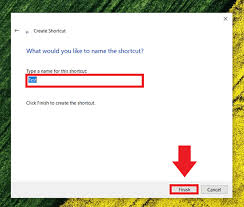
- Give The Shortcut a Name: Assign a name to the shortcut so it’s easy to identify.
- Click “OK”: Click “OK” to create the shortcut.
Alternative Method
Alternatively, you can also right-click on the folder where the executable file (.Exe) of the software is located and select “Create link”.
Creating a Link on Macos
To create a link on macOS, follow these steps:
- Right-click on an Empty Area of The Desktop: Click on the empty space on your desktop with your right mouse button.
- Select “New Alias”: In the menu that appears, select “New Alias”.
- Drag The Application Icon to The Desktop: Drag the icon of the application you want to create a link for onto the desktop.
Creating a Link on Android And Ios
To create a link on Android or iOS, follow these steps:
Android:
- Long Press on an App Icon: Press and hold on an app icon.
- Drag it to Your Home Screen: Drag the app icon to your home screen.
- Drop it: Release the app icon on the home screen.
IOS:
- Open Safari: Open the Safari browser.
- Go to The Website You Want to Link: Go to the website you want to create a link for.
- Tap The “Share” Button: Tap the share button (the box with an arrow).
- Select “Add to Home Screen”: Select “Add to Home Screen”.
- Assign a Name: Assign a name to the shortcut.
Creating a Link on Chrome, Edge, And Firefox
To create a link on Google Chrome, Microsoft Edge, or Mozilla Firefox, follow these steps:
Google Chrome:
- Go to The Website You Want to Link: Go to the website you want to create a link for.
- Click on The Three Dots: Click on the three dots in the top right corner of the browser window.
- Select “More Tools”: Select “More tools”.
- Select “Create Shortcut”: Select “Create shortcut”.
Microsoft Edge:
- Go to The Website You Want to Link: Go to the website you want to create a link for.
- Click on The Three Dots: Click on the three dots in the top right corner of the browser window.
- Select “More”: Select “More”.
- Select “Create Shortcut”: Select “Create shortcut”.
Mozilla Firefox:
- Go to The Website You Want to Link: Go to the website you want to create a link for.
- Click on The Three Dots: Click on the three dots in the top right corner of the browser window.
- Select “New Bookmark”: Select “New bookmark”.
- Assign a Name: Assign a name to the shortcut.
Tips And Variations
You can also create links by dragging an application icon or file onto the desktop.
Some programs may have specific instructions for creating shortcuts, so be sure to check their documentation if needed.
Conclusion
Creating links on your desktop is a simple process that can save you time and effort. By following these steps, you can quickly access your favorite programs, folders, and websites with just one click.
Frequently Asked Questions (FAQs)
- Q: What is The Difference Between Creating a Link And Creating a Shortcut?
A: Creating a link and creating a shortcut are essentially the same thing. Both create an icon on your desktop that links to a program, file, or website. - Q: Can I Create a Link on Any Device, Including Android And Ios?
A: Yes, you can create a link on any device, including Android and iOS, although the process may vary slightly. - Q: What if I Want to Create Multiple Links to Different Programs or Files?
A: You can create as many links as you need by repeating the process for each program or file. - Q: Can I Customize The Appearance of my Links?
A: Yes, you can customize the appearance of your links by changing their icon, color, and size.
Additional Resources
If you have any further questions or need additional assistance, please don’t hesitate to contact us.


