
How to Reinstall Windows: A Step-by-step Guide
Are you tired of dealing with a slow or unresponsive computer? Do you want to start fresh with a clean installation of Windows? Look no further! In this article, we’ll show you how to reinstall Windows in just a few easy steps.
Why Reinstall Windows?
Before we dive into the step-by-step guide, let’s talk about why you might want to reinstall Windows. There are several reasons:
- Your computer is running slow or unresponsive.
- You’ve installed too many programs and your computer is cluttered with unnecessary files.
- You want to start fresh with a clean installation of Windows.
Preliminary Operations
Before you begin, make sure you’ve taken the following steps:
- Backup Your Files: Make sure you have all important files backed up to an external hard drive or cloud storage service.
- Check For Updates: Ensure your computer is updated with the latest Windows updates.
- Disconnect All Devices: Disconnect any external devices, such as USB drives and printers.
Reinstalling Windows 10
To reinstall Windows 10, follow these steps:
- Go to Settings: Click on the Start menu and select Settings.
- Click on Update & Security: In the Settings window, click on Update & Security.
- Click on Recovery: In the Update & Security window, click on Recovery.
- Click on Get Started: Under Reset this PC, click on Get started.
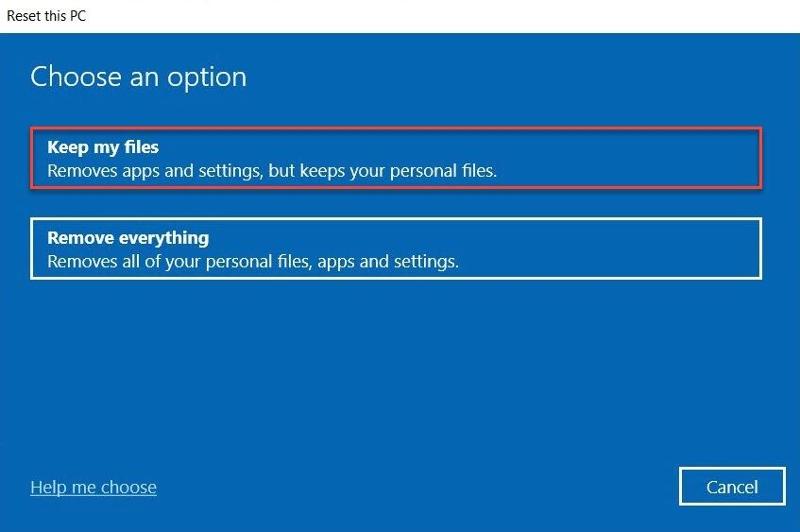
- Choose an Option: Choose whether you want to keep your personal files or remove everything.
Reinstalling Windows 11
To reinstall Windows 11, follow these steps:
- Go to Settings: Click on the Start menu and select Settings.
- Click on System: In the Settings window, click on System.
- Click on Recovery: In the System window, click on Recovery.
- Click on Get Started: Under Reset this PC, click on Get started.
- Choose an Option: Choose whether you want to keep your personal files or remove everything.
Reinstalling Windows 7
Note: Windows 7 is no longer supported by Microsoft. We recommend upgrading to a newer version of Windows.
To reinstall Windows 7, follow these steps:
- Insert The Installation Media: Insert the installation media for Windows 7.
- Follow The Instructions: Follow the instructions on the screen to complete the installation process.
Reinstalling Apps
If you’ve accidentally uninstalled an app or want to reinstall a specific app, follow these steps:
- Go to Microsoft Store: Open the Microsoft Store app.
- Search For The App: Search for the app you want to reinstall.
- Click on Install: Click on Install to download and install the app.
Reinstalling Windows Defender
To reinstall Windows Defender, follow these steps:
- Press Win+r: Press the Windows key + R to open the Run dialog box.
- Type in Windowsdefender: Type in windowsdefender and press Enter.
- Click on Activate: Click on Activate to enable Windows Defender.
Reinstalling Microsoft Store
To reinstall Microsoft Store, follow these steps:
- Press Win+r: Press the Windows key + R to open the Run dialog box.
- Type in Wsreset: Type in wsreset and press Enter.
- Click on Reset: Click on Reset to reset Microsoft Store.
Reinstalling All Default Apps
To reinstall all default apps, follow these steps:
- Open Powershell: Open PowerShell as an administrator.
- Run The Command: Run the command Get-AppxPackage -AllUsers | foreach { Add-AppxPackage -DisableDevelopmentMode -Register “$($_.InstallLocation)\AppXManifest.Xml”}
- Close Powershell: Close PowerShell and restart your computer.
Conclusion
Reinstalling Windows can be a simple process if you follow these steps. Remember to backup your files, disconnect all devices, and choose the right option when prompted. If you’re unsure about any step, feel free to ask!
Frequently Asked Questions
- Q: What Are The System Requirements For Reinstalling Windows?
A: The system requirements vary depending on the version of Windows you’re reinstalling. - Q: How do I Backup my Files Before Reinstalling Windows?
A: You can use an external hard drive or cloud storage service to backup your files. - Q: Can I Reinstall Windows Without a Product Key?
A: Yes, but you’ll need to activate the product key during the installation process. - Q: How do I Reinstall Microsoft Store if It’s Not Working Properly?
A: You can try resetting Microsoft Store using the wsreset command in PowerShell. - Q: What Happens to my Personal Files When I Reinstall Windows?
A: Your personal files will be kept safe during the installation process, but some apps may need to be reinstalled.
Additional Resources
We hope this article has been helpful in guiding you through the process of reinstalling Windows. If you have any further questions or concerns, feel free to ask!


