
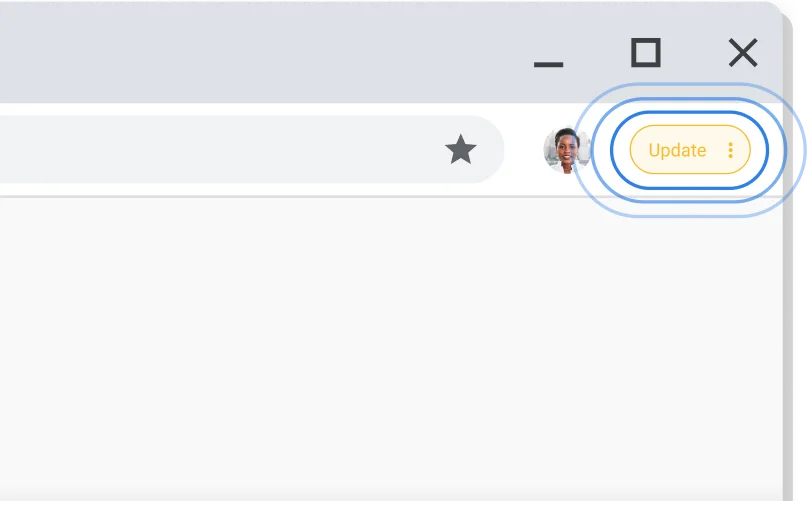
How to Update Chrome Browser: A Step-by-step Guide
Are you tired of using an outdated version of the Google Chrome browser? Do you want to ensure maximum safety during your web browsing experience? Look no further! In this article, we will guide you through the process of updating Chrome browser to its latest version.
Why Update Chrome Browser?
Before we dive into the step-by-step instructions, let’s briefly discuss why updating Chrome browser is essential. Google continuously updates and improves the Chrome browser with new features, security patches, and bug fixes. By keeping your Chrome browser up-to-date, you can enjoy a more secure, stable, and efficient browsing experience.
How to Update Chrome Browser on Windows
Updating Chrome browser on Windows is a straightforward process. Here’s how:
- Click on The Three Dots: Click on the three dots in the top right corner of the Chrome browser window.
- Select Settings: From the dropdown menu, select “Settings”.
- Click on About Google Chrome: In the Settings page, click on “About Google Chrome” from the left-hand side menu.
- Check For Updates: If there are any available updates, you will see a message indicating that Chrome is being updated.
- Restart Chrome: Once the update is complete, restart the Chrome browser.
How to Update Chrome Browser on Mac
Updating Chrome browser on Mac is similar to updating it on Windows:
- Click on The Chrome Menu: Click on the three dots in the top right corner of the Chrome browser window.
- Select Settings: From the dropdown menu, select “Settings”.
- Click on About Google Chrome: In the Settings page, click on “About Google Chrome” from the left-hand side menu.
- Check For Updates: If there are any available updates, you will see a message indicating that Chrome is being updated.
- Restart Chrome: Once the update is complete, restart the Chrome browser.
How to Update Chrome Browser on Ubuntu
Updating Chrome browser on Ubuntu is also a simple process:
- Open Chrome: Open the Chrome browser on your Ubuntu device.
- Click on The Three Dots: Click on the three dots in the top right corner of the Chrome browser window.
- Select Settings: From the dropdown menu, select “Settings”.
- Click on About Google Chrome: In the Settings page, click on “About Google Chrome” from the left-hand side menu.
- Check For Updates: If there are any available updates, you will see a message indicating that Chrome is being updated.
Troubleshooting Common Issues
In some cases, you may encounter issues while updating Chrome browser. Here are some common troubleshooting tips:
- Check if your internet connection is stable and fast enough to download the update.
- Make sure you have sufficient storage space on your device for the update to be downloaded and installed.
- If you’re experiencing problems with automatic updates, try forcing the update process by clicking on the “Update” button.
How to Update Chrome Browser on Android
Updating Chrome browser on Android is a seamless process:
- Open Google Play Store: Open the Google Play Store app on your Android device.
- Search For Chrome: Search for Chrome in the search bar.
- Check For Updates: If there are any available updates, you will see an “Update” button next to the Chrome icon.
How to Update Chrome Browser on Ios/ipados
Updating Chrome browser on iOS or iPadOS is also straightforward:
- Open Settings: Open the Settings app on your device.
- Select App Store: From the main menu, select the App Store option.
- Check For Updates: If there are any available updates, you will see an “Update” button next to the Chrome icon.
Conclusion
Updating Chrome browser is essential to ensure maximum safety and efficiency during your web browsing experience. By following these step-by-step guides, you can update your Chrome browser on Windows, Mac, Ubuntu, Android, and iOS/iPadOS devices.
Frequently Asked Questions (FAQs)
- Q: How Often Should I Update my Chrome Browser?
A: We recommend updating your Chrome browser as soon as an update is available to ensure maximum safety and efficiency. - Q: Will Updating Chrome Browser Affect my Bookmarks or Saved Passwords?
A: No, updating Chrome browser will not affect your bookmarks or saved passwords. - Q: Can I Update Chrome Browser Manually if Automatic Updates Are Disabled?
A: Yes, you can update Chrome browser manually by following the step-by-step guides provided in this article. - Q: Will Updating Chrome Browser Resolve Common Issues Such as Slow Loading Speeds or Crashes?
A: Yes, updating Chrome browser may help resolve common issues such as slow loading speeds or crashes.
Additional Resources
- Google Chrome Support Website
- Google Chrome Community Forum
By following the step-by-step guides provided in this article and troubleshooting common issues, you can ensure that your Chrome browser is always up-to-date and running smoothly.


