
How to Record With Iphone: A Comprehensive Guide
Are you looking to record audio or video with your iPhone? Do you want to capture important conversations, interviews, or even just a funny moment from your daily life? Look no further! In this article, we will guide you through the step-by-step process of recording with your iPhone.
Recording Video With Iphone
If you want to record a video with your iPhone, you can use the built-in Camera app. Here’s how:
- Open the Camera app on your iPhone.
- Swipe up or down to select the mode you want to use (Video, Slow Mo, or Time-Lapse).
- Choose whether to use the front camera or rear camera by tapping on the corresponding button.
- Tap on the flash icon if you want to use the flash during recording.
- Start recording by tapping on the red circular button.
Recording The Screen With Iphone
If you want to record your iPhone’s screen, you can use the built-in Screen Recording feature. Here’s how:
- Go to Settings > Control Center and add the Screen Recording option.
- Open the Control Center by swiping up or down from the bottom of the screen (depending on your iPhone model).
- Tap on the Screen Recording icon (it looks like a small circle with an arrow in it).
- Start recording by tapping on the red indicator that appears at the top of the screen.
Recording a Voice Memo With Iphone
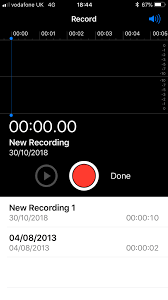
If you want to record a voice memo with your iPhone, you can use the built-in Voice Memos app. Here’s how:
- Open the Voice Memos app.
- Tap on the red button to start recording.
- You can also add a title and description to your voice memo by tapping on the “New Memo” option.
Recording a Call With Iphone
If you want to record a call with your iPhone, you will need to use a third-party app. One popular option is JustREC. Here’s how:
- Download and install the JustREC app from the App Store.
- Open the app and sign up for an account by entering your phone number.
- Tap on the “Record Call” button during a call to start recording.
Why Use Iphone For Recording?
So, why use your iPhone for recording? Here are some reasons:
- Convenience: Your iPhone is always with you, so you can record anything that comes up at any time.
- Quality: The quality of audio and video recordings on an iPhone is excellent.
- Ease of use: Recording with an iPhone is incredibly easy, even for beginners.
Tips And Tricks
Here are some tips and tricks to keep in mind when recording with your iPhone:
- Make sure you have enough storage space before recording a long video or audio file.
- Use the built-in editing tools to trim and share your recordings.
- Experiment with different modes and settings to get the best results.
Conclusion
Recording with your iPhone is easy and fun! Whether you want to capture a funny moment, record an important conversation, or just create some great content for social media, your iPhone has got you covered. By following these steps and tips, you’ll be able to create high-quality recordings that will impress anyone.
Frequently Asked Questions
Here are some frequently asked questions about recording with iPhone:
Q: How do I record a video with my iPhone?
A: You can use the built-in Camera app by swiping up or down to select the mode and tapping on the red circular button to start recording.
Q: How do I record my screen with iPhone?
A: You can use the built-in Screen Recording feature by going to Settings > Control Center and adding the option, then tapping on the icon in the Control Center to start recording.
Q: How do I record a voice memo with iPhone?
A: You can use the built-in Voice Memos app by opening it and tapping on the red button to start recording.
Q: Can I record a call with iPhone?
A: Yes, you can use a third-party app like JustREC to record a call.
Q: Why is my recording quality poor?
A: Make sure you have enough storage space, and try using different modes and settings to improve your recordings.
Q: How do I share my recordings?
A: You can share your recordings by tapping on the “Share” option in the Camera or Voice Memos app.


