
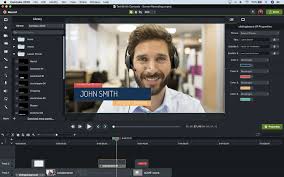
How to Download Camtasia Studio: A Comprehensive Guide
Overview
Camtasia Studio is a powerful software for creating screencasts, but it can be challenging to download and install on your computer. In this article, we will guide you through the step-by-step process of downloading and using Camtasia Studio on both Windows and Mac.
System Requirements
Before you begin the installation process, ensure that your computer meets the minimum system requirements for Camtasia Studio:
- Windows:
- Operating System: Windows 10 (64-bit) or later
- Processor: Intel Core i5 or AMD Ryzen 7
- RAM: 8 GB
- Video Card: 2 GB
- Storage: 4 GB free space
- Mac:
- Operating System: MacOS 11.0 Big Sur or later
- Processor: Intel Core i5 or Apple Silicon M1
- RAM: 8 GB
- Video Card: 2 GB
- Storage: 4 GB free space
Downloading Camtasia Studio on Windows
To download and install Camtasia Studio on your Windows computer, follow these steps:
Step 1: Create a Techsmith Account
- Visit the TechSmith website and click on the “Sign In” button.
- If you already have an account, enter your email address and password to log in.
- If not, create a new account by clicking on the “Sign Up” button.
Step 2: Download Camtasia Studio
- Once logged in, click on the “Free Download” button for Windows.
- A download link will be provided; click on it to initiate the download process.
- Wait for the file to complete downloading (the file size is approximately 300 MB).
Step 3: Install Camtasia Studio
- Once downloaded, run the installation file (camtasia.Exe).
- Accept the terms and conditions by clicking “OK”.
- Choose the installation location and click “Install”.
Downloading Camtasia Studio on Mac
To download and install Camtasia Studio on your Mac computer, follow these steps:
Step 1: Create a Techsmith Account
- Visit the TechSmith website and click on the “Sign In” button.
- If you already have an account, enter your email address and password to log in.
- If not, create a new account by clicking on the “Sign Up” button.
Step 2: Download Camtasia Studio
- Once logged in, click on the “Free Download” button for Mac.
- A download link will be provided; click on it to initiate the download process.
- Wait for the file to complete downloading (the file size is approximately 300 MB).
Step 3: Install Camtasia Studio
- Once downloaded, run the installation file (Camtasia.Dmg).
- Click “Agree” and follow the prompts to install Camtasia Studio.
Using Camtasia Studio
After installing Camtasia Studio, you can start creating your screencasts. Follow these steps:
Step 1: Launch Camtasia Studio
- Find the icon on your desktop or in the Applications folder.
- Click on it to launch the application.
Step 2: Create a New Project
- Click on “New Project” and choose the desired project type (e.G., Demonstration, Video Game Recording).
- Fill out any required information and click “Submit”.
Step 3: Record Your Screencast
- Choose the recording area by clicking on the “+” button.
- Select the built-in display, webcam, microphone, or audio of system to record.
- Click on the “Rec” button to start recording.
Step 4: Edit And Export Your Screencast
- Use the editing tools to modify your recorded video (e.G., Trimming, adding annotations).
- Click on the “Save As…” Button to save your edited project.
- Select the desired export format (e.G., MP4, WMV, GIF) or share directly on YouTube or Vimeo.
Conclusion
Downloading and using Camtasia Studio can seem daunting at first, but with this comprehensive guide, you should be able to get started quickly. Remember to meet the system requirements, create a TechSmith account, and follow the installation process carefully. With practice, you’ll become proficient in creating high-quality screencasts using Camtasia Studio.
Frequently Asked Questions
- Q: Can I Use Camtasia Studio on Both Windows And Mac?
- A: Yes, Camtasia Studio is compatible with both Windows and Mac operating systems.
- Q: Do I Need to Create a Techsmith Account to Download Camtasia Studio?
- A: Yes, creating a TechSmith account is required for downloading and using Camtasia Studio.
- Q: Can I Export my Screencast in Different Formats?
- A: Yes, you can export your screencast in various formats, such as MP4, WMV, GIF, or M4A.
About The Author


