
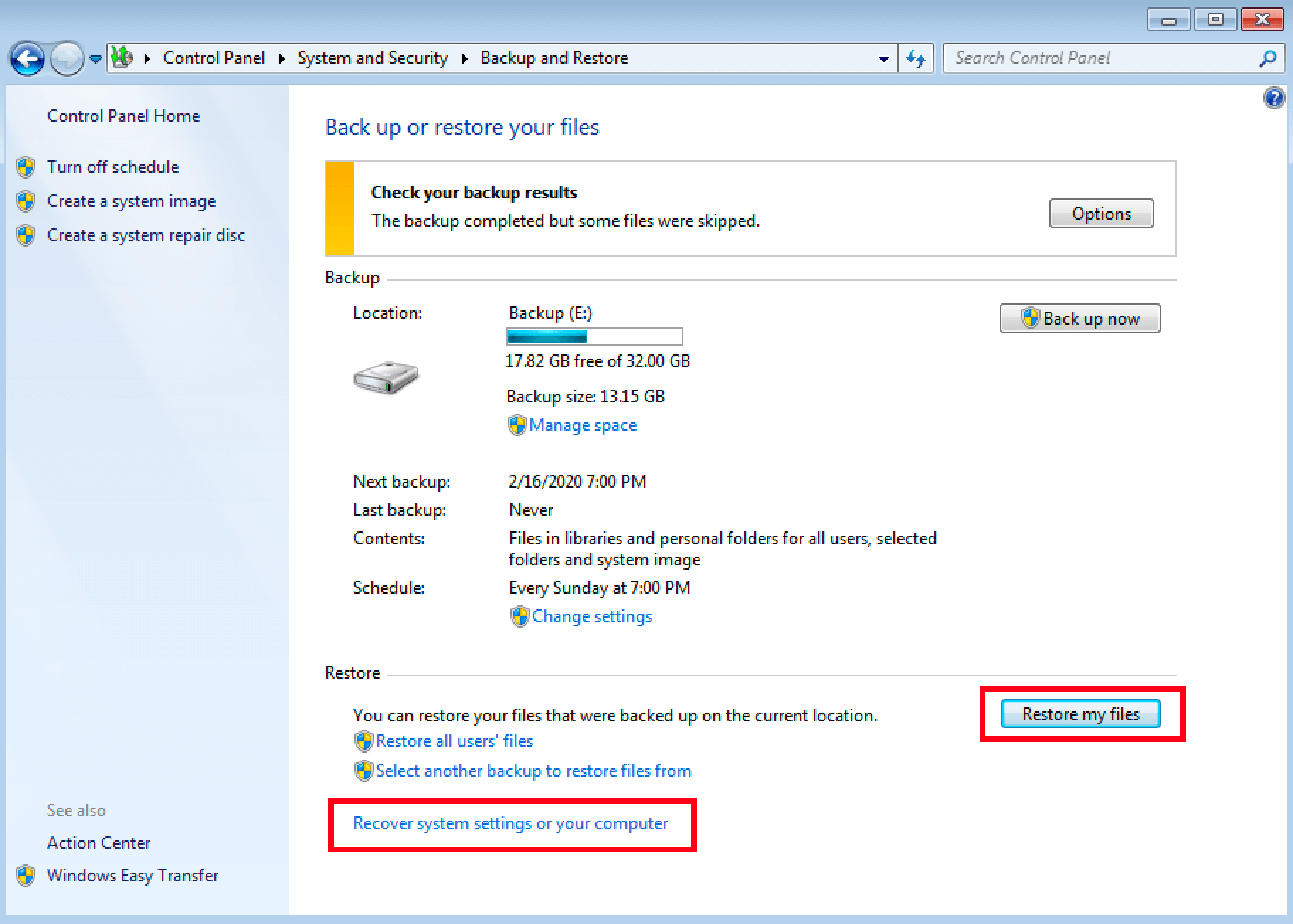
Recovering Windows 7 Without a Cd: A Step-by-step Guide
Are you tired of dealing with problems on your computer with Windows 7 installed? Do you wish there was an easy way to recover your system without having to resort to using a CD or DVD? Look no further! In this article, we will guide you through the process of recovering Windows 7 without a CD, and show you how to do it in a few simple steps.
Understanding The Risks
Before we dive into the instructions, it’s essential to understand that recovering your system can result in data loss. This is because any changes made to your system during the recovery process will be deleted, along with all installed applications and settings. Therefore, it’s crucial to create a backup of your important files before proceeding.
Creating a Backup
To create a backup of your files, you have two options:
- Manual Backup: You can manually copy all the files you want to keep onto an external hard drive or a USB drive.
- Using a Backup Software: There are various software programs available that can automatically back up your files for you.
Creating a Partition For Windows 7
Another option is to create a separate partition on your hard drive specifically for Windows 7. This will allow you to keep your data and operating system separate, making it easier to recover if needed.
Recovering Windows 7 Without a CD
Now that we’ve covered the basics, let’s dive into the steps of recovering Windows 7 without a CD:
- Accessing The Recovery Partition: If your computer has a recovery partition, you can access it by restarting your computer and pressing the key combination specific to your system (usually F9 or Alt + F10).
- Selecting The Correct Partition: Once in the recovery partition, select the correct drive for Windows 7 and click Next.
- Accepting The License Agreement: Read and accept the license agreement, then click Next.
- Personalizing Your Installation: Choose whether to install a new version of Windows 7 or upgrade from your existing installation.
Using a Usb Drive to Recover Windows 7
Alternatively, you can use a USB drive to recover Windows 7. Here’s how:
- Creating a Bootable Usb Drive: Use software like Rufus to create a bootable USB drive containing the necessary files for recovering Windows 7.
- Inserting And Booting From The Usb Drive: Insert the USB drive into your computer, restart it, and enter the BIOS settings (usually by pressing F2 or Del). Set the USB drive as the primary boot device and save changes.
- Completing The Installation: Once booted from the USB drive, follow the prompts to complete the installation process.
Recovering Windows 7 Without a Cd: A Summary
In conclusion, recovering Windows 7 without a CD is possible using either the recovery partition or a USB drive containing the necessary files. Before proceeding, make sure to create a backup of your important files and understand the risks involved. With these steps, you’ll be able to recover your system with ease.
Frequently Asked Questions (FAQs)
Here are some frequently asked questions related to recovering Windows 7 without a CD:
- Q: What are the risks involved in recovering my system?
A: Data loss is the primary risk when recovering your system. Any changes made during the recovery process will be deleted, along with installed applications and settings. - Q: How do I create a backup of my files?
A: You can manually copy important files onto an external hard drive or USB drive, or use software programs to automatically back up your data. - Q: Can I recover Windows 7 from the recovery partition on my computer?
A: Yes, if your computer has a recovery partition, you can access it by restarting and pressing the key combination specific to your system (usually F9 or Alt + F10). - Q: How do I create a bootable USB drive for recovering Windows 7?
A: Use software like Rufus to create a bootable USB drive containing the necessary files for recovering Windows 7. - Q: What are some alternative solutions for recovering Windows 7 without a CD?
A: Other options include using a recovery disk or applying the product key directly in the setup process.
Conclusion
In this article, we’ve covered how to recover Windows 7 without a CD, including creating a backup of your important files and understanding the risks involved. We’ve also provided step-by-step instructions on how to recover Windows 7 from both the recovery partition and a USB drive containing the necessary files. If you have any further questions or concerns, please don’t hesitate to reach out.
Conclusion
Recovering Windows 7 without a CD is a straightforward process that can be completed with ease. By following these steps, you’ll be able to restore your system to its original state, preserving all installed applications and settings.


