
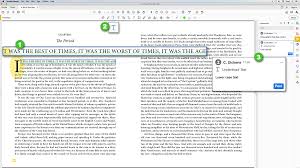
Are you struggling to underline text on a PDF document? Don’t worry, we’ve got you covered! In this article, we’ll show you how to easily highlight text on a PDF using various methods, including desktop applications and online services.
The Problem With Underlining Text on a Pdf
PDF documents can be modified in several ways, but underlining text is not always straightforward. Many users are stuck with uneditable PDFs, which can be frustrating when you need to highlight important information or add comments.
Solution 1: Using Adobe Acrobat Reader DC (Windows)
If you’re using Windows, the first solution we recommend is using Adobe Acrobat Reader DC. This free software allows you to open and modify PDF documents, including underlining text.
To get started:
- Download Adobe Acrobat Reader DC from the official website.
- Open the software and select the “Open” option in the menu bar.
- Choose the PDF file you want to edit.
- Click on the “Comment” tab and then select the “Underline” tool.
- Select the text you want to underline by clicking and dragging your mouse over it.
- Choose a color for the underline from the options available.
- To save changes, click on the “Save” button.
Solution 2: Using Preview (Mac)
If you’re using a Mac, you can use the built-in Preview application to underline text on a PDF.
To get started:
- Open Preview and select the “File” menu.
- Choose “Open with” and then select “Preview.”
- Select the PDF file you want to edit.
- Click on the “Tools” menu and select “Markup & Highlight.”
- Choose the underline tool from the options available.
- Select the text you want to underline by clicking and dragging your mouse over it.
- To save changes, click on the “Done” button.
Solution 3: Using Pdfzorro (Online)
If you don’t have Adobe Acrobat Reader DC or Preview installed, or if you prefer an online solution, you can use PDFzorro. This service allows you to modify PDFs directly in your browser, including underlining text.
To get started:
- Visit the PDFzorro website.
- Click on the “Upload” button and select the PDF file you want to edit.
- Select the “Start” button and choose the “PDF Editor” option.
- Click on the underline tool from the options available.
- Select the text you want to underline by clicking and dragging your mouse over it.
- Choose a color for the underline from the options available.
- To save changes, click on the “Save” button.
Solution 4: Using Xodo (Android)
If you’re using an Android device, you can use the Xodo app to underline text on a PDF.
To get started:
- Download and install the Xodo app from the Google Play Store.
- Open the app and select the “Files” menu.
- Choose the PDF file you want to edit.
- Click on the “Underline” tool from the options available.
- Select the text you want to underline by clicking and dragging your mouse over it.
- Choose a color for the underline from the options available.
- To save changes, click on the “Save” button.
Solution 5: Using Rows (iOS)
If you’re using an iOS device, you can use the Rows app to underline text on a PDF.
To get started:
- Download and install the Rows app from the App Store.
- Open the app and select the “Files” menu.
- Choose the PDF file you want to edit.
- Click on the “Highlight” tool from the options available.
- Select the text you want to underline by clicking and dragging your mouse over it.
- Choose a color for the highlight from the options available.
- To save changes, click on the “Save” button.
Other Solutions
There are many other solutions available that allow you to underline text on a PDF, including:
- Pdf-xchange Editor: A free software that allows you to view and edit PDF files, including underlining text.
- Foxit Pdf Editor: A free application that allows you to share and transfer modifications to PDF files using underlines, stamps, and other tools.
Conclusion
Underlining text on a PDF is not as difficult as it seems. With these step-by-step guides, you can easily highlight important information or add comments to your PDF documents using various desktop applications and online services. Whether you’re using Adobe Acrobat Reader DC, Preview, PDFzorro, Xodo, Rows, or another solution, we hope this article has been helpful in showing you how to underline text on a PDF.
Frequently Asked Questions
- Q: Can I Underlie Text on a Protected Pdf?
A: Yes, but you’ll need to use an online service like PDFzorro or a software application that allows you to edit protected PDFs. - Q: How do I Save Changes Made to a Pdf Using Adobe Acrobat Reader Dc?
A: To save changes, click on the “Save” button in Adobe Acrobat Reader DC. - Q: Can I Use Rows to Underline Text on an Ipad?
A: Yes, you can use Rows to underline text on an iPad. - Q: Is There a Free Version of Pdf-xchange Editor Available?
A: Yes, the basic version of PDF-XChange Editor is free. - Q: How do I Remove Underlining From a Pdf Using Xodo?
A: To remove underlining, click on the icon ← that appears at the top-right corner of the screen. - Q: Can I Use Foxit Pdf Editor to Underline Text on an Ipad?
A: Yes, you can use Foxit PDF Editor to underline text on an iPad. - Q: How do I Save a Modified Pdf Using Preview?
A: To save changes made in Preview, click on the “Done” button. - Q: Can I Use Adobe Acrobat Reader DC to Underlie Text on a Mac?
A: Yes, you can use Adobe Acrobat Reader DC to underline text on a Mac.


