
Unlocking The Power of Google Sync: A Comprehensive Guide
Are you tired of juggling multiple devices and struggling to keep your data in sync? Look no further! In this article, we’ll delve into the world of Google sync, exploring the benefits, procedures, and troubleshooting tips for synchronizing your account across various devices and platforms.
Why Synchronize Your Google Account?
Synchronizing your Google account is a game-changer. By doing so, you can access your data from anywhere, at any time, without worrying about losing your precious emails, contacts, or calendar events. Imagine having all your essential information at your fingertips, whether you’re using your smartphone, tablet, PC, or Mac.
Synchronizing Google Account on Smartphone And Tablet
Let’s start with the basics. To sync your Google account on a smartphone or tablet:
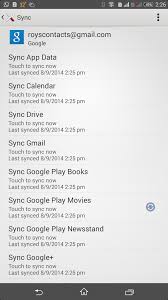
- Go to Settings > Accounts > Google.
- Tap on the address of your Gmail account.
- Ensure the switches beside Mail, Contacts, Calendars, Drive, and other relevant services are turned ON.
Synchronizing Google Account on Android
If you’re using an Android device, follow these steps:
- Go to Settings > Accounts > Google.
- Tap on the address of your Gmail account.
- Ensure the switches beside Mail, Contacts, Calendars, Drive, and other relevant services are turned ON.
Synchronizing Google Account on Iphone And Ipad
If you’re an iPhone or iPad user, follow these steps:
- Go to Settings > Mail > Accounts > Add Account.
- Select Google from the list of providers.
- Enter your Gmail address and password.
- Ensure the switches beside Mail, Contacts, Calendars, and other relevant services are turned ON.
Synchronizing Two Google Accounts
Unfortunately, it’s not currently possible to sync two Google accounts together. However, you can access multiple accounts on a single device by following these steps:
- Go to Settings > Accounts.
- Add both Google accounts to the list.
- Ensure both accounts are configured for each service (e.G., Mail, Contacts, Calendars).
Synchronizing Google Account With Outlook
Want to sync your Google account with Outlook? Here’s how:
- Open Gmail and go to Settings > Forwarding and POP/IMAP.
- Select the “Enable IMAP” option.
- Open Outlook on your PC or Mac and add a new email account using the IMAP protocol.
Synchronizing Google Account on PC
To sync your Google account on a Windows PC:
- Go to Start > Settings > Accounts.
- Add a new account by clicking on “Add account.”
- Select Google from the list of providers.
- Enter your Gmail address and password.
- Ensure the switches beside Mail, Contacts, Calendars, and other relevant services are turned ON.
Synchronizing Google Account on Mac
To sync your Google account on a Mac:
- Go to System Preferences > Accounts.
- Add a new account by clicking on “Add.”
- Select Google from the list of providers.
- Enter your Gmail address and password.
- Ensure the switches beside Mail, Contacts, Calendars, and other relevant services are turned ON.
Removing Synchronization From Google Account
Need to remove synchronization from your Google account? No problem! Simply follow these steps:
- Go to Settings > Accounts > Google.
- Disable the switches beside each service (e.G., Mail, Contacts, Calendars).
Troubleshooting Tips And Faqs
Still having trouble syncing your Google account? Don’t worry! Here are some troubleshooting tips and frequently asked questions:
- Q: What’s the benefit of synchronizing my Google account?
A: Synchronizing your Google account allows you to access your data from anywhere, at any time. - Q: Can I sync two Google accounts together?
A: Unfortunately, no. However, you can access multiple accounts on a single device by following our guide above. - Q: How do I remove synchronization from my Google account?
A: Simply disable the switches beside each service in your Google settings.
Conclusion
Synchronizing your Google account is a powerful way to keep all your data in sync across various devices and platforms. By following this comprehensive guide, you’ll be able to unlock the full potential of Google sync and enjoy seamless access to your essential information.


