
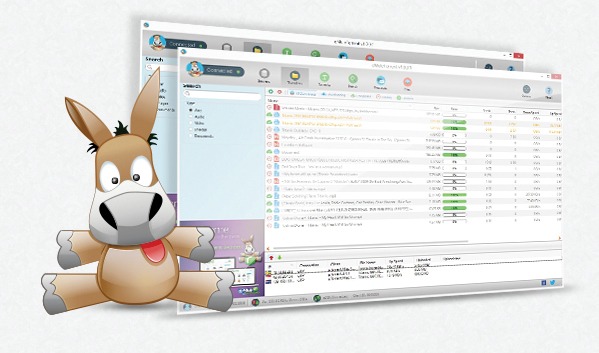
The Ultimate Guide to Emule: How to Install, Configure, And Use This P2p Software
Are you tired of searching for rare files on the internet? Do you want to experience the thrill of downloading your favorite software, TV shows, or movies without any hassle? Look no further than eMule, a peer-to-peer (P2P) file-sharing client that has been around since 2002. Despite its age, eMule remains a powerful tool for sharing and downloading files, and in this article, we will guide you through the process of installing, configuring, and using it.
What is Emule?
EMule is a free P2P file-sharing client that allows users to share and download files from other users on the internet. It uses a distributed network protocol called Kad (short for “Kademlia”) to connect users and enable file sharing. EMule is available for Windows, macOS, and Linux operating systems.
Why Use Emule?
EMule offers several advantages over other P2P clients:
- Speed: EMule can download files at high speeds due to its optimized Kad protocol.
- Reliability: EMule has a robust connection system that ensures stable connections and minimal downtime.
- Security: EMule uses SSL encryption to protect user data and ensure secure file transfers.
How to Install Emule
Installing eMule is a straightforward process:
- Download The Installer: Go to the official eMule website and download the installer for your operating system (Windows, macOS, or Linux).
- Run The Installer: Run the installer and follow the prompts to install eMule on your computer.
- Configure Emule: Follow our guide below to configure eMule for optimal performance.
Configuring Emule
To get the most out of eMule, you need to configure it correctly:
- Choose a Nickname: Set a nickname that will identify you on the eMule network.
- Set The Port: Configure the port numbers for TCP and UDP to ensure stable connections.
- Trust Emule: Trust eMule to manage your download and upload priorities.
- Update The Server List: Update the server list regularly to avoid stale servers.
Updating The Server List
To update the server list, follow these steps:
- Go to Settings: Go to the settings menu in eMule.
- Select Servers: Select the “Servers” tab.
- Delete All Servers: Delete all existing servers.
- Update Server List: Click on the “Update Server List” button.
- Connect to Kad: Connect to the Kad network.
Connecting to Kad
To connect to Kad, follow these steps:
- Go to Settings: Go to the settings menu in eMule.
- Select Kad: Select the “Kad” tab.
- Click Connect: Click on the “Connect” button.
Downloading Files With Emule
To download files using eMule, follow these steps:
- Search For a File: Use the search bar in eMule to find the file you want to download.
- Select a Server: Select a server that has the file you’re looking for.
- Start Downloading: Click on the “Download” button to start downloading the file.
Emule Adunanza
If you have an optical fiber connection, you can use eMule AdunanzA, a special version of eMule optimized for high-speed connections:
- Download Emule Adunanza: Download eMule AdunanzA from the official website.
- Install And Configure: Install and configure eMule AdunanzA in the same way as the standard version.
Emule on Mac
If you’re using a Mac, you can use aMule, a special version of eMule designed for macOS:
- Download Amule: Download aMule from the official website.
- Install And Configure: Install and configure aMule in the same way as eMule.
Emule on Android
If you’re using an Android device, you can use Mule for Android, a third-party app that allows you to use eMule on your smartphone or tablet:
- Download Mule For Android: Download Mule for Android from the Play Store.
- Install And Configure: Install and configure Mule for Android in the same way as other P2P clients.
Conclusion
EMule is a powerful P2P file-sharing client that offers fast speeds, reliable connections, and secure data transfers. By following our guide on how to install, configure, and use eMule, you can unlock its full potential and enjoy a seamless file-sharing experience.
Frequently Asked Questions (FAQs)
- Q: What is The Difference Between Emule And Other P2p Clients?
A: EMule uses the Kad protocol to connect users and enable file sharing, which offers faster speeds and more reliable connections. - Q: Can I Use Emule With my Mac or Android Device?
A: Yes, you can use aMule (a special version of eMule for macOS) or Mule for Android (a third-party app that allows you to use eMule on your smartphone or tablet). - Q: How do I Update The Server List in Emule?
A: To update the server list, go to settings, select servers, delete all existing servers, and click on the “Update Server List” button. - Q: What is The Difference Between Emule Adunanza And The Standard Version?
A: EMule AdunanzA is a special version of eMule optimized for high-speed connections using optical fiber technology. - Q: Can I Use Emule on my Linux Device?
A: Yes, you can install eMule on your Linux device by following the official installation guide. -
Q: How do I Configure Emule For Optimal Performance?
A: To configure eMule for optimal performance, choose a nickname, set the port numbers for TCP and UDP, trust eMule to manage your download and upload priorities, and update the server list regularly. -
Q: Is Emule Safe to Use?
A: Yes, eMule uses SSL encryption to protect user data and ensure secure file transfers. -
Q: Can I Share Files Using Emule?
A: Yes, you can share files using eMule by setting your nickname and configuring the program correctly.


