
How to Uninstall Zoom: A Step-by-step Guide
Are you tired of using Zoom but can’t figure out how to uninstall it from your devices? Look no further! This comprehensive guide will walk you through the process of uninstalling Zoom from all platforms, including PC Windows, Mac, Android, iPhone, and iPad. We’ll also cover how to delete your personal account associated with the app.
Why Uninstall Zoom?
Before we dive into the uninstallation process, let’s discuss why you might want to uninstall Zoom in the first place. Maybe you’ve found a better video conferencing platform or simply don’t need it anymore. Whatever the reason, this guide will ensure that you can easily remove Zoom from your devices.
Uninstalling Zoom on PC Windows
If you have installed Zoom on a PC running Windows 10, uninstalling it is a breeze. Here’s how to do it:
- Click on the Start button and select Apps and features.
- Find Zoom in the list of installed programs.
- Click on Zoom and then click on Uninstall.
- Confirm that you want to uninstall Zoom by clicking Yes.
If you’re using an older version of Windows, follow these steps:
- Press the Windows key + X and select Control Panel.
- Click on Programs and Features (or Add or Remove Programs in older versions).
- Find Zoom in the list of installed programs.
- Click on Zoom and then click on Uninstall.
- Confirm that you want to uninstall Zoom by clicking Yes.
Uninstalling Zoom on Mac
To uninstall Zoom from a Mac, follow these steps:
- Open the Applications folder.
- Find Zoom in the list of applications.
- Drag the Zoom icon to the Trash.
- Empty the Trash to confirm that you want to uninstall Zoom.
If you’re using macOS Mojave or earlier, follow these steps:
- Open the Launchpad and find Zoom.
- Click on Zoom and then click on Uninstall.
- Confirm that you want to uninstall Zoom by clicking Uninstall again.
Uninstalling Zoom on Android
To uninstall Zoom from an Android device, follow these steps:
- Find the Zoom app icon in your drawer (the area where all installed apps are stored).
- Tap and hold the Zoom icon until it starts to shake.
- Click on the X in the top right corner of the screen to delete the app.
- Confirm that you want to uninstall Zoom by clicking OK.
Alternatively, follow these steps:
- Go to Settings > Apps & notifications.
- Find Zoom in the list of installed apps.
- Tap on Zoom and then tap Uninstall.
- Confirm that you want to uninstall Zoom by tapping OK.
Uninstalling Zoom on Iphone
To uninstall Zoom from an iPhone or iPad, follow these steps:
- Find the Zoom app icon on your home screen.
- Press and hold the Zoom icon until it starts to jiggle.
- Click on the X in the top left corner of the screen to delete the app.
- Confirm that you want to uninstall Zoom by clicking Delete.
Alternatively, follow these steps:
- Go to Settings > General > iPhone Storage.
- Find Zoom in the list of installed apps.
- Tap on Zoom and then tap Delete App.
- Confirm that you want to uninstall Zoom by tapping Delete.
Erasing Your Personal Account
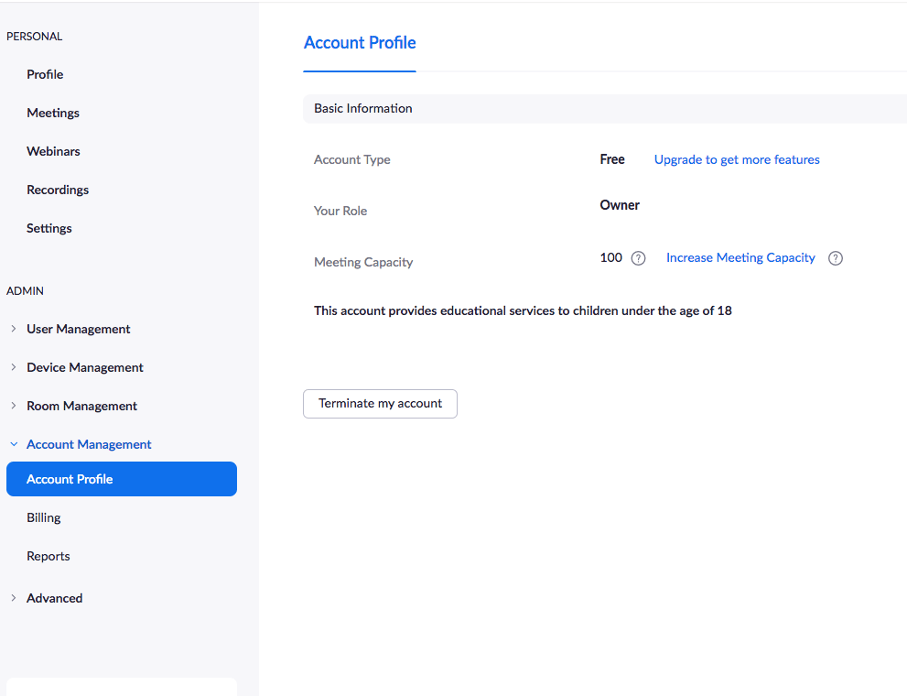
If you’ve decided to leave Zoom behind, you may also want to delete your personal account associated with the app. Here’s how to do it:
- Go to the Zoom website on a browser.
- Select Italian from the language menu.
- Click on the Access button.
- Fill in the required information with your access details.
-
If you’re logged in with Google or Facebook, click on Access with Google/Access with Facebook and follow the login instructions.
-
Go to the Assistance section.
- Click on the link Account.
- Click on Close my account.
- Confirm that you want to delete your account by clicking Yes.
Conclusion
Uninstalling Zoom is a straightforward process, whether you’re using a PC Windows, Mac, Android, iPhone, or iPad. By following these step-by-step guides, you can easily remove the app and delete your personal account associated with it. If you have any further questions or need more information, feel free to ask.


