
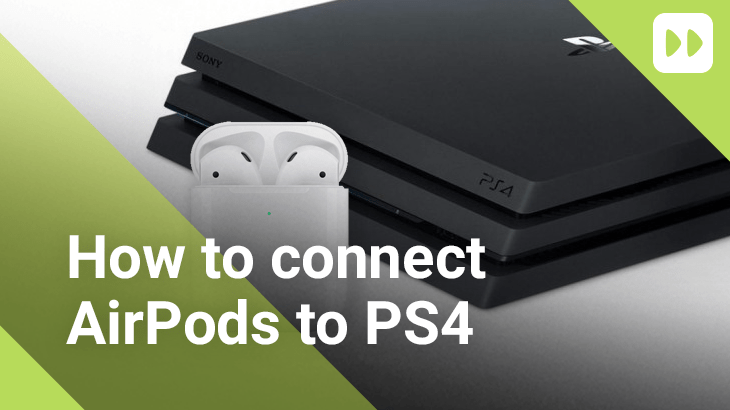
Connecting Airpods to Ps4: A Step-by-step Guide
Are you an avid gamer looking to upgrade your gaming experience with the best audio quality? Look no further! In this article, we will guide you through the process of connecting your AirPods to your PlayStation 4 (PS4) using a Bluetooth adapter.
The Challenge: Ps4 And Airpods Compatibility
Before diving into the step-by-step instructions, it’s essential to understand that the PS4 is not natively compatible with AirPods or any other Bluetooth headphones. This limitation has been enforced by Sony due to restrictions on audio latency for gaming purposes. However, don’t worry; we have a solution for you!
The Solution: Using a Bluetooth Adapter
To connect your AirPods to the PS4, you will need a Bluetooth adapter that can bridge the gap between the two devices. There are several options available in the market, and we’ll be discussing three popular ones:
- Twelvesouth Airfly Duo: A wireless transmitter with audio sharing capabilities.
- Avantree Leaf Adapter: A Bluetooth 4.1 USB adapter for headphones.
- Airfly Pro: A wireless transmitter with a rechargeable battery and dual device connectivity.
Choosing The Right Adapter
When selecting an adapter, consider the following factors:
- Battery life: Opt for an adapter with a long-lasting battery to ensure uninterrupted gaming sessions.
- Compatibility: Ensure the adapter is compatible with your PS4 model and AirPods version.
- Audio quality: Choose an adapter that can deliver high-quality audio with minimal latency.
Step-by-step Instructions
Once you have chosen your Bluetooth adapter, follow these steps to connect your AirPods to the PS4:
- Connect The Adapter: Connect the Bluetooth adapter to the PS4 using the provided cable.
- Put The Airpods in Pairing Mode: Open the AirPods case and press the setup button on the back of the case until the LED light starts flashing white.
- Pair The Airpods With The Adapter: Press and hold the pairing button on the adapter until the LED light starts flashing green.
- Configure The Output Audio in Ps4 Settings: Go to the PS4 settings, select “Devices,” then “Audio Devices.” Set the output audio to the Bluetooth adapter.
Troubleshooting Tips
If you’re facing issues connecting your AirPods to the PS4, try the following:
- Check the battery level of both the adapter and AirPods.
- Ensure the adapter is properly connected to the PS4.
- Restart the adapter and AirPods if they’re not responding.
Conclusion
Connecting AirPods to a PS4 may seem like a daunting task, but with the right Bluetooth adapter, it’s achievable. By following these step-by-step instructions and troubleshooting tips, you can enjoy high-quality audio during your gaming sessions. Happy gaming!
Frequently Asked Questions (FAQs)
- Q: Can I Use Any Bluetooth Adapter With my Ps4?
A: No, the PS4 is not natively compatible with Bluetooth headphones. You’ll need a specific Bluetooth adapter that’s designed for gaming purposes. - Q: How do I Choose The Right Bluetooth Adapter?
A: Consider factors like battery life, compatibility, and audio quality when selecting an adapter. - Q: Can I Use my Airpods With Other Devices Besides The Ps4?
A: Yes, you can use your AirPods with other devices that support Bluetooth connectivity, such as smartphones or tablets. - Q: How do I Troubleshoot Issues Connecting my Airpods to The Ps4?
A: Check the battery levels of both the adapter and AirPods, ensure proper connection, and restart them if needed.
Additional Resources
For more information on gaming-related topics, visit our website at www.Gamingsolutions.Net.


