
How to Use Your PC Without a Mouse: A Comprehensive Guide
Are you tired of using a mouse with your PC? Do you want to explore alternative ways to navigate your computer without relying on a pointing device? Look no further! In this article, we will show you how to use your PC without a mouse, providing you with a comprehensive guide on the various options available.
Windows 10 And Windows 11: A Mouse-free Experience
If you’re using a PC with Windows 10 or Windows 11, you can easily navigate your computer without a mouse. The operating system offers several accessibility features that allow you to control your PC using the keyboard. Here are some of the options:
- Control + Alt + Tab: This combination allows you to switch between open applications.
- Alt + F4: This shortcut closes the active window.
- Win + X: This combination opens the quick access menu, which provides shortcuts to various system settings and tools.
Accessibility Features in Windows
Windows offers several accessibility features that enable you to control your PC without a mouse. These include:
- Control Pointer: This feature allows you to simulate mouse movements using the keyboard.
- Keyboard Shortcuts: Windows provides numerous keyboard shortcuts that can be used to navigate menus, execute actions, and access system settings.
Mac: Using Your Computer Without a Mouse
If you’re using a Mac, you can also navigate your computer without a mouse. The operating system offers several accessibility features that allow you to control your PC using the keyboard. Here are some of the options:
- Control Pointer: This feature allows you to simulate mouse movements using the keyboard.
- Keyboard Shortcuts: MacOS provides numerous keyboard shortcuts that can be used to navigate menus, execute actions, and access system settings.
Other Interesting Solutions
If the solutions mentioned above do not meet your requirements, there are other alternative roads you can take into consideration. For example:
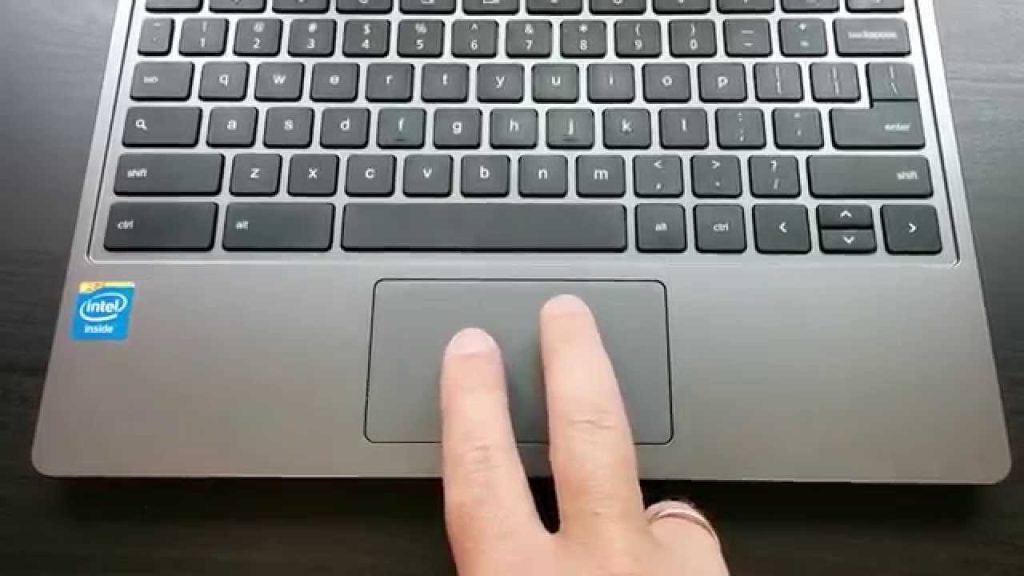
- Using a Touchpad: If you have a portable computer, you can resort to using the touchpad as an alternative to a mouse.
- External Touchpads And Keyboards: You can acquire external touchpads or keyboards with built-in touchpads to use as alternatives to a mouse.
- Transforming Your Smartphone Into a Mouse Remote: You can transform your smartphone or tablet into a remote mouse using software such as Remote Mouse.
Conclusion
In conclusion, it is possible to use your PC without a mouse. Windows 10 and Windows 11 offer several accessibility features that enable you to navigate your computer using the keyboard. Similarly, macOS provides numerous keyboard shortcuts and accessibility features that allow you to control your PC without a mouse. Additionally, there are other alternative roads you can take into consideration, such as using a touchpad or transforming your smartphone into a remote mouse.
Faqs
Q: What if I have trouble using my computer without a mouse?
A: If you experience difficulties navigating your computer without a mouse, consider consulting the official user guides for Windows and macOS.
Q: Can I use a touchscreen laptop instead of a mouse?
A: Yes, you can use a touchscreen laptop as an alternative to a mouse. Many modern laptops offer touchscreens that allow you to navigate your computer using gestures.
Q: How do I enable Control Pointer in Windows?
A: To enable Control Pointer in Windows, follow these steps:
- Open the Start menu and select Settings.
- Click on Ease of Access and then click on Keyboard.
- Scroll down to the “Control pointer” section and toggle it on.
Q: Can I use Remote Mouse on a Mac?
A: Yes, you can use Remote Mouse on a Mac. The software is compatible with macOS 10.8 Or later versions.
Q: What are some other keyboard shortcuts in Windows?
A: Here are some additional keyboard shortcuts in Windows:
- Win + L: Locks the computer.
- Win + D: Shows or hides the desktop.
- Ctrl + Shift + Esc: Opens Task Manager.
Conclusion
In this comprehensive guide, we have shown you how to use your PC without a mouse. We have explored various options available in Windows 10 and Windows 11, as well as macOS. Additionally, we have highlighted other alternative roads you can take into consideration, such as using a touchpad or transforming your smartphone into a remote mouse.
Conclusion Faqs
Q: What are the benefits of using a computer without a mouse?
A: Using a computer without a mouse offers several benefits, including increased accessibility and flexibility.
Q: Can I use my computer without a mouse if it’s broken?
A: If your mouse is broken or not working properly, you can still use your computer. Simply rely on the keyboard shortcuts and accessibility features available in Windows and macOS.
Q: Are there any other alternative roads I can take into consideration?
A: Yes, consider using a touchpad or transforming your smartphone into a remote mouse as alternatives to a mouse.
Q: Can I customize the Control Pointer settings in Windows?
A: Yes, you can customize the Control Pointer settings in Windows. Simply open the Ease of Access section and toggle on the “Control pointer” feature.


