
Visualizing Iphone Contacts on Your Pc: A Comprehensive Guide
Are you an iPhone user who wants to access your contacts on your computer? You’re not alone! Many of us have struggled with this issue, but don’t worry, we’ve got you covered. In this article, we’ll show you how to visualize your iPhone contacts on your PC using various methods.
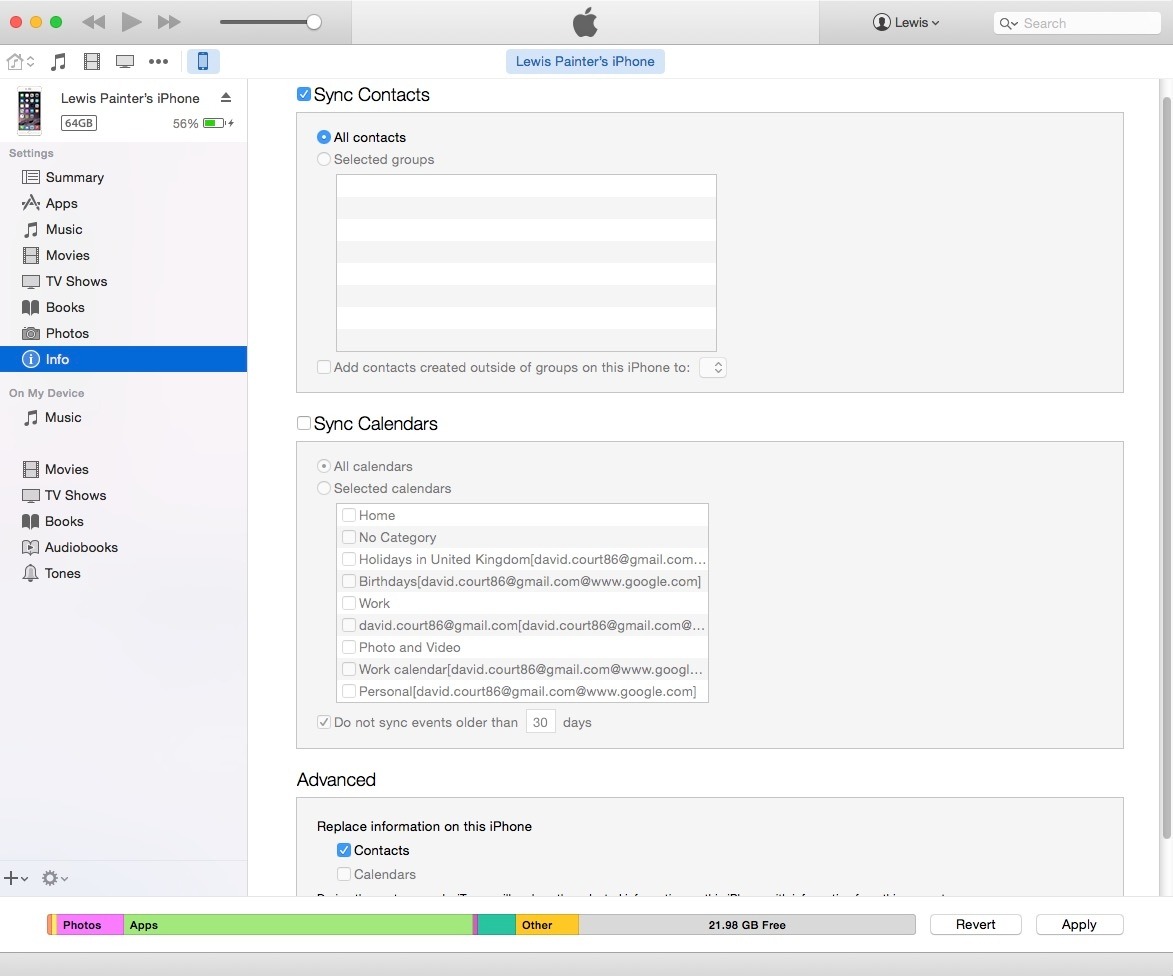
Why Can’t I See My Contacts in Itunes?
Firstly, let’s address the elephant in the room – why can’t you see your contacts in iTunes? This is because iTunes doesn’t directly allow access to your contacts. However, there are some workarounds that we’ll explore later on.
Method 1: Using Imazing to Visualize Contacts in Itunes
One of the most popular solutions is using iMazing, a software that allows you to access and export your iPhone data, including contacts. Here’s how to do it:
Step 1: Download And Install Imazing
Head over to the official iMazing website and download the free version of the software. Follow the installation instructions on your PC.
Step 2: Connect Your Iphone to Your Computer
Connect your iPhone to your computer using a USB cable. Open iTunes and select your device.
Step 3: Launch Imazing And Select Your Device
Launch iMazing and select your iPhone from the list of devices. Click on the “Contacts” icon in the top navigation bar.
Step 4: Export Contacts as Vcard or Csv
You’ll now see a list of all your contacts in iTunes. To export them, click on any contact’s name to view their details, then click on the “Export” button and select either “vCard” or “CSV” format.
Method 2: Using Icloud (Web) to Access Contacts
Another option is to use iCloud (Web) to access your contacts directly from your browser. Here’s how:
Step 1: Ensure Syncing is Enabled on Your Iphone
Go to Settings > [Your Name] > iCloud and ensure that “Contacts” is enabled.
Step 2: Open The Icloud Website
Open a web browser on your computer, navigate to the iCloud website, and sign in using your Apple ID.
Step 3: Access Contacts
Click on the “Contacts” icon to view all your contacts synced from your iPhone.
Method 3: Using Google Contacts (Web)
If you prefer to use Google Contacts instead of iCloud, here’s how:
Step 1: Ensure Syncing is Enabled on Your Iphone
Go to Settings > [Your Name] > Gmail and ensure that “Contacts” is enabled.
Step 2: Open The Google Contacts Website
Open a web browser on your computer, navigate to the Google Contacts website, and sign in using your Google account.
Step 3: Access Contacts
Click on the “Contacts” icon to view all your contacts synced from your iPhone.
Method 4: Using Microsoft Outlook (Windows)
If you’re using a Windows PC and have iCloud set up on your iPhone, here’s how:
Step 1: Install The Icloud Client For Windows
Download and install the iCloud client for Windows.
Step 2: Sign in With Your Apple ID
Sign in with your Apple ID to access your contacts.
Step 3: Access Contacts
Click on the “Contacts” icon to view all your contacts synced from your iPhone.
Method 5: Using Contacts (macOS)
If you’re using a Mac and have iCloud set up on your iPhone, here’s how:
Step 1: Ensure Syncing is Enabled on Your Iphone
Go to Settings > [Your Name] > iCloud and ensure that “Contacts” is enabled.
Step 2: Access Contacts on Your Mac
Open the Contacts app on your Mac and sign in with your Apple ID.
Step 3: Access Contacts
Click on the “Contacts” icon to view all your contacts synced from your iPhone.
Method 6: Using My Contacts Backup (iOS)
If you don’t want to sync your contacts online, you can use the My Contacts Backup app for iOS. Here’s how:
Step 1: Install The App
Download and install the My Contacts Backup app on your iPhone.
Step 2: Export Contacts
Export all your contacts as a CSV or VCF file.
Conclusion
In this comprehensive guide, we’ve shown you various methods to visualize your iPhone contacts on your PC. From using iMazing to exporting contacts from iCloud (Web), Google Contacts (Web), Microsoft Outlook (Windows), and more, we’ve covered it all. Choose the method that suits you best and enjoy accessing your contacts from the comfort of your computer.
Frequently Asked Questions
- Q: Why Can’t I See my Contacts in Itunes?
A: This is because iTunes doesn’t directly allow access to your contacts. - Q: What is Imazing, And How Does it Work?
A: IMazing is a software that allows you to access and export your iPhone data, including contacts. - Q: Can I Use Icloud (Web) to Access my Contacts on my Pc?
A: Yes, you can use iCloud (Web) to access your contacts directly from your browser. - Q: How do I Sync my Contacts With Google Contacts?
A: Ensure syncing is enabled on your iPhone, then open the Google Contacts website and sign in with your Google account. - Q: Can I Use Microsoft Outlook on Windows to Access my Contacts?
A: Yes, you can install the iCloud client for Windows and sign in with your Apple ID to access your contacts.
We hope this guide has been helpful in addressing all your questions regarding visualizing iPhone contacts on your PC!


