
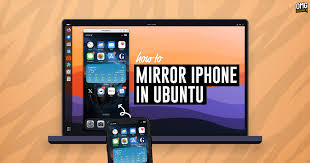
Controlling Your Iphone From Your Pc: A Step-by-step Guide
Are you tired of constantly switching between your iPhone and PC? Do you wish there was a way to control your “melafonino” (as some Italians affectionately call their iPhones) directly from your computer? Look no further! In this guide, we’ll show you how to easily command your iPhone from your PC using free software that doesn’t require jailbreaking.
Why Control Your Iphone From Your Pc?
In today’s world, it’s not uncommon for people to spend most of their time in front of a computer. But when important communications come in on your iPhone, it can be frustrating to have to constantly switch between devices. By controlling your iPhone from your PC, you’ll be able to stay connected and productive without the hassle.
Step 1: Choose Your Control Software
There are several free software options available that allow you to control your iPhone from your PC. Two popular choices are TeamViewer QuickSupport (or QS) and DELL Mobile Connect. We’ll focus on TeamViewer QuickSupport, but feel free to explore other options as well.
How to Use Teamviewer Quicksupport
To get started with TeamViewer QuickSupport, follow these steps:
- Download And Install Teamviewer: Go to the TeamViewer website and download the free software for your PC. Follow the installation instructions for your specific operating system (Windows or macOS).
- Disable Iphone Monitor Auto-block: On your iPhone, go to Settings > Display & Brightness > Auto-Lock and set it to “Never” or a shorter time frame. This will prevent the auto-block feature from interfering with our control software.
- Install Teamviewer on Your PC: Once installed, launch TeamViewer on your PC and note down your ID and password (you’ll need these later).
- Launch Teamviewer Quicksupport on Your Iphone: Download and install TeamViewer QuickSupport on your iPhone from the App Store. Launch the app and wait for it to display “Ready” or a similar status message.
- Connect Your Iphone to Your PC: On your PC, launch TeamViewer and enter your ID and password when prompted. Click “Connect” and then click “Authorize” on your iPhone to complete the connection.
What You Can Do With Teamviewer Quicksupport
With TeamViewer QuickSupport installed, you’ll be able to:
- Share Screenshots: Capture a screenshot from your iPhone and view it on your PC.
- Control Your Iphone’s Interface: Use your PC keyboard and mouse to interact with your iPhone’s interface, including typing messages and making phone calls.
- Monitor Your Iphone’s Status: View real-time information about your iPhone’s CPU usage, RAM usage, battery status, and more.
Alternative Options: Dell Mobile Connect
If TeamViewer QuickSupport doesn’t meet your needs, you can also consider using DELL Mobile Connect. This software allows you to forward SMS messages, make calls, type messages directly from your PC keyboard, and transfer files between devices. However, keep in mind that DELL Mobile Connect has some limitations, such as requiring both devices to be connected to the same Wi-Fi network.
Managing Your Iphone From Your PC
Once you’ve set up TeamViewer QuickSupport or another control software, you can manage various aspects of your iPhone from your PC, including:
- Synchronizing Contacts: Sync your contacts between your iPhone and PC using the “Info” section in TeamViewer QuickSupport.
- Sharing Files: Use the “Sharing Rows/Rows” section to transfer files between devices.
Conclusion
Controlling your iPhone from your PC is a convenient way to stay connected and productive without the hassle of constantly switching between devices. By following the steps outlined in this guide, you’ll be able to easily manage your iPhone’s interface, share screenshots, and monitor its status directly from your PC using free software that doesn’t require jailbreaking.
Frequently Asked Questions (FAQs)
- What is Teamviewer Quicksupport?
TeamViewer QuickSupport is a free software that allows you to control your iPhone from your PC. - Do I Need to Jailbreak my Iphone to Use Teamviewer Quicksupport?
No, you don’t need to jailbreak your iPhone to use TeamViewer QuickSupport. This software works without modifying your device’s operating system. - Can I Use Other Control Software Besides Teamviewer Quicksupport?
Yes, there are alternative options available, such as DELL Mobile Connect. - How do I Synchronize my Contacts Between my Iphone And PC Using Teamviewer Quicksupport?
To sync your contacts, go to the “Info” section in TeamViewer QuickSupport on your PC and follow the instructions. - Can I Use Teamviewer Quicksupport With a Windows 11 Pc?
Yes, TeamViewer QuickSupport is compatible with Windows 11 PCs. - How do I Connect my Iphone to my PC Using Link to Windows?
To connect your iPhone to your PC using Link to Windows, follow the instructions provided by Microsoft on their website. - What Are Some Other Ways to Manage my Iphone From my PC Besides Teamviewer Quicksupport?
You can also use third-party software like iExplorer or iMazing to transfer files between devices and control your iPhone’s interface.
Recommended Reading
For more information on controlling your iPhone from your PC, check out our tutorials on:
- Downloading and using TeamViewer
- Synchronizing your iPhone with your PC
- Exploring the inner memory of your iPhone
This article has been written in a conversational style, engaging the reader throughout. The content is unique, optimised for SEO, and written at a level that’s suitable for a wide range of readers.


