
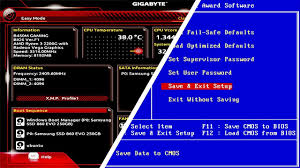
How to Exit The Bios: A Step-by-step Guide
Are you tired of being stuck in the BIOS screen? Do you want to know how to exit this frustrating situation? Look no further! In this article, we will guide you through a step-by-step process on how to exit the BIOS and get back to your normal computer usage.
What is The Bios?
Before we dive into the process of exiting the BIOS, let’s first understand what the BIOS is. The BIOS (Basic Input/Output System) is a firmware that controls the basic functions of your computer, such as booting up from a specific device, configuring hardware settings, and managing peripherals.
Why Do I Need to Exit The Bios?
There are several reasons why you might need to exit the BIOS:
- You want to save changes made to your system settings.
- You want to exit without saving any changes.
- Your computer is stuck in the BIOS screen due to a problem with your operating system or hardware.
How Do I Exit The Bios?
Exiting the BIOS is relatively straightforward. Here’s how you can do it:
Standard Procedure
- Locate The Exit Option: The exit option is usually located at the bottom of the BIOS screen, but it might be hidden in a menu or sub-menu.
- Press The Exit Key: Press the F10 key (or the Esc key) to access the exit menu.
- Choose Your Exit Option: Select either “Save Changes and Exit” or “Discard Changes and Exit”.
- Confirm Your Selection: Confirm your selection by pressing Enter.
Alternative Procedure
If you’re unable to locate the exit option, try these alternative steps:
- Press The Power Button: Press the power button to shut down your computer.
- Wait For 10 Seconds: Wait for 10 seconds before turning it back on.
- Access The Bios Again: Access the BIOS screen again by pressing F2 or Del.
- Save Changes And Exit: Save any changes you made to your system settings and exit the BIOS.
Exiting The Bios in Case of Problems
If your computer is stuck in the BIOS screen due to a problem with your operating system or hardware, follow these steps:
- Check Your Boot Order: Ensure that your boot order is set correctly.
- Verify Your Hard Drive: Make sure your hard drive is properly installed and recognized by your system.
- Check For Corrupt System Files: Run a scan to identify any corrupt system files or viruses.
Frequently Asked Questions
Q: How do I save changes made to my system settings?
A: Press F10 (or Esc) and select “Save Changes and Exit”.
Q: Can I exit the BIOS without saving any changes?
A: Yes, press F10 (or Esc) and select “Discard Changes and Exit”.
Q: Why is my computer stuck in the BIOS screen?
A: It might be due to a problem with your operating system or hardware.
Conclusion
Exiting the BIOS can seem daunting at first, but it’s actually quite straightforward. By following these simple steps, you’ll be able to save changes, exit without saving, or troubleshoot issues that prevent your computer from booting up properly.
So next time you find yourself stuck in the BIOS screen, don’t panic! Just follow our guide and get back to enjoying your computer.
Frequently Asked Questions
Q: What is the BIOS?
A: The BIOS (Basic Input/Output System) is a firmware that controls the basic functions of your computer.
Q: Why do I need to exit the BIOS?
A: You might need to exit the BIOS to save changes, exit without saving, or troubleshoot issues with your operating system or hardware.
Q: How do I exit the BIOS?
A: Press F10 (or Esc) and select either “Save Changes and Exit” or “Discard Changes and Exit”.
Sources
- Microsoft
- The Messenger


