
How to Change Language on Prime Video: A Step-by-step Guide
Are you tired of navigating through the interface of Amazon Prime Video in a language that’s not your own? Do you wish to watch your favorite shows and movies with subtitles or audio in your preferred language? Look no further! In this article, we’ll guide you through the process of changing the language on Prime Video, whether you’re using a computer, smartphone, tablet, or TV.
Why Change Language on Prime Video?
Changing the language on Prime Video can enhance your viewing experience by allowing you to:
- Watch shows and movies with subtitles or audio in your preferred language
- Better understand dialogue and plotlines
- Improve engagement and enjoyment of content
How to Change Language on Prime Video: Computer
To change the language on Prime Video using a computer, follow these steps:
- Sign in to Your Amazon Account: Ensure you’re logged in to your Amazon account.
- Access Prime Video Settings: Click on your profile picture in the top right corner and select “Account & Settings.”
- Select Language: In the “Settings” page, scroll down to the “Language” section and select your preferred language from the dropdown menu.
- Save Changes: Click the “Save” button to apply the changes.
Note: The selected language will only be applied on the current browser session. If you access Prime Video using a different browser or device, you’ll need to repeat the process.
How to Change Language on Prime Video: Smartphone And Tablet
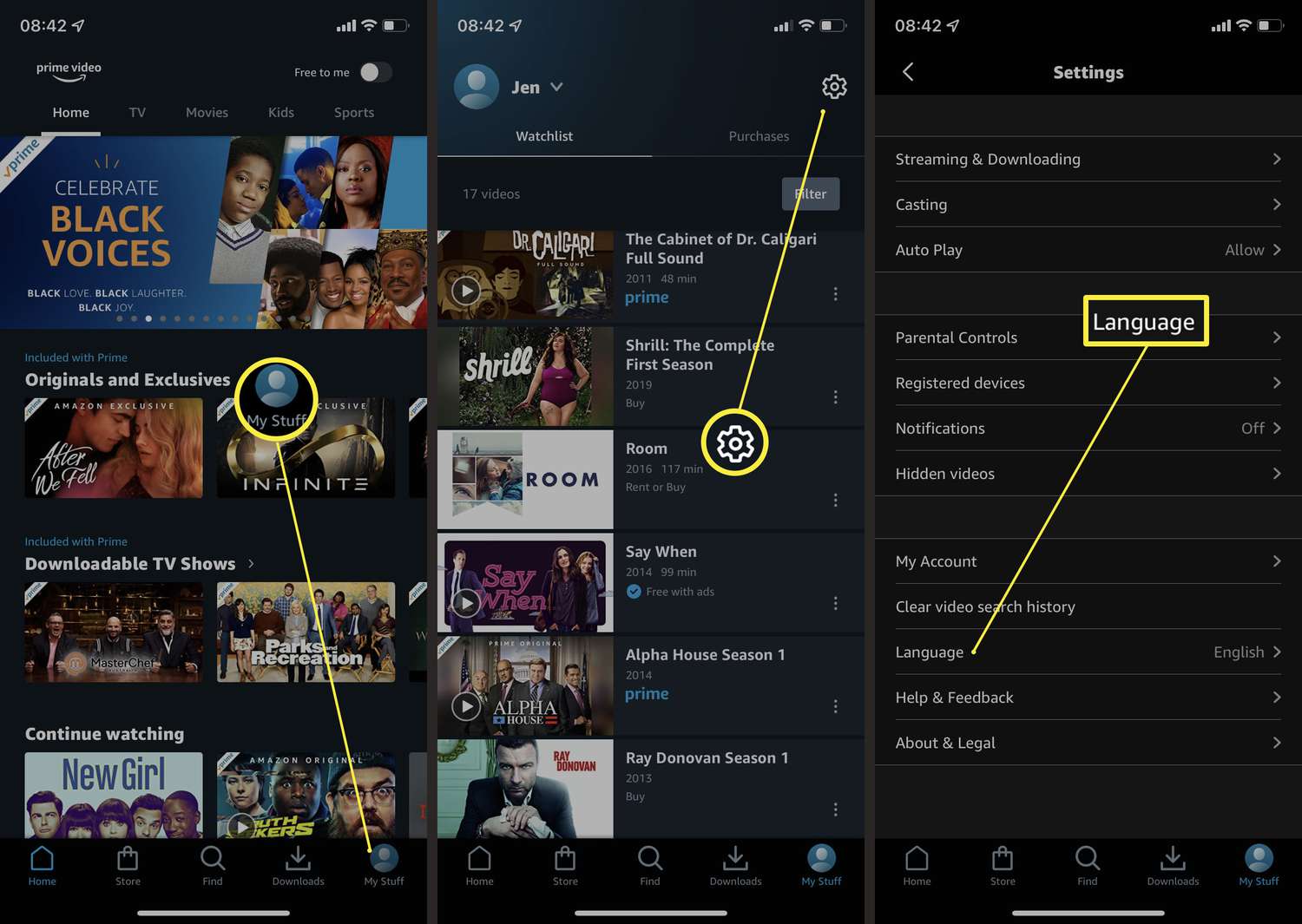
To change the language on Prime Video using a smartphone or tablet:
- Open The Prime Video App: Launch the Prime Video app on your device.
- Sign in to Your Amazon Account: Enter your login credentials to access your account.
- Access Settings: Tap on the three horizontal lines (Menu) and select “Settings.”
- Select Language: In the “Settings” page, tap on “Language” and choose your preferred language from the list.
- Save Changes: Confirm your selection by tapping the “Yes” button.
How to Change Language on Prime Video: TV
To change the language on Prime Video using a smart TV or set-top box:
- Launch The Prime Video App: Open the Prime Video app on your device.
- Sign in to Your Amazon Account: Enter your login credentials to access your account.
- Access Settings: Use the remote control to navigate to the “Settings” menu.
- Select Language: In the “Settings” page, select “Language” and choose your preferred language from the list.
- Save Changes: Confirm your selection by pressing the “OK” button on your remote control.
How to Change Audio And Subtitles Language on Prime Video
In addition to changing the interface language, you can also change the audio and subtitles language for individual content:
- Access The Content Page: Navigate to the content’s details page.
- Select Audio And Subtitles: Click or tap on the “Audio” and “Subtitles” tabs.
- Choose Your Preferred Language: Select your desired language from the dropdown menu.
Troubleshooting: Why Can’t I Change Language on Prime Video?
If you’re experiencing issues changing the language on Prime Video, try the following:
- Ensure you’re logged in to your Amazon account.
- Check that your browser or device is up-to-date.
- Restart your device and try again.
- Contact Amazon’s customer support for further assistance.
Conclusion
Changing the language on Prime Video can greatly enhance your viewing experience. By following these simple steps, you can easily switch between languages and enjoy your favorite shows and movies in your preferred language. Remember to also change the audio and subtitles language for individual content to get the most out of your streaming experience.
Faqs: Changing Language on Prime Video
- Q: How do I Change The Language on Prime Video?
A: To change the language, follow the steps outlined above. - Q: Will Changing The Language Affect my Account Settings?
A: No, changing the language will only affect the interface and won’t impact your account settings. - Q: Can I Change The Audio And Subtitles Language For Individual Content?
A: Yes, you can change the audio and subtitles language for specific content by following the steps outlined above. - Q: Why Can’t I See my Preferred Language in The List?
A: Check that your browser or device is up-to-date, and try restarting your device. - Q: How do I Contact Amazon’s Customer Support?
A: You can reach out to Amazon’s customer support through their website, phone, email, chat, or Twitter. - Q: Will Changing The Language Affect my Viewing History?
A: No, changing the language won’t impact your viewing history or recommendations. - Q: Can I Change The Language For All Profiles Associated With my Account?
A: Yes, changes to the language will be applied across all profiles linked to your Amazon account. - Q: How do I Reset my Prime Video Settings?
A: To reset your Prime Video settings, follow the instructions provided in the “Settings” menu.
I hope this article has been helpful! If you have any further questions or concerns, feel free to ask.


