
How to Normalize Volume Mp3: A Step-by-step Guide
Are you tired of listening to songs with wildly varying volumes? Do you find yourself constantly adjusting the volume on your phone or computer to get a consistent sound experience? Normalizing the volume of your MP3 files can make all the difference. In this article, we’ll show you how to normalize volume MP3 using various methods and tools.
What is Volume Normalization?
Volume normalization is the process of bringing the volume levels of multiple audio tracks to the same level, so they play at a consistent loudness. This is especially useful when creating playlists or mixing songs together, as it ensures that all the tracks are played at a similar volume.
Why Normalize Volume Mp3?
Normalizing the volume of your MP3 files can have several benefits:
- Improved Listening Experience: By bringing the volume levels to the same level, you’ll enjoy a consistent sound experience across all your songs.
- Reduced Ear Fatigue: When tracks play at vastly different volumes, it can be tiring on the ears. Normalizing the volume helps prevent this issue.
- Better Music Creation And Mixing: By having all tracks at the same volume, you can focus on other aspects of music creation and mixing.
How to Normalize Volume Mp3
There are several methods to normalize volume MP3, including:
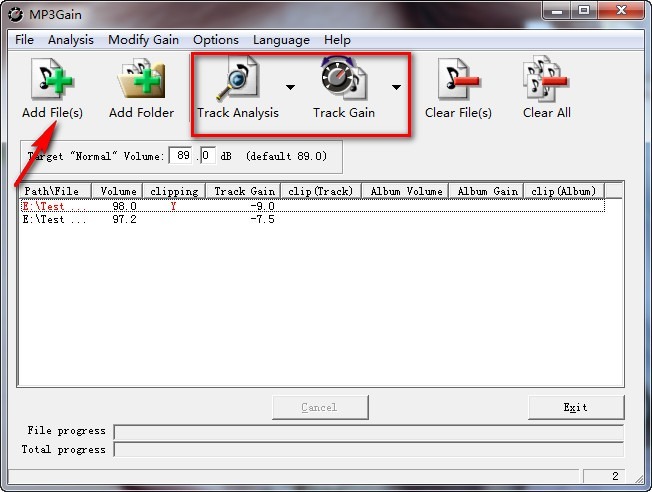
Mp3gain (Windows)
If you’re using a Windows computer, you can use MP3Gain to normalize volume MP3. Here’s how:
- Download and install MP3Gain from the official website.
- Launch the program and select the MP3 file you want to normalize.
- Click on the “Add” button to add the file to the list.
- Select the track gain option and choose the desired volume level.
- Click on the “Apply” button to apply the changes.
Mp3gain Express (macOS)
If you’re using a macOS computer, you can use MP3Gain Express to normalize volume MP3. Here’s how:
- Download and install MP3Gain Express from the official website.
- Launch the program and select the MP3 file you want to normalize.
- Click on the “Add” button to add the file to the list.
- Select the track gain option and choose the desired volume level.
- Click on the “Apply” button to apply the changes.
Audacity (Windows, Macos, Linux)
You can also use Audacity, a free audio editing software, to normalize volume MP3. Here’s how:
- Download and install Audacity from the official website.
- Launch the program and select the MP3 file you want to normalize.
- Click on the “Effect” menu and select “Gain.”
- Adjust the gain level as desired and click on the “OK” button.
Online Tools
If you don’t want to download and install any software, you can use online tools to normalize volume MP3. Here are a few options:
- 123Apps: This website offers a free online tool to normalize volume MP3.
- Audioalter Volume Changer: This service allows you to upload your MP3 file and adjust the volume level.
- MP3 Volume Changer: This tool enables you to normalize volume MP3 directly from your browser.
Conclusion
Normalizing the volume of your MP3 files is a simple process that can greatly improve your listening experience. Whether you’re using software or online tools, there are many options available to help you achieve consistent sound levels across all your tracks.


