
Deleting a Profile on Netflix: A Step-by-step Guide
Are you tired of having multiple profiles on your Netflix account? Do you want to delete a profile that’s no longer useful or wanted? Look no further! In this article, we’ll guide you through the process of deleting a profile on Netflix, whether you’re using a Smart TV, computer, or mobile app.
Understanding Profiles And Accounts
Before we dive into the deletion process, it’s essential to understand the difference between profiles and accounts. A profile is a personalized experience within your Netflix account, allowing multiple users to have their own settings and preferences. An account, on the other hand, is the overall subscription and payment information associated with your Netflix membership.
Deleting a Profile on Netflix
To delete a profile on Netflix, follow these steps:
Using a Smart Tv:
- Turn on your Smart TV and navigate to the Netflix app.
- Select the profile you want to delete by using the remote control or voice command.
- Press the menu button (usually marked with an icon) and select “Manage Profiles.”
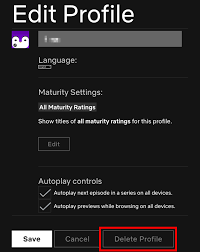
- Find the profile you want to delete and press the “Delete Profile” button.
- Confirm your decision to delete the profile.
Using a Computer:
- Log in to your Netflix account on a web browser.
- Click on your profile picture (usually located at the top right corner of the screen).
- Select “Manage Profiles.”
- Find the profile you want to delete and click on it.
- Click on the “Delete Profile” button and confirm your decision.
Using a Mobile App:
- Open the Netflix app on your Android or iOS device.
- Tap on your profile picture (usually located at the top right corner of the screen).
- Select “Manage Profiles.”
- Find the profile you want to delete and tap on it.
- Tap on the “Delete Profile” button and confirm your decision.
Transferring a Profile
If you have multiple profiles shared with others and want to create a new account for yourself, you can transfer your profile to a new account while keeping all your data intact.
To do this:
- Access your Netflix account through a web browser.
- Select the profile you want to transfer.
- Click on the “Transfer Profile” button.
- Follow the prompts to create a new account or connect with an existing one.
- Confirm your decision to transfer the profile.
Troubleshooting
If you encounter any issues deleting a profile or transferring it, you can contact Netflix’s customer support for assistance. They’ll be happy to help you resolve the problem.
Conclusion
Deleting a profile on Netflix is a straightforward process that can be completed using various devices. Remember to confirm your decision before deleting a profile, and don’t hesitate to reach out if you need further assistance. With this guide, you should now have a better understanding of how to manage your profiles and accounts on Netflix.
Frequently Asked Questions
- Can I Delete a Profile From my Smart Tv?
Yes, you can delete a profile directly from your Smart TV by following the steps outlined above. - How do I Transfer a Profile to a New Account?
To transfer a profile, follow the steps outlined in the “Transferring a Profile” section. - What Happens When I Delete a Profile?
Deleting a profile will remove all associated data, including your viewing history and preferences. - Can I Recover a Deleted Profile?
Unfortunately, no. Once a profile is deleted, it cannot be recovered. - How do I Contact Netflix Customer Support?
You can reach out to Netflix’s customer support through their website or mobile app for assistance with deleting profiles or resolving any issues. - What is The Difference Between a Profile And an Account on Netflix?
A profile represents a personalized experience within your Netflix account, while an account refers to the overall subscription and payment information associated with your membership. - Can I Delete Multiple Profiles at Once?
Yes, you can delete multiple profiles by selecting them from the “Manage Profiles” section. - How do I Cancel my Netflix Subscription?
To cancel your Netflix subscription, follow the steps outlined in our separate guide on canceling subscriptions.
By following these guidelines and understanding the differences between profiles and accounts, you should be able to manage your Netflix experience with ease!


