
How to Enroll on Facebook With Another Name: A Step-by-step Guide
Are you tired of using your real name on social media platforms? Do you want to create a new profile on Facebook without revealing your true identity? Look no further! In this article, we will guide you through the process of enrolling on Facebook with another name.
What is The Purpose of Creating a New Profile on Facebook?
Creating a new profile on Facebook can be useful for various reasons. You might want to separate your personal and professional life online or create an account for a specific interest or hobby. Whatever your reason, we will walk you through the process of creating a new profile with a different name.
Understanding Facebook’s New Profile Feature
In September 2023, Facebook introduced a feature that allows users to create additional profiles within their existing account. This feature is designed to help users manage multiple identities online and provide more flexibility in their social media presence. However, it’s essential to understand the terms and conditions of using this feature.
Creating a New Profile on Facebook: Smartphone And Tablet
To create a new profile on Facebook using your smartphone or tablet, follow these steps:
- Open The Facebook App: Launch the Facebook app on your device.
- Access Your Account: Log in to your existing account.
- Tap on The Menu Icon: Find the menu icon (three horizontal lines) and tap on it.
- Select “Create New Profile”: Choose the option to create a new profile.
- Choose a Name For Your Profile: Enter a name for your new profile in the provided box.
- Add a Cover Photo And Profile Picture: Upload an image for your cover photo and profile picture.
- Personalize Your Profile: Customize your profile by adding additional information, such as a username.
Creating a New Profile on Facebook: Computer
If you prefer to create a new profile using your computer, follow these steps:
- Access The Facebook Website: Open the Facebook website on your browser.
- Log in to Your Account: Enter your login credentials.
- Click on Your Profile Picture: Find your profile picture and click on it.
- Select “See All Profiles”: Choose this option to view all profiles associated with your account.
- Click on “Create New Profile”: Select the option to create a new profile.
- Enter Profile Information: Fill in the required information, such as name and username.
- Add Cover Photo And Profile Picture: Upload an image for your cover photo and profile picture.
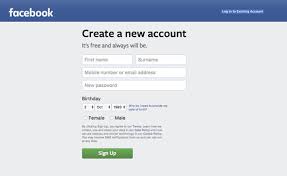
Creating a New Account on Facebook
If you want to enroll on Facebook with another name using a different account, follow these steps:
- Create a New Account: Go through the process of creating a new account on Facebook.
- Choose a Different Name: Select a different name for your new profile.
- Follow The Same Steps as Above: Follow the same steps as above to customize your new profile.
Understanding The Terms And Conditions
Before creating a new profile or account, it’s essential to understand the terms and conditions of using Facebook’s features. Be aware that creating multiple profiles can lead to account restrictions if not used in accordance with Facebook’s policies.
Tips For Managing Multiple Profiles on Facebook
To ensure you’re using Facebook’s feature correctly, here are some tips:
- Use Separate Settings: Use separate settings for each profile to maintain a clear distinction between them.
- Check Notifications And Privacy Settings: Regularly check notifications and privacy settings to ensure they’re set up correctly for each profile.
- Be Aware of Account Restrictions: Be aware that creating multiple profiles can lead to account restrictions if not used in accordance with Facebook’s policies.
Conclusion
Creating a new profile on Facebook with another name is a straightforward process. By following these steps, you can create additional profiles within your existing account or even start a new one. Remember to understand the terms and conditions of using this feature and take necessary precautions to manage multiple profiles correctly.
Frequently Asked Questions (FAQs)
- Q: Can I Create Multiple Profiles on Facebook?
A: Yes, you can create additional profiles within your existing account using Facebook’s new profile feature. - Q: How Many Profiles Can I Create on Facebook?
A: You can create up to four additional profiles per account. - Q: Do I Need to Use a Different Email Address For Each Profile?
A: No, you can use the same email address for multiple profiles. - Q: Can I Share Content Between Profiles?
A: Yes, you can share content between profiles by selecting the correct audience in your post settings. - Q: How do I Manage Notifications And Privacy Settings For Each Profile?
A: You can manage notifications and privacy settings separately for each profile by accessing the settings menu within each profile. - Q: Can I Use Facebook’s Feature to Create a Fake Account?
A: No, creating multiple profiles is intended to provide more flexibility in your social media presence, not to impersonate or deceive others. - Q: How do I Report an Issue With my Multiple Profiles on Facebook?
A: If you encounter any issues with your multiple profiles, contact Facebook’s support team for assistance. - Q: Can I Transfer Content From One Profile to Another?
A: Yes, you can transfer content between profiles by accessing the settings menu within each profile.
I hope this article has helped you understand how to enroll on Facebook with another name. Remember to use these features responsibly and in accordance with Facebook’s policies. Happy socializing!


