
How to Divide Pdf Files: A Step-by-step Guide
Are you tired of dealing with bulky PDF files that are difficult to manage? Do you need to extract specific pages from a document without having to print it out? Look no further! In this article, we will guide you through the process of dividing PDF files using various methods.
What is Pdf And Why Divide It?
PDF stands for Portable Document Format, which is a file format used to present documents in a way that preserves their layout and formatting. Dividing PDF files allows you to extract specific pages or sections from a document, making it easier to manage and share with others.
Method 1: Using The Built-in Print-to-pdf Feature
Windows and macOS have a built-in feature called Print-to-PDF that allows you to save a PDF file from any application. To divide a PDF file using this method:
- Open the PDF file in its default viewer or Adobe Acrobat.
- Go to File > Print…
- In the print dialog box, select “Print-to-PDF” as the printer.
- Choose the desired pages to extract by selecting the page range or specific pages.
- Click OK to save the extracted pages as a new PDF file.
Method 2: Using Third-party Software
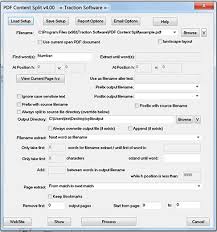
There are several third-party software available that can help you divide PDF files. Some popular options include:
- Pdfill Tools: A free and easy-to-use tool that allows you to split, merge, and rotate PDF files.
- Pdfsam Basic: A free and open-source tool that enables you to split, merge, mix, and rotate PDF files.
Method 3: Using Online Services
If you don’t want to download any software or prefer a cloud-based solution, there are several online services that can help you divide PDF files. Some popular options include:
- Ilovepdf: A free online service that allows you to split, merge, and convert PDF files.
- Soda: A free online service that enables you to split, merge, and rotate PDF files.
Method 4: Using Mobile Apps
If you prefer to use a mobile app, there are several options available for both Android and iOS devices. Some popular options include:
- Stampante Pdf: A free mobile app that allows you to divide PDF files on-the-go.
- Ilovepdf Editor & Scanner: A free mobile app that enables you to edit, rotate, merge, and divide PDF files.
Conclusion
Dividing PDF files is a straightforward process that can be accomplished using various methods. Whether you choose to use the built-in Print-to-PDF feature, third-party software, online services, or mobile apps, the end result is the same: Extracting specific pages or sections from a document without having to print it out.
Faqs
- Q: What is Pdf And Why Divide It?
A: PDF stands for Portable Document Format, which is a file format used to present documents in a way that preserves their layout and formatting. - Q: How do I Divide a Pdf File Using The Built-in Print-to-pdf Feature?
A: To divide a PDF file using this method, follow the steps outlined in Method 1 above. - Q: What Are Some Popular Third-party Software For Dividing Pdf Files?
A: Some popular options include PDFill Tools and PDFsam Basic. - Q: Are There Any Online Services That Can Help me Divide Pdf Files?
A: Yes, some popular online services include iLovePDF and Soda. - Q: Can I Use Mobile Apps to Divide Pdf Files?
A: Yes, there are several mobile apps available for both Android and iOS devices that enable you to divide PDF files on-the-go. - Q: Is Dividing Pdf Files a Complicated Process?
A: No, dividing PDF files is a straightforward process that can be accomplished using various methods outlined above. - Q: Can I Extract Specific Pages or Sections From a Document Without Having to Print it Out?
A: Yes, by dividing PDF files, you can extract specific pages or sections from a document without having to print it out.
Additional Resources


